“Can you upload the files here?”
It sounds simple — until you realize you don’t want external users accessing your SharePoint site or OneDrive folder. Many organizations face this exact problem when collecting files from vendors, customers, students, candidates, or partners. Giving edit access can expose internal content, while email attachments quickly become messy and difficult to manage.
Microsoft 365 offers a lesser-known solution called File Requests.
Using File Requests in SharePoint and OneDrive, users can generate a secure upload link that allows others to submit files without accessing the actual folder or seeing existing content. In this blog, we’ll look at how the feature works, how administrators can enable and manage it, and the PowerShell settings required to configure File Requests securely across Microsoft 365.
What Is the File Request Feature in Microsoft 365?
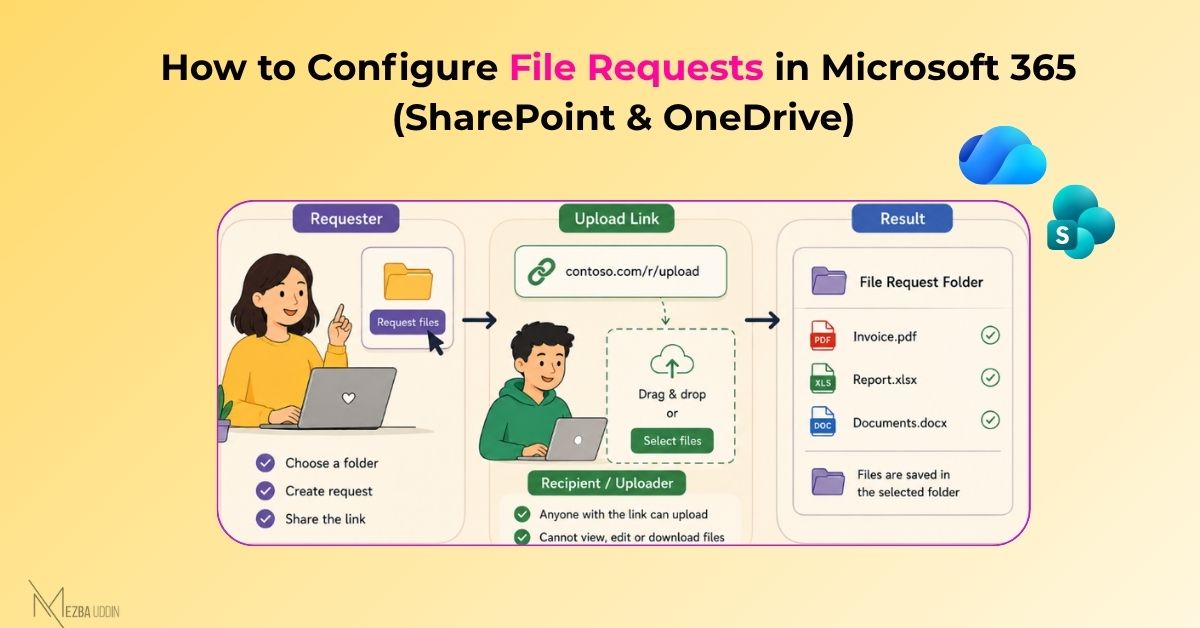
The File Request feature in SharePoint Online and OneDrive allows users to request files from internal or external users through a secure upload-only link.
Unlike traditional sharing links, File Requests provide a controlled submission experience where uploaders can:
- Upload files to a specific folder
- Submit files without requiring a Microsoft account
- Upload multiple files
But they cannot:
- View existing files
- Edit content
- Delete files
- Download files
- See who else uploaded files
All uploaded files are automatically stored inside a folder selected by the requester.
How File Requests Work
When a user creates a File Request:
- A special upload-only link is generated
- The link can be shared externally
- Recipients upload files through a simple web interface
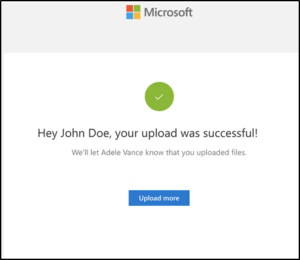
- Uploaded files are automatically saved in the chosen SharePoint or OneDrive folder
If multiple users upload files with the same name, OneDrive automatically renames duplicate files to avoid overwriting content.
Additionally:
- Signed-in users have their identity recorded
- Anonymous users are prompted to enter their name
- Uploaders never gain visibility into the actual folder contents
⚠️ One important detail many admins miss:
Disabling “Anyone” sharing links automatically disables File Requests in both SharePoint and OneDrive.
Why File Requests Depend on Anyone Links
The File Request feature internally relies on anonymous sharing links. That means if your organization blocks Anyone links globally, users will not see the Request Files option. This dependency is important because many organizations disable anonymous sharing for security reasons without realizing it also impacts upload-only workflows.
Admins should evaluate:
- Whether File Requests are genuinely needed
- Which sites should allow them
- Whether expiration policies should be enforced
- Which business teams require external uploads
How to Enable File Requests for SharePoint
Administrators can manage File Requests through the SharePoint Online Management Shell.
To verify current tenant settings, run: Get-SPOTenantCheck whether:
CoreRequestFilesLinkEnabledis set to:True
If disabled, run:
Set-SPOTenant -CoreRequestFilesLinkEnabled $TrueThis enables File Requests for SharePoint Online.
Enable File Requests for OneDrive
File Requests for OneDrive use a separate tenant setting.
Run:Get-SPOTenantCheck whether:
OneDriveRequestFilesLinkEnabled is enabled.
To enable OneDrive file requests, run:
Set-SPOTenant -OneDriveRequestFilesLinkEnabled $TrueEnable File Requests for a Specific SharePoint Site
Organizations may not want File Requests enabled everywhere. In such cases, admins can configure the feature at the site level.
First verify current site configuration using,
$r = Get-SPOSite -Identity https://contoso.sharepoint.com/sites/Finance -DetailedCheck:RequestFilesLinkEnabled
Now to enable file requests for the site, run:
Set-SPOSite -RequestFilesLinkEnabled $True
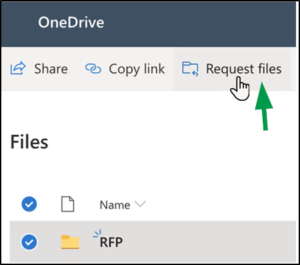
Once enabled, users can create a File Request directly from OneDrive or SharePoint:
- Open OneDrive or SharePoint
- Select the destination folder
- Click Request files
- Enter a description for the requested files
- Copy the generated link or send invitations through email
- Wait for uploads
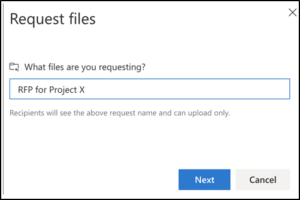
Whenever someone uploads a file, the requester receives a notification email. The description entered during setup is visible to uploaders and helps clarify what files are being requested.
What Uploaders See
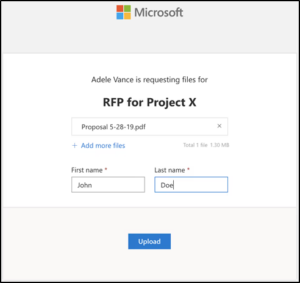
Recipients accessing the File Request link see a simple upload interface.
They can:
- Select files
- Upload multiple documents
- Submit files without browsing the SharePoint site
They cannot:
- Open the folder
- View existing files
- Access other uploads
- Modify content
If the uploader is not signed in, they are asked to provide a name for identification purposes. However, this name is not verified and should not be treated as authenticated identity information.
How to Stop Requesting Files
Once file collection is complete, users can disable the upload link.
- Open the File Request folder
- Select the ellipsis (…)
- Open Manage Access
- Locate the File Request link
- Delete the link
After deletion:
- Existing links stop working
- Uploads are blocked
- The action cannot be undone
If file collection needs to continue later, a new File Request link must be created.
Security and Governance Considerations
Although File Requests are safer than traditional folder sharing, they still involve anonymous upload access.
Admins should consider:
- Using expiration policies
- Restricting File Requests to approved sites
- Monitoring external sharing activity
- Reviewing audit logs regularly
- Applying DLP policies where necessary
- Educating users on proper usage
For highly sensitive environments, organizations may choose to:
- Disable Anyone links globally
- Allow File Requests only for specific business units
- Use temporary upload workflows instead
Final Thoughts
File Requests is one of the most underrated collaboration features in Microsoft 365. It offers a simple but effective way to collect files from external users without exposing SharePoint sites, OneDrive folders, or existing content. For administrators, the feature also introduces important governance considerations around:
- Anyone links
- External sharing
- Expiration policies
- Site-level controls
- Anonymous uploads
When configured correctly, File Requests can become a secure and efficient alternative to traditional external file-sharing methods in Microsoft 365.