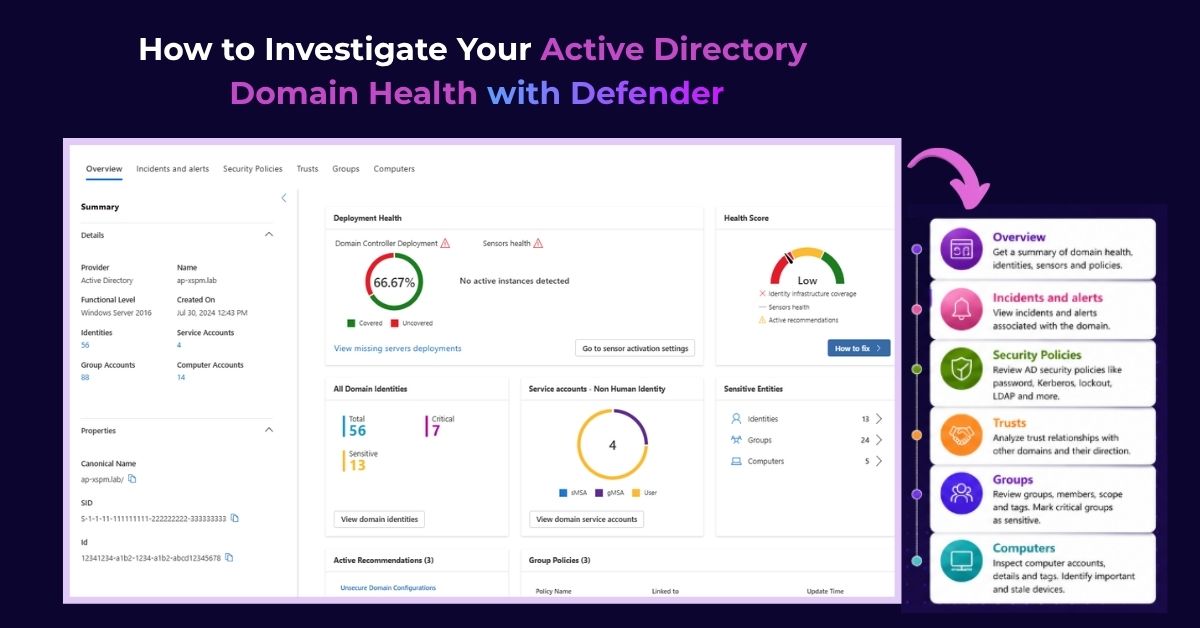
Active Directory is at the heart of most on-premises environments, making it one of the most valuable targets for attackers. Weak security policies, unhealthy domain controllers, excessive permissions, or insecure trust relationships can all increase the risk of identity-based attacks. The problem is that investigating these areas often requires switching between multiple tools, making it difficult to get a complete picture of your domain’s security.
To simplify this process, Microsoft Defender now offers a dedicated Active Directory Domain page. It brings together domain health, security policies, trust relationships, incidents, and Active Directory objects into a single workspace, making it easier to assess your environment and identify potential risks.
In this guide, we’ll walk through how to access the Domain page and explain how each section can help you investigate and secure your Active Directory domain.
Before You Begin
Make sure your environment meets the following requirements before using the Active Directory Domain page.
| Requirement | Details |
|---|---|
| License | Microsoft Defender for Identity or a license that includes it (such as Microsoft 365 E5) |
| Permissions | Security Reader role or higher |
| Deployment | Defender for Identity sensors deployed on your domain controllers |
Tip: If all domain controllers aren’t monitored by Defender for Identity, the information shown on the Domain page may not represent the complete security picture.
Open the Active Directory Domain Page
Microsoft Defender provides multiple ways to open the Domain page.
You can access it by:
- Selecting a domain from the Identity Inventory.
- Opening a domain from a related security alert or incident.
- Searching for the domain using the global search bar.
If you manage multiple Active Directory domains, use the Domain selector in the upper-right corner to switch between them without leaving the page.
Once you open a domain, you’ll find six tabs that help you investigate different aspects of your environment:
- Overview
- Incidents & Alerts
- Security Policies
- Trusts
- Groups
- Computers
Let’s look at what each one offers.
Get a Quick Health Check with the Overview Tab
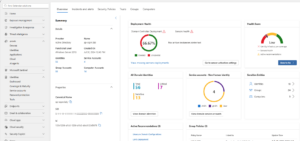
The Overview tab is the best place to begin your investigation because it provides a summary of your domain’s overall health.
Start by reviewing the Domain Details, which include the domain name, functional level, creation date, and the number of identities, service accounts, groups, and computer accounts. These details help you understand the size and structure of your Active Directory environment.
Next, check the Deployment Health section. It shows whether Microsoft Defender for Identity sensors are deployed across all domain controllers. A 100% deployment score means your domain is fully monitored, while missing or unhealthy sensors could create visibility gaps during investigations.
The Health Score gives you a quick indication of your domain’s overall security posture. It’s calculated based on factors such as sensor health, infrastructure coverage, and active security recommendations. If the score isn’t ideal, you can use the provided remediation guidance to improve it.
The Overview tab also helps you review:
- All Domain Identities, including critical and sensitive accounts.
- Service Accounts, categorized as User accounts, sMSAs, and gMSAs.
- Sensitive Entities, such as privileged users, groups, and computers.
- Active Recommendations that highlight security issues affecting the domain.
- Applied Group Policies (GPOs), allowing you to verify whether the expected policies are configured.
Instead of opening multiple tools, the Overview tab gives you a quick snapshot of your domain before you begin a deeper investigation.
Track Security Incidents with the Incidents & Alerts Tab
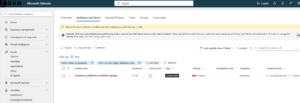
Once you’ve reviewed the domain’s overall health, move to the Incidents & Alerts tab to see whether there are any active security issues affecting the domain.
This tab displays incidents and alerts associated with the selected domain, helping you focus on ongoing investigations.
For each incident, you can review information such as:
- Incident name and ID
- Severity
- Priority score
- Investigation status
- Threat category
- Impacted assets
- Number of active alerts
Built-in filters make it easier to focus on new or high-priority incidents, while options to export or customize the view help during security investigations.
Rather than looking at alerts individually, this tab gives you a broader understanding of what’s happening across the domain.
Verify Important Security Settings with the Security Policies Tab
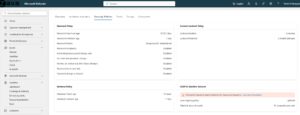
Security policies play a major role in protecting your Active Directory environment. The Security Policies tab brings together important configuration settings so you don’t have to manually search through Group Policy Objects.
It organizes the information into four key areas.
Password Policy
Review password complexity, password history, minimum and maximum password age, and other password-related settings. These policies help reduce the risk of weak or reused passwords.
Account Lockout Policy
Check the configured lockout threshold and lockout duration to ensure they’re effective against brute-force attacks while still being practical for users.
Kerberos Policy
Review Kerberos ticket lifetime and renewal settings, which control how authentication tickets are issued and renewed within the domain.
LDAP & Machine Account Settings
This section shows the LDAP signing policy and machine account quota. LDAP signing helps protect authentication traffic, while the machine account quota determines how many computer accounts users can create.
If Microsoft Defender detects insecure configurations, it also displays a warning banner with recommendations to help you address them.
Review Trust Relationships with the Trusts Tab
Organizations with multiple domains or forests often rely on trust relationships to allow users to access resources across environments.
The Trusts tab helps you understand these relationships by displaying:
- Trusted domain name
- Trust direction (Inbound, Outbound, or Bidirectional)
- Trust attributes
Regularly reviewing trust relationships helps ensure that only required trusts exist and makes it easier to identify unnecessary connections that could increase the attack surface.
Review Active Directory Groups with the Groups Tab
Groups are used to manage permissions throughout Active Directory, so reviewing them is an important part of any security assessment.
The Groups tab lists all groups in the selected domain and allows you to filter them by tags, type, or scope.
For each group, you can view:
- Group name
- Tags
- Group type
- Group scope
- Number of direct members
- Canonical name
- Description
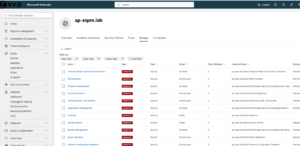
You can also mark important groups as Sensitive. This helps Microsoft Defender include them in exposure analysis and identify potential attack paths involving privileged groups.
Examine Computer Accounts with the Computers Tab
Computer accounts are just as important as user accounts when investigating your Active Directory environment.
The Computers tab provides an inventory of all computer accounts within the selected domain.
For each computer, you can review:
- Computer name
- Tags
- Last update time
- Security Identifier (SID)
- Canonical name
- Description
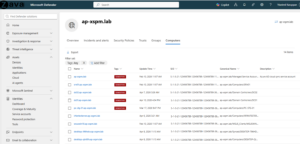
Critical systems, such as domain controllers or important application servers, can also be marked as Sensitive. This improves visibility during exposure analysis and helps security teams focus on high-value assets.
Best Practices for Domain Investigations
To make the most of the Active Directory Domain page:
- Ensure Defender for Identity sensors are deployed on every domain controller.
- Review the Health Score regularly and resolve active recommendations.
- Periodically verify password, account lockout, Kerberos, and LDAP settings.
- Remove unnecessary trust relationships.
- Review privileged groups and mark critical groups as Sensitive.
- Audit service accounts and replace legacy accounts with Managed Service Accounts where possible.
- Investigate high-severity incidents as soon as they appear.
Conclusion
The Active Directory Domain page in Microsoft Defender makes investigating your on-premises Active Directory environment much simpler. Instead of collecting information from multiple tools, you can review domain health, security configurations, trust relationships, incidents, groups, and computer accounts from a single location.
Whether you’re performing a routine security review or investigating a potential identity threat, this centralized view helps you understand your domain faster, identify security gaps, and prioritize the actions that matter most.