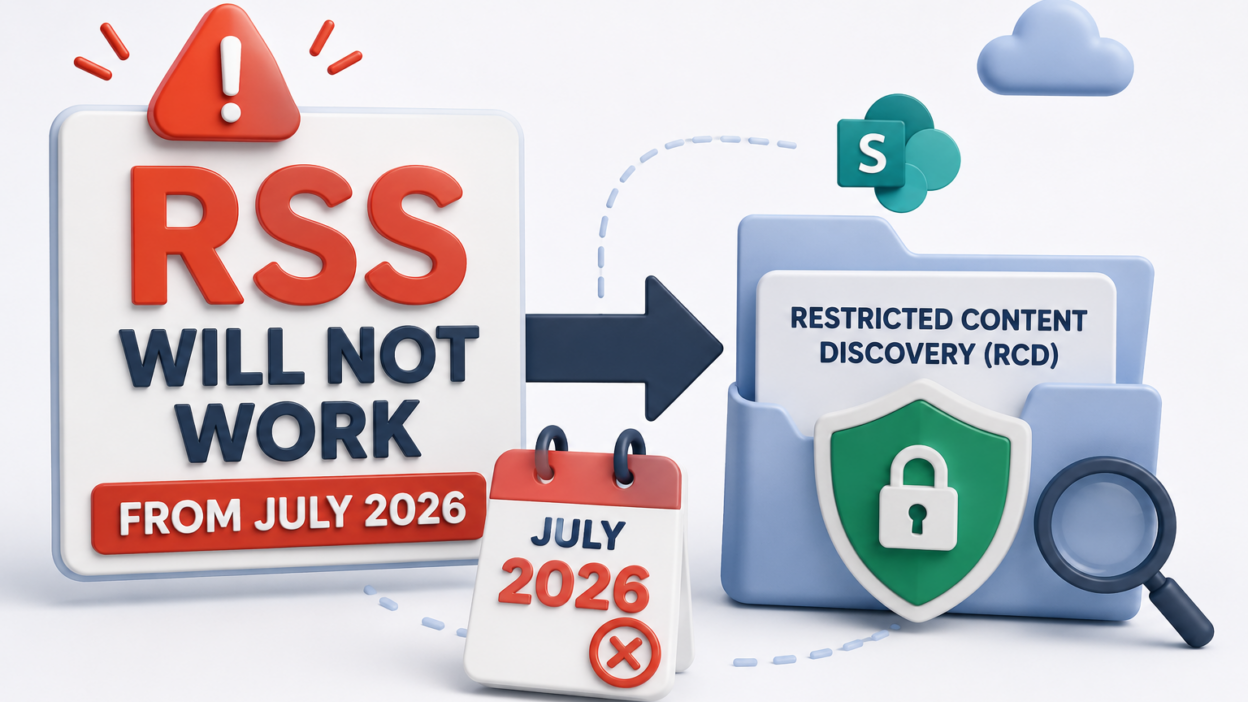
Microsoft has announced the retirement of Restricted SharePoint Search (RSS) in SharePoint Online. Organizations that use search controls to govern how SharePoint content is discovered across Microsoft 365 services will be affected.
Beginning July 31, 2026, organizations will no longer be able to enable RSS in their tenants. The feature will stop functioning on January 31, 2027, and the associated PowerShell management cmdlets will be retired on February 28, 2027.
This requires a review of existing content discovery controls and a planned transition to alternative governance mechanisms such as Restricted Content Discovery (RCD). Since Microsoft will not migrate existing RSS configurations automatically, administrators must assess their current implementation and take appropriate action before the retirement deadline.
What is Restricted SharePoint Search
SharePoint Online content is typically discoverable through Microsoft Search, provided users have the necessary permissions to access it. While permissions determine whether a user can open content, search controls influence whether that content appears in search experiences in the first place.
Restricted SharePoint Search was introduced to provide organizations with tighter control over content discoverability. Instead of allowing all eligible SharePoint sites to contribute content to Microsoft Search, RSS limited search indexing to an approved set of sites defined by administrators.
This approach was commonly used in scenarios such as:
- Governance and compliance reviews
- SharePoint migration projects
- Microsoft 365 Copilot readiness initiatives
- Sensitive business content management
- Controlled rollout of search experiences
By restricting search indexing to approved locations, organizations could reduce the likelihood of unreviewed content appearing in Microsoft Search results.
Why Microsoft Is Retiring RSS
As Microsoft 365 evolves, particularly with the growing adoption of AI-powered experiences such as Microsoft 365 Copilot, Microsoft is moving toward more flexible and scalable content governance models.
Restricted SharePoint Search was designed as a broad tenant-level restriction mechanism. While effective for limiting search exposure, it does not provide the flexibility required for modern content governance scenarios. It’s coarse, it doesn’t scale past a modest number of sites, and it was explicitly documented as a short-term bridge rather than a governance control.
To address these limitations, Microsoft now recommends Restricted Content Discovery (RCD) as the preferred approach for managing discoverability.
Unlike RSS, which operates through tenant-level allow lists, Restricted Content Discovery enables organizations to control discoverability directly at the site level. This provides administrators with greater flexibility while aligning with modern Microsoft Search and Copilot experiences.
Key Retirement Milestones
There are three separate dates here, and organizations should note the following milestones:
| Date | Event |
| July 31, 2026 | New RSS enablement blocked |
| July 2026 – January 2027 | Retirement transition period |
| January 31, 2027 | RSS functionality retired |
| February 28, 2027 | RSS PowerShell cmdlets retired |
Once RSS retires, existing configurations will no longer be enforced. Organizations that continue to depend on RSS without implementing alternative controls may experience unintended changes in content discoverability.
What Is Restricted Content Discovery?
Restricted Content Discovery (RCD) is Microsoft’s recommended replacement for RSS.
RCD allows organizations to prevent specific SharePoint sites and their content from appearing in organization-wide discovery experiences, including Microsoft Search and Microsoft 365 Copilot.
A key distinction is that RCD does not affect permissions. Users who already have access to content can continue accessing it through direct URLs, site navigation, and other authorized methods. The feature only controls whether that content appears in broader discovery experiences.
This separation between permissions and discoverability allows organizations to manage visibility more precisely without altering access controls.
For example, a legal site containing sensitive documents may remain accessible to authorized personnel while being excluded from search results and Copilot-generated responses.
RSS vs Restricted Content Discovery
The following comparison highlights the differences between the two approaches.
| Capability | Restricted SharePoint Search | Restricted Content Discovery |
| Control Model | Tenant-level allow list | Site-level configuration |
| Management Approach | Centralized | Granular |
| Microsoft Search Support | Yes | Yes |
| Microsoft 365 Copilot Support | Limited | Designed for Copilot scenarios |
| Scalability | Moderate | High |
| Future Investment | Retiring | Recommended solution |
Rather than maintaining a list of sites that are allowed to appear in search, administrators can now decide which sites should remain hidden from discovery experiences.
This provides greater flexibility while reducing administrative complexity.
How to Check Whether RSS Is Enabled
Plenty of tenants never turned RSS on. If that’s you, there’s genuinely nothing to do here beyond noting the date in case someone enables it later by mistake before July 2026.
To check the current state of RSS in your tenant, connect to the SharePoint Online Management Shell as a SharePoint Administrator (or equivalent role) and run:
Connect-SPOService -Url https://contoso-admin.sharepoint.com
Get-SPOTenantRestrictedSearchMode
This returns either Enabled or Disabled. If RSS is not enabled, no migration effort is required.
Identify Existing Sites Governed by RSS
Organizations using RSS should review all currently approved sites. If RSS is active, you need the list of sites currently sitting in the allow list before you can plan equivalent protection elsewhere. Run:
Get-SPOTenantRestrictedSearchAllowedList
This command returns the SharePoint site URLs that are currently allowed to participate in search indexing under RSS. To maintain a record for planning and validation purposes, export the results:
Get-SPOTenantRestrictedSearchAllowedList |
Export-Csv .\RSSAllowedSites.csv -NoTypeInformation
This inventory serves as the foundation for evaluating future discoverability requirements. Administrators should review each site individually rather than assuming all currently approved sites require equivalent controls under the new model.
How to Migrate from Restricted SharePoint Search to Restricted Content Discovery
Because Microsoft is not providing an automated migration path from Restricted SharePoint Search (RSS) to Restricted Content Discovery (RCD), organizations should approach the transition methodically. A structured migration plan helps ensure that content remains governed appropriately while avoiding unexpected changes to Microsoft Search and Microsoft 365 Copilot experiences.
Verify Licensing and Prerequisites
Before planning the migration, confirm that your organization meets the requirements for Restricted Content Discovery. RCD requires:
- At least one Microsoft 365 Copilot license in the tenant.
- Access to SharePoint Advanced Management.
If your organization does not meet these requirements, RCD cannot be used as a replacement for RSS. In such cases, administrators should evaluate alternative governance controls such as sensitivity labels, sharing restrictions, and conditional access policies.
Consider Search Index Processing Time
Unlike RSS, changes made through RCD are propagated through the Microsoft Search index. As a result, discoverability changes are not reflected immediately.
Microsoft notes that sites containing more than 500,000 items may require over a week for indexing updates to complete.
For this reason, administrators should schedule migration activities with sufficient lead time and avoid assuming that discoverability changes will take effect instantly. Validation and testing should be planned accordingly.
Review Existing RSS Sites
Not every site currently governed by RSS will necessarily require Restricted Content Discovery. Review each site and determine:
- Why was it added to RSS
- Whether discoverability restrictions are still needed
- Whether sensitivity labels or permissions now provide adequate protection
- Whether the site should remain searchable
Organizations often find that some restrictions are no longer necessary because business requirements, governance policies, or site usage patterns have changed since RSS was initially implemented.
Apply Restricted Content Discovery
After completing the review, apply Restricted Content Discovery only to sites that genuinely require discoverability restrictions.
Once licensing and SharePoint Advanced Management requirements have been verified, administrators can enable RCD through PowerShell.
Enable RCD for a site:
Set-SPOSite –identity <site-url> -RestrictContentOrgWideSearch $true
To verify it’s applied:
Get-SPOSite –identity <site-url> | Select RestrictContentOrgWideSearch
If discoverability restrictions are no longer required, RCD can be removed:
Set-SPOSite –identity <site-url> -RestrictContentOrgWideSearch $false
Because RCD operates at the site level, organizations gain significantly more flexibility compared to the tenant-wide RSS model.
Large organizations may have dozens or even hundreds of sites currently governed by RSS. Rather than manually configuring each site, administrators can use the exported RSS site inventory to automate the migration process. A PowerShell script can read site URLs from the exported CSV file and apply the appropriate Set-SPOSite command across all identified sites.
Delegate RCD Management to Site Owners
Organizations that prefer a decentralized governance model can delegate RCD management to site administrators. Enable delegation using:
Set-SPOTenant -DelegateRestrictedContentDiscoverabilityManagement $true
Verify the current delegation status:
Get-SPOTenant | Select-Object DelegateRestrictedContentDiscoverabilityManagement
When delegation is enabled, site administrators can manage Restricted Content Discovery directly for their own sites.
To maintain governance accountability, administrators must provide a business justification whenever the setting is changed. These actions are also recorded in the Microsoft Unified Audit Log, creating an auditable history of discoverability changes and the reasons behind them.
Generate a Restricted Content Discovery Report
As migration progresses, administrators need visibility into which sites are protected by RCD.
Instead of relying on spreadsheets or manual tracking, SharePoint Online provides reporting capabilities that help validate coverage across the tenant.
Generate a report: Start-SPORestrictedContentDiscoverabilityReport
Check report status: Get-SPORestrictedContentDiscoverabilityReport
Download the completed report: Get-SPORestrictedContentDiscoverabilityReport –Action Download –ReportId <Report GUID>
The report provides a point-in-time inventory of sites protected by Restricted Content Discovery and serves as valuable evidence during governance reviews, audits, and migration validation exercises.
Disable RSS in SharePoint Online Completely:
Once all required sites have been evaluated and appropriate replacement controls have been implemented, RSS should be disabled rather than left to expire at retirement. Disable RSS using:
Set-SPOTenantRestrictedSearchMode -Mode Disabled
Disabling RSS on your own schedule provides an opportunity to validate search behavior, review governance outcomes, and address any issues before Microsoft’s retirement deadline arrives
Important Considerations Before Broadly Applying RCD
Restricted Content Discovery should not be viewed as a direct replacement for RSS, which was previously used.
Microsoft explicitly cautions against overusing RCD because every restricted site removes content from Microsoft Search and Microsoft 365 Copilot discovery experiences. Over-restricting sites can reduce the quality, completeness, and usefulness of Copilot-generated responses by limiting the information available for grounding.
For this reason, RCD should be reserved for sites containing genuinely sensitive, regulated, or high-risk information that has been identified through governance reviews. Organizations should strike a balance between protecting sensitive content and preserving the value of Microsoft Search and Copilot experiences.
Starting early will help avoid unexpected content exposure, governance gaps, and operational disruptions while ensuring a smooth transition to Microsoft’s modern content discovery framework.