SMS and voice-based authentication have quietly remained in use for years. They are familiar, require little user training, and work on almost any phone. Because of this convenience, they often stay enabled even after stronger authentication methods become available.
That convenience is now reaching its end for many scenarios.
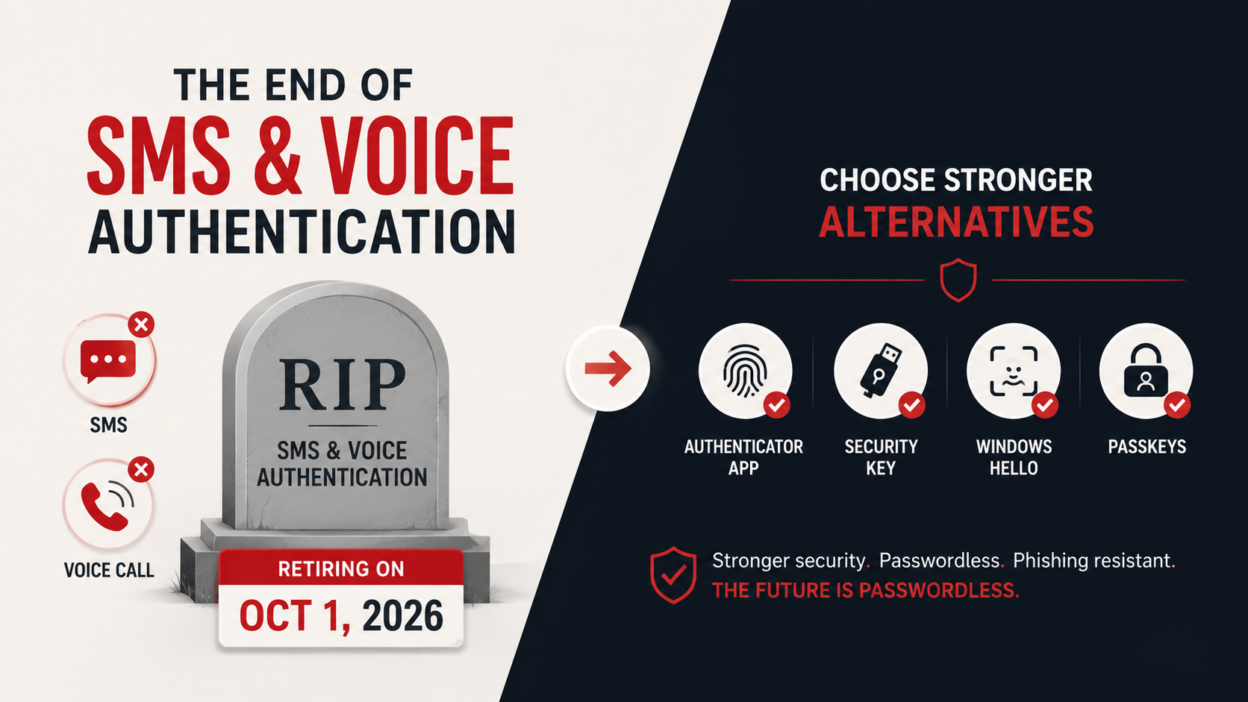
Microsoft Entra is retiring SMS and voice call authentication for several authentication experiences as part of its continued move toward phishing-resistant authentication methods.
Organizations that continue to depend on these legacy methods should begin planning their migration well before the retirement deadlines to avoid authentication issues and unnecessary support requests.
Why are SMS and voice authentication being retired?
SMS one-time passcodes and automated voice calls have been widely used as second-factor authentication methods. Although they provide an additional layer of security beyond passwords, they no longer offer the level of protection required against today’s identity attacks.
Attack techniques have evolved considerably over the past few years. Threat actors increasingly rely on methods such as SIM swap attacks, phone number porting, social engineering, MFA fatigue campaigns, and interception of SMS messages.
Unlike phishing-resistant authentication methods, SMS and voice verification still depend on a shared secret, a verification code, which attackers can trick users into revealing.
Modern authentication methods such as passkeys, Windows Hello for Business, Microsoft Authenticator with number matching, and FIDO2 security keys provide much stronger protection because they rely on cryptographic authentication instead of temporary verification codes.
How to Migrate from SMS and Voice MFA to Passkeys in Entra ID
Two things are happening in parallel, and it helps to separate them clearly.
- First, passkeys become the default authentication method. Passkeys can’t be intercepted through SIM-swapping, can’t be relayed through a phishing page, and don’t rely on a telecom carrier being available at the moment your user needs to sign in.
- Second, and this is the part that catches people off guard, Microsoft-provided telecom delivery for SMS and voice is being retired outright. Not deprioritized. Retired. After February 1, 2027, if your organization still has users whose only MFA method is SMS or voice, and you haven’t set up a customer-managed telecom provider through the Microsoft Security Store, those users will hit a blocking prompt. They will need to register a passkey on the spot before they can continue signing in. There’s no opt-out for this enforcement, and it applies to every tenant.
This is not an immediate removal for every user. Instead, Microsoft is introducing the change in phases. Even with a phased rollout, postponing migration until the final deadline can create unnecessary pressure on administrators and users alike.
Key Dates for the Entra ID Passkey Migration (September 2026 – February 2027)
| Date | What Happens |
| September 1, 2026 | Passkeys become the default. Users currently on SMS/voice get auto-enrolled into passkey registration nudges during MFA sign-in. |
| September 18, 2026 | Telecom provider options and pricing details go live in the Microsoft Security Store. |
| October 30, 2026 | Organizations that still need SMS or voice can select and configure a telecom provider through the Security Store. |
| February 1, 2027 | Microsoft-provided SMS and voice delivery retires. Users whose only MFA method is SMS or voice get a blocking passkey registration prompt. No opt-out. |
Five months between the default switching over and the hard retirement sounds like plenty of runway. In practice, that window fills up fast once you factor in identifying affected users, testing device compatibility, running a phased communication plan, and giving your helpdesk time to handle the inevitable “how do I set this up” tickets.
Passkey Migration for Mixed-Device, Multi-Region Entra ID Tenants
Say you’re running a mid-size tenant with a distributed workforce: some users on managed Windows laptops with Hello for Business already configured, some on BYOD Android phones, some frontline workers sharing kiosk devices, and a segment in a regulated industry where compliance mandates an out-of-band verification channel that isn’t tied to a personal device.
- For your Windows Hello for Business users, this change barely registers. They’re already on a phishing-resistant method, and nothing forces them to move again.
- For your BYOD population, passkeys through platform credential managers like iCloud Keychain or Google Password Manager cover most cases cleanly, since the passkey syncs across their own devices without extra hardware.
The harder conversation is with your kiosk and regulated-industry users, where a synced or device-bound passkey doesn’t map neatly onto how they actually work. That’s exactly the segment where a customer-managed telecom provider through the Security Store becomes the right call, not a fallback you’re forced into.
The point of walking through this is that a blanket “everyone gets a passkey” migration plan will leave gaps for a meaningful chunk of most tenants. Segmenting your users before you touch any settings saves you from a second, messier migration six months later.
Step 1: Find Out Who’s Actually Enabled for SMS or Voice Call Authentication
You can’t plan a migration around a population you haven’t measured. Microsoft provides a PowerShell script through the entra-sms-voice-usage-analyzer repository on GitHub.
This pulls the list for you, provided you’re running with Global Reader, Authentication Policy Administrator, or Security Reader permissions. Run this first. Everything downstream depends on knowing the actual size and shape of your affected population, not a guess based on what you remember configuring two years ago.
If you don’t prefer the script, manually work on identifying how extensively SMS and voice authentication are being used. Start by identifying:
- Users registered only for SMS authentication
- Users who rely on voice calls as their default verification method
- Users who have not registered for Microsoft Authenticator
- Users without passkeys or FIDO2 security keys
- High-risk users who should migrate to phishing-resistant authentication first
Rather than assuming adoption levels, collect actual registration data from your tenant.
Step 2: How to Migrate Users from SMS and Voice Authentication
Once you know who’s in scope, get Passkey (FIDO2) enabled as an authentication method in your Authentication Methods Policy and make sure your SMS/voice users are included in a passkey-enabled policy.
From there, Entra ID gives you two flavors to work with: synced passkeys, which live in a platform credential manager and follow the user across their own devices, and device-bound passkeys, which live on a specific device through something like Microsoft Authenticator or a FIDO2 hardware key. Match the type to the user segment rather than picking one default for the whole tenant.
Rather than waiting for the September 1 auto-enrollment and quietly opting everyone into unlimited snooze prompts, turn on a Registration Campaign proactively.
Set it to Microsoft Managed, target the security group of SMS/voice users you just identified, and let it start nudging users the next time they complete MFA.
Here’s what that actually looks like inside the tenant, step by step, if you want to configure it today rather than wait for the auto-enrollment on September 1.
- Sign in to the Microsoft Entra admin center with an Authentication Policy Administrator role.
- Go to Authentication methods > Policies, select Passkey (FIDO2), and set it to Enabled.
- Under the same Passkey policy, scope the Target to either All users or, more usefully at this stage, the security group of SMS/voice users you pulled from the usage analyzer script.
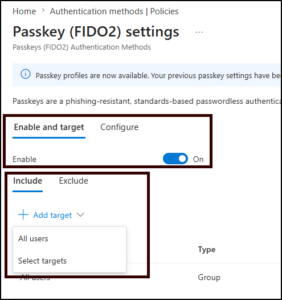
4. Choose your allowed key types under Configure.
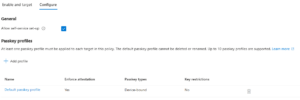
If your fleet is mostly BYOD, leave synced passkeys enabled so users can rely on their existing platform credential manager. If you have a segment on shared or kiosk devices, restrict that group to device-bound passkeys through Microsoft Authenticator or a hardware security key instead.
- Navigate to Authentication methods > Registration campaign.
- Set State to Microsoft Managed.
- Select the Authentication Method as Passkeys
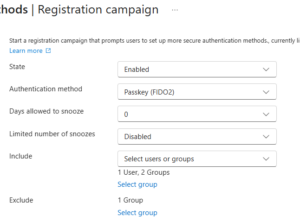
4. Under Include Users, add the same SMS/voice security group so the nudge only targets people who actually need to move, not your entire tenant.
5. Save the policy, then test it against a small pilot group before it goes live for everyone. Sign in as a pilot user, complete MFA, and confirm the passkey registration prompt appears as expected on both a managed device and a personal device, since the flow can render slightly differently depending on the platform credential manager involved.
6. Once the pilot confirms clean behavior, widen the Include Users scope to your full SMS/voice population ahead of the September 1 automatic rollout, so you’re driving the migration on your own schedule instead of Microsoft’s default timing.
If you skip this and let the automatic enrollment handle it, every SMS/voice user in your tenant gets swept into a Microsoft Managed registration campaign with unlimited snoozes on the same day, which works, but hands you a lot less control over sequencing and pilot testing.
Step 3: Handle the Segment That Genuinely Needs Telephony
For the users where passkeys don’t fit, whether that’s a regulatory requirement for out-of-band verification or an operational scenario where no device-bound method works, document the specific reason clearly before you do anything else.
Starting September 18, 2026, you’ll be able to review telecom provider options and pricing in the Microsoft Security Store, and from October 30 onward you can actually select and configure one.
Treat this as a deliberate, documented exception path for a defined user segment, not a default you fall back to because passkey rollout felt like too much work. Once the marketplace listings go live, the configuration path looks roughly like this:
- Open the Microsoft Security Store from the Entra admin center and search the Telecoms category once listings appear on September 18, 2026.
- Compare providers against the regulatory or operational requirement you documented earlier, since pricing and regional coverage vary by carrier.
- From October 30, 2026, onward, select a provider and stand up the carrier contract directly through the marketplace flow.
- Scope the provider to the specific security group that needs it, rather than applying it tenant-wide, so the rest of your users stay on the passkey default.
- Run a pilot with a handful of users from that segment before the February 1, 2027, enforcement date, giving yourself at least four weeks of buffer to catch any delivery or compliance issues.
Common Mistakes to Avoid During Migration
Several organizations experience avoidable delays because they overlook a few key areas.
- One common mistake is assuming users will register new authentication methods on their own. Without clear communication, many users postpone registration until they are unable to sign in.
- Another issue is removing SMS authentication before confirming that users have successfully enrolled in an alternative method. This can lead to unnecessary account recovery requests and help desk calls.
- Some organizations also focus only on employees while overlooking guest users, contractors, and external collaborators. If these accounts rely on SMS or voice authentication, they should be included in the migration plan.
Finally, avoid treating the migration as a one-time project. Authentication methods should be reviewed periodically to ensure users continue using secure options and obsolete methods are retired promptly.
A Simple Administrator Checklist
Before the retirement deadlines arrive, verify that you have completed the following tasks:
- Review the Microsoft retirement timeline and identify affected authentication scenarios.
- Identify users who still rely on SMS or voice authentication.
- Select appropriate replacement authentication methods.
- Pilot the migration with a small group of users.
- Inform users well in advance.
- Provide clear registration instructions.
- Update administrator and emergency access accounts.
- Confirm users have successfully registered new authentication methods.
- Remove retired authentication methods after validating the migration.
- Continue monitoring authentication registrations and adoption after deployment.
Completing these activities gradually is usually much easier than addressing authentication issues after users begin experiencing sign-in failures.
What Happens If You Do Nothing
I want to spell this out plainly because the consequences aren’t dramatic enough to grab attention until they hit. Nobody gets locked out on February 1, 2027. What happens instead is that any user whose only MFA method is SMS or voice hits a blocking passkey registration prompt the next time they try to sign in, and they can’t skip it.
For a user who’s never set up a passkey before, doing that cold, in the middle of trying to get into a system they need for work, is a worse experience for them and a heavier load on your helpdesk than if you’d walked them through it on your own timeline.
The organizations that come out of this transition cleanly are the ones treating it as a planned identity project now, complete with a user inventory, a segmented rollout, and a communication cadence, rather than the ones waiting for the blocking prompt to migrate work for them.