Take this case, you (the admin) have just completed a smooth Windows Autopilot deployment for your users. A user signs in to their new corporate Windows 11 device with their Microsoft Entra ID account, opens Word, and immediately sees a “Continue to sign in?” prompt asking whether the same credentials can be used across Microsoft apps and services.
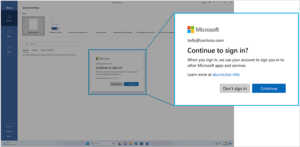
For a single user, it’s one more click. Across a fleet of hundreds or thousands of managed devices, it’s friction baked into what should be a seamless provisioning flow.
This prompt was introduced as part of Microsoft’s changes to the Windows sign-in experience in the European Economic Area (EEA). Instead of automatically using a user’s Windows credentials to sign them in to other Microsoft applications and services, Windows asks for explicit permission. This gives users more control over how their accounts are used for single sign-on (SSO).
I see the value of this approach for personal Microsoft accounts and unmanaged devices. However, the situation is different in a managed enterprise environment, where IT teams already govern device configurations, authentication policies, and organizational trust relationships.
In such environments, organizations may prefer to manage the SSO experience centrally rather than requiring every user to make the same decision individually.
With the July 2026 security update, that friction finally has an off switch.
AutoAcceptSsoPermission: New Windows 11 SSO Admin Control
Starting with KB5101650 for Windows 11 24H2 and 25H2, Microsoft introduced a registry-based policy that lets admins automatically accept SSO permissions on eligible managed Windows devices.
Once the policy is configured, Windows automatically accepts the SSO permission instead of presenting the consent prompt to the user. The Microsoft Entra ID credentials used to sign in to Windows can then be used for supported Microsoft apps and services without requiring the user to manually approve the prompt.
This is particularly useful for organizations using Windows Autopilot or other automated device provisioning workflows, where the goal is to provide users with a consistent, low-touch onboarding experience from device setup through application access.
There are, however, some important scope limitations. The policy applies only to managed enterprise Windows devices using Microsoft Entra ID accounts. Administrators cannot use it to suppress the prompt for personal Microsoft accounts (MSA) or unmanaged Windows devices.
Devices must also be running Windows 11 version 24H2 or 25H2 with the required KB5101650 July 2026 security update installed.
How to Automatically Accept SSO Permissions in Windows 11
Before configuring the policy, verify that your managed devices are running a supported Windows 11 version and have installed the required KB5101650 security update.
To automatically accept the SSO permission, configure the following registry value:
Registry path: HKLM\SOFTWARE\Policies\Microsoft\Windows\AAD
Value name: AutoAcceptSsoPermission
Type: DWORD
Value: 1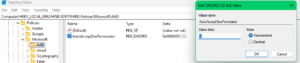
When AutoAcceptSsoPermission is set to 1, eligible managed Windows devices automatically accept the SSO permission, eliminating the need for users to respond to the prompt manually.
How to Deploy the AutoAcceptSsoPermission Policy Across Managed Devices
You can deploy the AutoAcceptSsoPermission registry setting using the device management solution already in place within your organization.
- Group Policy (GPO): Deploy the registry value through a Group Policy Object targeting the appropriate managed devices.
- Microsoft Configuration Manager: Distribute and enforce the registry configuration using your existing Configuration Manager deployment or compliance management approach.
- Microsoft Intune or other MDM solutions: Microsoft identifies Intune and similar mobile device management solutions as supported deployment options. Depending on the management capabilities available in your environment, you can deploy the required registry configuration using an appropriate policy or scripting mechanism.
You can also use any enterprise management tool capable of deploying and enforcing Windows registry policies.
Validate the Windows 11 SSO Policy Before Organization-Wide Deployment
Before deploying the SSO admin control across your entire device fleet, start with a small pilot group.
First, confirm that the required Windows security update is installed on the test devices. Then, verify that the AutoAcceptSsoPermission registry value has been successfully applied through your chosen management solution.
Finally, test the complete user sign-in experience. Sign in to Windows with an organizational Microsoft Entra ID account and open a supported Microsoft application to confirm that users can proceed without encountering the additional SSO permission prompt.
Once the behavior is validated across representative devices, you can gradually expand the policy to the rest of your managed Windows environment.
For organizations managing Windows 11 devices at scale, particularly those using Windows Autopilot, this new SSO admin control removes a small but noticeable point of friction. It gives IT teams a supported way to maintain a smoother enterprise sign-in experience while preserving Microsoft’s consent-based behavior for personal accounts and unmanaged devices.