Among the many objects stored in Microsoft Entra ID, device records have always been surprisingly unforgiving.
If a user account was deleted accidentally, administrators had a recovery path. The same was true for groups. Device objects, however, followed a different story. Once deleted, they were removed permanently, often taking valuable security and management data along with them!
A mistaken deletion, a synchronization issue, or an overly aggressive cleanup activity could result in lost device identities, missing recovery information, and additional administrative overhead.
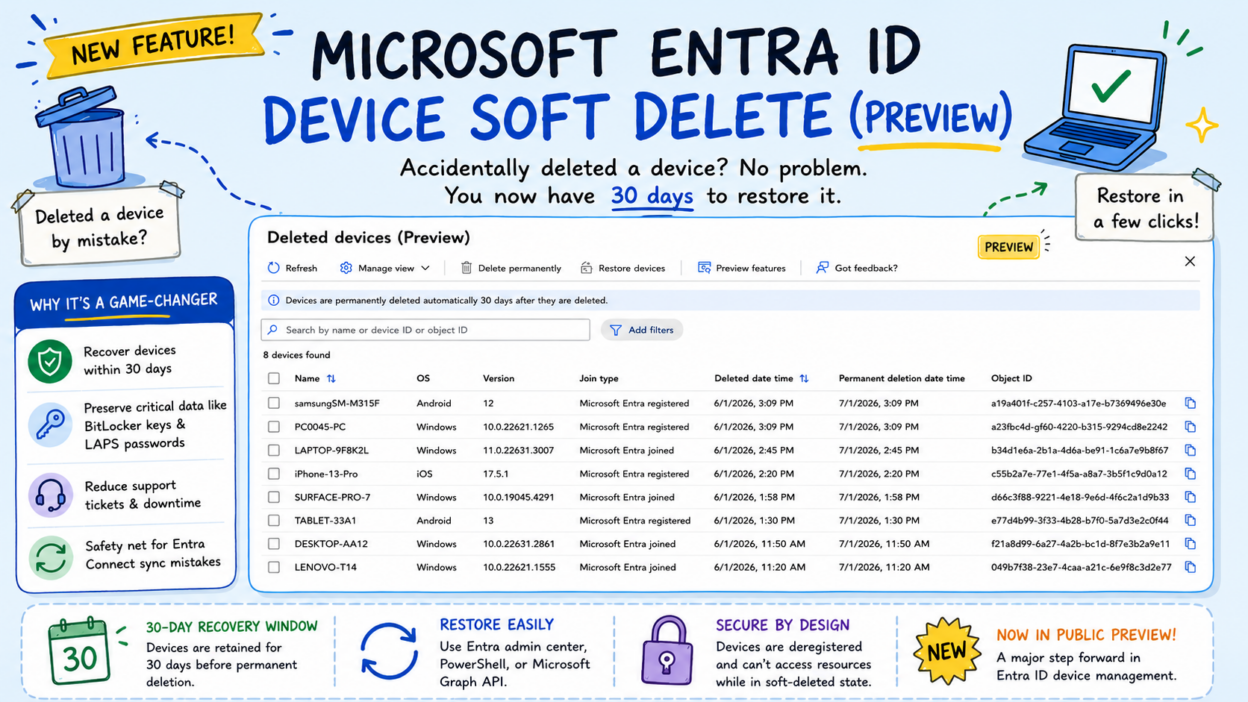
Microsoft has finally addressed this long-standing gap by introducing Soft Delete for Devices in Microsoft Entra ID.
Currently available in public preview, the feature provides a recovery window for supported devices, allowing administrators to reverse accidental deletions before they become larger operational problems.
What Is Microsoft Entra ID Device Soft Delete?
Accidental deletions happen more often than many organizations would like to admit. Sometimes it’s a bulk cleanup operation. Sometimes it’s an incorrect filter. Sometimes it’s simply human error.
The challenge isn’t just losing the device record itself. A device object often serves as the home for important security and management information, including BitLocker recovery keys, Windows LAPS passwords, device registration details, and identity-related attributes. Losing the device can mean losing access to information that may be critical during troubleshooting or recovery scenarios.
Until now, once a device was deleted, there was little room for correction. Soft delete changes that by introducing a safeguard between deletion and permanent removal.
- When a supported device is deleted, it enters a recovery state for 30 days.
- During that period, administrators can restore the device and recover the associated information without having to rebuild everything from scratch.
Not Every Device Gets This Protection — Yet
Before you get too excited, there’s an important limitation to understand. Currently, soft delete applies only to:
- Microsoft Entra joined devices
- Microsoft Entra registered devices
- Hybrid Microsoft Entra joined devices are not covered by this feature at this time. If a hybrid-joined device is deleted, it still follows the traditional deletion process without a recovery window.
For organizations that continue to operate hybrid environments, this is an important distinction to keep in mind. Hopefully, Microsoft expands support as the feature moves closer to general availability.
What Happens When a Device Is Soft Deleted?
When a device enters the soft-deleted state, several things happen behind the scenes.
- First, the device is immediately deregistered and can no longer authenticate against Microsoft Entra ID or access protected cloud resources. This ensures there is no security risk associated with retaining the device in a recoverable state.
- The device record is hidden from the admin portal, Intune, and Graph queries during this period. If you try to pull it via API, you’ll get a 404.
However, the underlying device object and its associated information are preserved. The biggest advantage of this feature isn’t just recovering the device object itself.
Rather than forcing administrators to recreate configurations, recover keys from alternate locations, or manually rebuild device trust relationships, the necessary information remains available throughout the retention period.
If no action is taken within 30 days, Microsoft automatically performs a permanent deletion. If administrators recognize the mistake before then, they can restore the device and continue operations with minimal disruption.
How Device Soft Delete Protects Against Entra Connect Sync Mistakes
One of the most compelling use cases involves Microsoft Entra Connect synchronization.
Many administrators have experienced situations where synchronization rules or Organizational Unit (OU) scopes are modified unintentionally. As a result, on-premises computer objects suddenly fall outside the synchronization boundary.
When this happens, Entra Connect interprets those devices as no longer being in scope and removes them from Microsoft Entra ID. Historically, recovering from this type of mistake could be painful.
Administrators often had to recreate device objects, recover missing information, and deal with the consequences of losing associated security data.
With soft delete in place, the experience becomes much more forgiving. When synchronization is corrected, Entra Connect can identify matching soft-deleted devices and restore them instead of creating entirely new objects. Because the original device identity still exists within the recovery period, the platform can reconnect the device rather than rebuilding everything from scratch.
This isn’t just a convenience feature. It’s a significant improvement in operational resilience.
How to View Soft-Deleted Devices in the Entra Portal
One of the first questions administrators ask is simple: “Where can I see deleted devices?”
Microsoft has introduced a dedicated Deleted Devices (Preview) page within the Entra admin center. We can view the deleted devices that are currently within the 30-day recovery window. This appears only for a few users now. To access it:
- Sign in to the Microsoft Entra Admin Center.
- In the left navigation pane, select Devices.
- Click Deleted Devices (Preview). Alternatively, you can navigate directly to the page using: Deleted Devices (Preview)
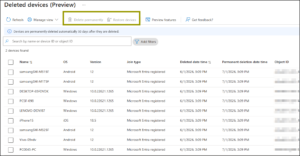
This view displays devices currently residing in the soft-delete container, along with useful information such as:
- Device name
- Operating system & Version
- Join type
- Deletion timestamp
- Remaining retention period (Permanent deletion date time)
- Object ID
- Device ID
- Owner
Having a dedicated recovery interface makes it much easier to identify and restore devices before the 30-day retention period expires.
How to Restore or Permanently Delete via the Entra Portal
Once you spot the device you need, select it from the list. You’ll see two action buttons right there — Restore and Permanently Delete.
- Hit Restore to bring the device back to your active directory with all its data intact. The associated device information—including BitLocker recovery keys, LAPS passwords, and device identity data—remains intact.
- Hit Permanently Delete if you’re certain you no longer need the device and want to clear it out before the 30-day window expires.
How to Find and Restore Deleted Devices Using PowerShell
If you prefer scripting or need to audit soft-deleted devices at scale, the Microsoft Graph PowerShell module has you covered. Run this to pull the full list:
Get-MgDirectoryDeletedItemAsDevice
This returns all devices currently sitting in the soft-deleted container along with their object IDs, which you’ll need for the restore step.
How to Restore or Permanently Delete via PowerShell
Once you have the object ID from the list above, restoring is a single command:
Restore-MgDirectoryDeletedItem -DirectoryObjectId "<ObjectId>"
To permanently delete instead:
Remove-MgDirectoryDeletedItem -DirectoryObjectId "<ObjectId>"
PowerShell is especially useful when you’re dealing with a bulk deletion scenario — like the Entra Connect sync accident described earlier — where restoring devices one by one through the portal isn’t practical. You can pipe through the list, filter by deletion date or device name, and restore in bulk. If you’re building automation or working within a broader workflow, the Graph API endpoints work just as well.
A Few Things to Remember
All three methods — portal, PowerShell, and Graph API — require you to be a Cloud Device Administrator, Intune Administrator, or Global Administrator. Device owners cannot perform a restore on their own.
One thing to plan for after restoration: the device’s compliance status will show as non-compliant immediately after recovery. That’s by design — the system clears compliance flags during the soft-delete phase to avoid stale values coming back in. Once the device checks in with Intune, a fresh evaluation runs, and the status corrects itself. Just make sure your Conditional Access policies aren’t going to block the device before that sync happens.
Microsoft Finally Adds a Safety Net for Device Deletions
Soft delete for Entra devices brings device management closer to the recovery experience administrators already have for users and groups, while adding a much-needed safety net for accidental deletions and synchronization mistakes.
More importantly, it protects data that organizations simply cannot afford to lose. Whether you’re managing a handful of devices or a global fleet of endpoints, this feature provides an extra layer of protection against one of the most common administrative mistakes.