The Microsoft Frontier program introduces a new layer of decision-making for IT administrators. Unlike standard Microsoft 365 feature rollouts that arrive as generally available updates, Frontier gives organizations early access to emerging AI capabilities before broader release.
With that early access comes the responsibility of controlling exposure, evaluating readiness, and governing adoption carefully. Rather than enabling preview AI experiences across the entire tenant, Microsoft provides Frontier Admin Control in the Microsoft 365 admin center to help administrators selectively manage access and run controlled pilot programs safely.
Managing preview AI access is not just about enabling features — it requires thoughtful planning around governance, security, user readiness, and operational impact. In this blog, we’ll explore how Frontier Admin Control works, why it matters for enterprise environments, and how administrators can manage it effectively in real-world scenarios.
Microsoft Frontier Admin Control Is Important for Enterprise AI Governance
Most organizations are not ready to enable preview AI features across the entire tenant immediately — and for good reason. Early-access AI capabilities often require additional validation before broader deployment. For many IT teams:
- Security and compliance reviews may still be in progress.
- Internal support teams may not yet be prepared to handle user adoption and troubleshooting.
- AI-powered experiences can affect existing workflows, governance policies, and data handling practices.
- Organizations may prefer running limited pilot programs before expanding access organization-wide.
This is where Frontier Admin Control becomes valuable. Instead of exposing preview AI features to every user, Microsoft allows administrators to manage enrollment with greater precision through the Microsoft 365 admin center.
With Frontier Admin Control, admins can:
- Restrict access to selected users
- Create controlled pilot groups
- Gradually expand adoption based on readiness
- Gather internal feedback before wider rollout
This controlled approach is especially important in enterprise environments where governance, compliance, and change management processes require careful oversight before introducing new AI capabilities.
Prerequisites and Licensing Requirements for Microsoft Frontier Admin Control
Before configuring Frontier access, administrators should first verify that the required permissions and licensing are properly in place. Frontier settings are tied closely to Microsoft 365 Copilot eligibility, and missing prerequisites can lead to incomplete configuration visibility inside the admin center.
To manage Frontier settings, your admin account must have:
- An eligible admin role, such as AI Admin, Security Admin, or Office Apps Admin
- A valid Microsoft 365 Copilot license is assigned
Without a Copilot license on the admin account itself, certain Frontier settings and controls may not appear in the Microsoft 365 admin center.
It’s also important to audit your target users before enrollment. Only users with Microsoft 365 Copilot licenses can access Frontier experiences. Even if users are added to Frontier enrollment, preview AI features will not appear unless licensing requirements are met.
How to Configure Microsoft Frontier Admin Control in the Microsoft 365 Admin Center
Once prerequisites are validated, administrators can configure Frontier access from:
Microsoft 365 Admin Center → Copilot → Settings → View All → Copilot Frontier
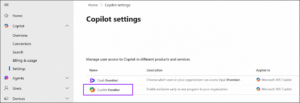
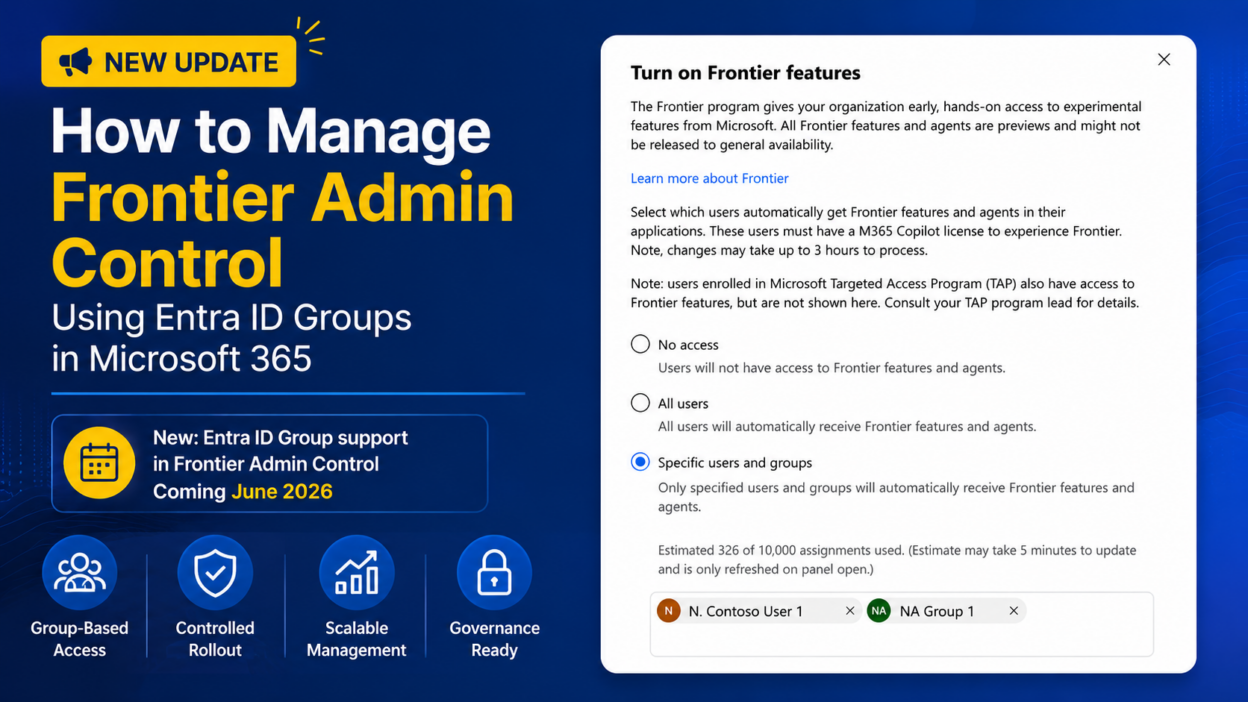
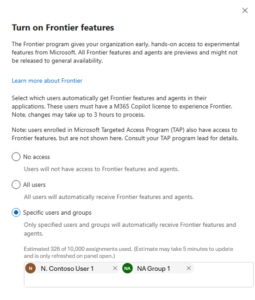
Within Frontier Admin Control, organizations can choose one of three enrollment models:
- No access (default)
- All users may be suitable for smaller organizations that are comfortable with broader AI experimentation.
- Specific users and groups are often the better choice for enterprises running controlled pilot programs with phased adoption strategies.
Using Entra ID Groups for Scalable Frontier Enrollment
If you select Specific users, administrators can assign access using:
- Individual users
- Entra ID groups (supported starting June 2026)
For most enterprise environments, group-based enrollment is the more scalable and manageable approach. Instead of manually maintaining long user lists, organizations can align Frontier enrollment with their existing identity and access management processes. For example, admins can create dedicated groups such as:
- AI pilot users
- Copilot early adopters
- Security reviewed AI testers
- Department-based AI evaluation teams
Once these groups are connected to Frontier Admin Control, membership changes automatically determine who receives access to preview AI capabilities. This significantly reduces ongoing administrative effort.
Administrators should also monitor enrollment size carefully. Microsoft currently supports up to 10,000 enrolled users when using Specific Users and/or group-based enrollment. If the total enrolled count exceeds this limit, admins must remove users or groups before saving changes.
By using structured enrollment groups and controlled access models, organizations can evaluate Frontier experiences more safely while maintaining governance and operational oversight.
Best Practices for Managing Frontier Access
- Avoid assigning Frontier access through broad organizational groups that may already contain large or unrelated user populations. Instead, create dedicated Entra ID groups specifically for Frontier participants.
- Before onboarding users into Frontier, validate: data governance policies, AI usage policies, compliance requirements, and risk acceptance procedures. Preview AI features should still follow enterprise governance standards.
- Instead of enabling Frontier access for hundreds or thousands of users immediately, begin with smaller departments or specialized teams that can provide meaningful evaluation feedback.
- Monitor Feature Readiness: Not every preview feature is production-ready. Admins should continuously evaluate: user adoption, support impact, AI output reliability, productivity improvements, and potential security concerns. Frontier should be treated as a controlled evaluation environment, not a production deployment strategy.
Microsoft Frontier represents a broader shift in how enterprise AI capabilities are introduced into Microsoft 365 environments. Instead of waiting for full GA releases, organizations now have the opportunity to validate AI experiences earlier and shape adoption strategies proactively. But early access without governance creates risk!
Frontier Admin Control provides the operational guardrails needed to: pilot AI safely, limit exposure, scale gradually, and align rollout with organizational readiness.