Retention policies help organizations keep Microsoft 365 content for as long as required. But there are situations where specific content needs to be permanently removed before its normal retention period ends. This becomes difficult when the content is also protected by retention policies or holds.
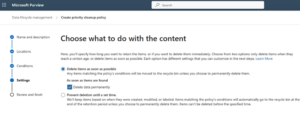
Microsoft Purview Priority Cleanup introduces a controlled way to handle this scenario. Administrators can create a cleanup policy for specific OneDrive and SharePoint content and choose Delete data permanently, allowing the targeted items to be permanently removed instead of following the usual retention and deletion path.
What is Microsoft Purview Priority Cleanup?
Priority Cleanup is a new capability in Microsoft Purview Data Lifecycle Management for permanently deleting selected content from OneDrive and SharePoint.
The process is policy-based. Instead of manually deleting files, administrators define:
- Where the policy should apply.
- What content should be targeted.
- What should happen to the matching content.
The important addition is the Delete data permanently option.
When this option is selected, matching items are targeted for permanent deletion rather than being retained until the normal retention period ends.
What Does “Delete Data Permanently” Change?
In a normal deletion scenario, deleting a file does not necessarily mean that Microsoft 365 has permanently removed it.
For example, a SharePoint or OneDrive file may be moved to the Recycle Bin. Retention settings can also require Microsoft 365 to preserve the content beyond the normal deletion process.
Priority Cleanup adds another option.
When administrators select Delete data permanently, the policy is configured to permanently delete the content identified by its conditions.
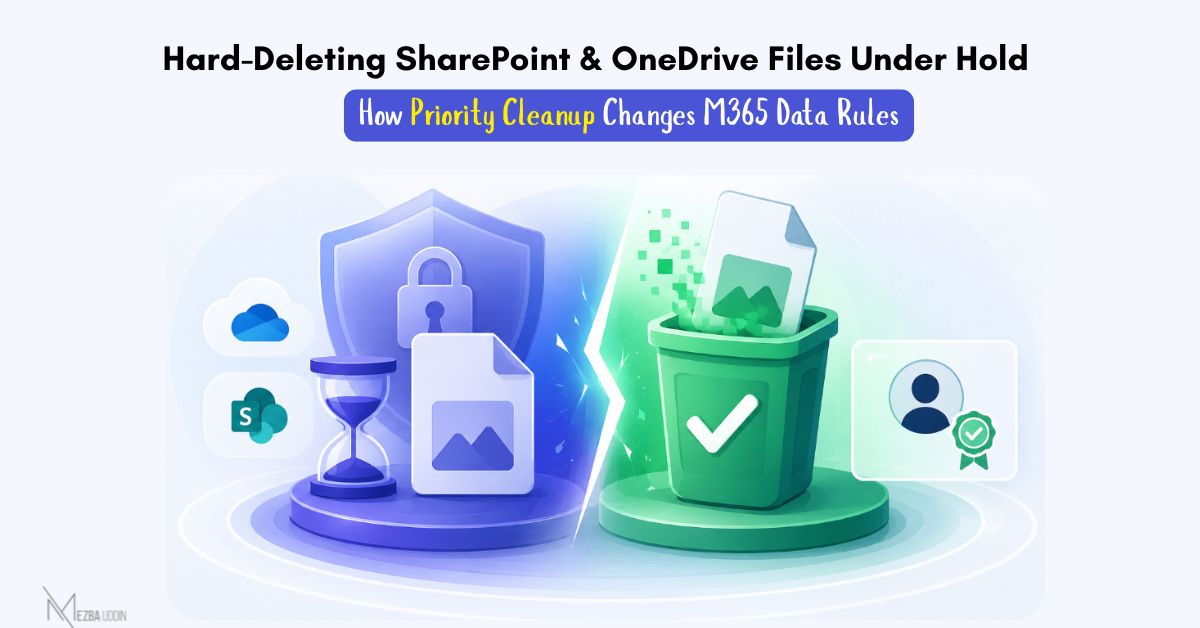
The difference can be summarized as:
Normal deletion
User deletes a file → File enters the normal deletion process → Retention or holds may preserve the content
Priority Cleanup
Admin defines the content → Policy identifies matching items → Delete data permanently is selected → Approved content is permanently deleted
The second process is intended for targeted administrative cleanup, not everyday file deletion.
How to Configure a Priority Cleanup Policy
Administrators can configure Priority Cleanup from the Microsoft Purview portal. The policy allows them to select the locations, define the content to target, and enable permanent deletion.
FAQ
What Happens When Retention Applies?
Priority Cleanup can override applicable retention settings and, in eligible cases, eDiscovery holds. Permanent deletion requires approval from another authorized administrator, with eDiscovery approval where applicable.
Are All Protected Files Eligible for Priority Cleanup?
No. Records, regulatory records, and content already copied to an eDiscovery review set cannot be deleted through Priority Cleanup.
How Does the Priority Cleanup Workflow Work?
Create the policy, select locations, define content conditions, run a simulation, complete the approval process, and proceed with deletion.
Why Does the Simulation Step Matter?
It helps administrators verify that the policy targets only the intended content before permanent deletion.
How Is Priority Cleanup Activity Audited?
Priority Cleanup provides a Cleanup ID, and related actions are recorded in the Microsoft Purview audit log.
What About Copilot-Related Content?
Priority Cleanup can target specific content such as meeting recordings and transcripts without changing retention requirements for an entire location.
What Should Administrators Review Before Using Priority Cleanup?
Review retention requirements, eDiscovery holds, KeyQL results, records classification, permissions, approvals, and audit requirements.
Priority Cleanup vs. Retention: What’s the Difference?
Retention determines what needs to be kept and for how long. Priority Cleanup provides a controlled way to permanently remove specific content.