OneDrive for Business provides every licensed Microsoft 365 user with generous cloud storage for collaboration, file synchronization, and secure document access. By default, most organizations assign 1 TB of OneDrive storage per user, with eligible subscription plans supporting even larger quotas.
Although expanding storage quotas is a common administrative task, there are many situations where reducing or customizing storage limits is equally important. Organizations may adjust OneDrive storage to support governance policies, standardize allocations across departments, align with licensing changes, or better manage storage resources.
Reducing OneDrive storage sounds like a simple setting to change, but it carries real operational risk if you don’t understand how Microsoft calculates, applies, and reverts to these limits.
I will walk through the mechanics of customizing OneDrive storage, both at the default/tenant level and for individual users, and, more importantly, the tradeoffs and failure modes admins run when they try to scale it back.
The Default Storage Model in OneDrive
Most Microsoft 365 subscription plans provision 1 TB of OneDrive storage per licensed user by default. Depending on the plan and the number of licensed seats, that ceiling can be raised as high as 5 TB.
This default isn’t a hard-coded number baked into the tenant; it’s a configurable value that lives in the SharePoint admin center, and it applies to any user who is licensed for a qualifying plan and who hasn’t already been assigned a custom limit.
That last clause is more important! Once a user has a specific storage limit set, whether by an admin, a script, or a previous policy change, they stop inheriting changes to the tenant-wide default.
The first thing to understand is that the organization-wide default storage limit doesn’t automatically apply to every user. Any user with a custom storage quota will continue to use that value, even after the tenant default is changed. If your goal is to standardize storage across the organization, review and identify these user-specific overrides to ensure the new default is applied consistently where intended.
The Need to Customize OneDrive Storage Limits
Not every employee requires the same amount of cloud storage. Providing identical storage allocations across all users can lead to inefficient resource planning and inconsistent governance.
Organizations commonly customize OneDrive storage for:
- License Changes: Organizations often transition users between Microsoft 365 plans with different storage entitlements. Updating OneDrive quotas ensures storage allocations remain consistent with licensing.
- Governance Policies: Some organizations intentionally limit personal cloud storage to encourage long-term document storage in SharePoint rather than OneDrive.
- Contractor Accounts: Short-term users rarely require large storage allocations. Assigning smaller quotas helps maintain organizational standards without affecting normal collaboration.
Beyond licensing considerations, organizations often adjust OneDrive storage to establish consistent storage allocations, enforce governance standards, manage personal file growth, and meet compliance and data retention requirements.
Things to Do Before Reducing OneDrive Storage
Reducing a OneDrive storage quota requires proper planning to avoid disrupting users. Before making any changes, complete the following checks to ensure a smooth transition.
- Review Current Storage Usage: Verify how much storage each user is currently consuming. If the new quota is lower than the space already in use, the user’s OneDrive will become read-only until enough storage is freed.
- Evaluate Business Requirements: Consider whether the user or department regularly works with large files. Assign storage quotas based on business needs rather than applying a uniform limit to everyone.
- Review Retention Policies: Check whether Microsoft Purview retention policies are preserving deleted content. Retained files may continue to consume storage even after users delete them.
- Notify Affected Users: Inform users about the upcoming storage change and provide time to clean up or relocate files if necessary. This helps minimize user disruption and support requests.
Once these checks are complete, you can confidently proceed with reducing the OneDrive storage quota.
How to Change the Default OneDrive Storage Limit
Microsoft allows administrators to modify the default quota for all applicable users.
Through the SharePoint admin center:
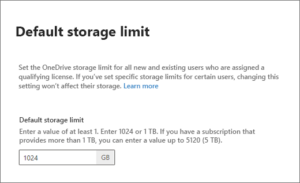
- Go to ‘Settings’in the SharePoint admin center.
- Select the OneDrive Storage limit setting.
- In the Default storage limit box, enter the new default value in GB, then select Save. The minimum allowed is 1 GB, which theoretically gives admins enormous range to scale down, though in practice very few organizations would set a limit that aggressive without expecting a flood of support tickets.
Through PowerShell (for scripted or bulk changes):
Connect to SharePoint and run the below:
Set-SPOTenant -OneDriveStorageQuota <QuotaInMB>
Note that PowerShell values entered in MB get rounded down to the nearest GB in the admin center display, so 5000 MB shows as 4 GB.
How to Reduce OneDrive Storage for Individual Users
Sometimes only selected users require customized quotas; you need to shrink storage for one department, one offboarded employee, or one user who’s clearly hoarding meeting recordings in their personal OneDrive. This is handled separately from the tenant’s default.
Through the Microsoft 365 admin center:
- Sign in to the Microsoft 365 admin center in the left pane, select Active users.
- Select the user whose storage you want to change.
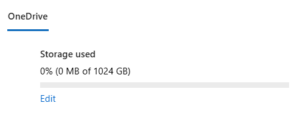
- Go to the OneDrive tab, and under Storage used, select Edit.
- Choose Maximum storage for this user, set the new limit, and select Save.
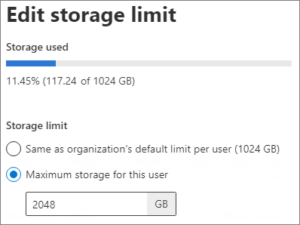
Office 365 A1 users are capped at 100 GB regardless of any other setting, so attempts to raise storage above that for education tenants on that plan won’t take effect.
Through PowerShell (for bulk changes):
PowerShell enables bulk administration. The storage quota can be modified using:
Set-SPOSite -Identity https://contoso-my.sharepoint.com/personal/user_contoso_com -StorageQuota 512000 -StorageQuotaWarningLevel 460800
This gives more flexibility for bulk operations, useful if, for example, you’re rolling back storage for an entire cohort of contractors or interns after a project wraps, or listing OneDrive accounts via PowerShell to apply the same change across many users at once.
Resetting Users Back to the Organization Default
Changing the default value only affects new users and anyone without a specific override going forward. Existing users who already have OneDrive provisioned don’t automatically shrink down to the new number. To reset an existing user to the new default, run:
Set-SPOSite -Identity <user's OneDrive URL> -StorageQuotaReset
Skipping this step is the most common reason a “storage reduction” project quietly fails to reduce anything, the setting changes, but the actual consumption ceiling for existing accounts stays exactly where it was.
Avoid OneDrive Read-Only Issues When Reducing Storage
One of the most important considerations when reducing a OneDrive storage quota is the risk of placing users into a read-only state. If the new quota is lower than the storage already consumed, users can still access their files, but they won’t be able to upload new content, edit existing files, or sync changes until their usage falls below the new limit or the quota is increased.
For this reason, avoid reducing storage quotas without first reviewing actual storage usage. Whether you’re changing the organization-wide default or updating individual users, identify accounts that are close to or already above the proposed limit. This allows you to address exceptions before users experience unexpected interruptions. Monitoring storage trends over time is also more valuable than relying on a single usage snapshot, especially for users who regularly work with large volumes of data.
Treat Storage Management as a Governance Practice
Reducing OneDrive storage shouldn’t be viewed solely as a licensing or storage optimization exercise. While optimizing storage is a valid objective, the changes should align with how users work and the organization’s governance policies.
A well-planned approach starts with defining appropriate default storage limits, reviewing existing usage, communicating upcoming changes, and applying exceptions only where business needs justify them. Keeping a record of users with custom storage quotas also simplifies future administration and helps maintain consistent storage policies across the tenant.
When storage management is approached as part of ongoing governance rather than a one-time cleanup activity, administrators can optimize storage allocations without introducing unnecessary operational issues.