User accounts, service principals, and other identities can remain in an environment long after they are needed, leaving behind unnecessary access that requires regular attention.
With AI agents becoming part of enterprise environments, the same problem now extends to agent identities. Each agent created in Entra Agent ID gets its own identity, and when the project behind it loses steam, the identity stays behind, still active.
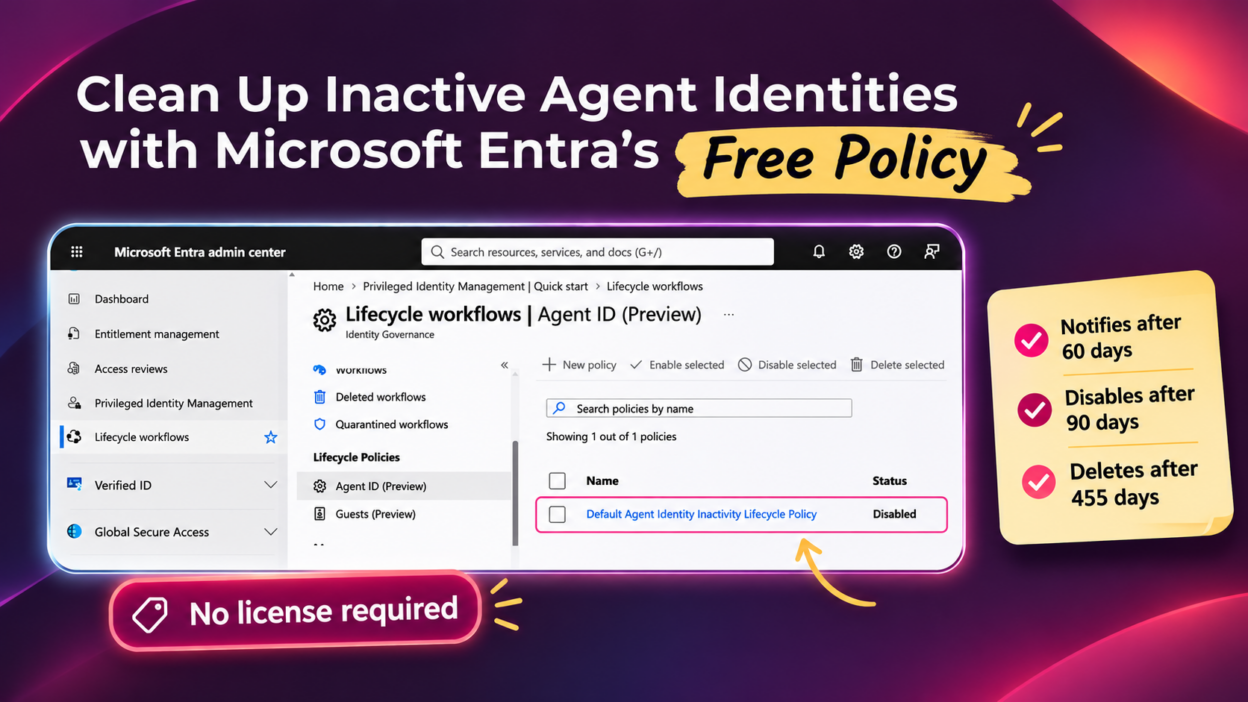
Entra now provides a default agent ID inactivity policy (Preview) for this problem, and it needs no license. This lifecycle policy helps organizations identify inactive agent identities, notify their owners and sponsors, and automatically disable and delete identities that remain unused.
What is the Entra Agent ID Inactivity Policy?
As organizations deploy more AI agents across different business processes, managing their identities becomes an important part of identity governance. Some agents are created for temporary tasks, while others become obsolete when a project ends or a requirement changes. Without lifecycle management, these identities stay enabled long after they are needed.
The “Default Agent Identity Inactivity Lifecycle Policy” is a built-in policy that Entra Agent ID provides to every tenant.
It identifies agent identities that have not been used for a set period, notifies the responsible owners and sponsors, and then disables and eventually deletes the identities that remain inactive.
- Once enabled, Entra Agent ID evaluates the agent identities in scope on a regular basis.
- When an identity reaches 60 days of inactivity, it enters the notification and enforcement process, which has three stages:
- Notification after 60 days: Entra notifies the agent identity’s owners and sponsors about its inactivity, giving them an opportunity to take action.
- Disable after 90 days: If the agent remains inactive, Entra disables its identity.
- Delete after 455 days: If the identity continues to remain inactive, Entra deletes it.
To keep an agent active, a user must interact with it or otherwise cause it to take action. If an agent has already been disabled or deleted, only an owner or administrator can recover it. Sponsors cannot re-enable or restore agent identities.
License and Role Requirements for the Agent ID Inactivity Policy
This policy is available to all Microsoft Entra tenants without an additional license.
- Administrators can enable the policy, define its scope, and configure fallback notification recipients.
- The timeline and actions, however, are predefined and cannot be customized.
- Organizations that need custom inactivity thresholds, additional rules, or different actions can create custom agent lifecycle policies with the appropriate licensing.
To configure the policy, you need one of these roles: Lifecycle Workflows Administrator, AI Administrator, or Agent ID Administrator.
Since the policy is in Preview, its functionality may change before general availability, and Microsoft does not recommend it for production workloads.
How to Enable the Default Agent Identity Inactivity Policy in the Entra Admin Center
Enable the policy directly from the Microsoft Entra admin center. Follow these steps:
- Sign in to the Microsoft Entra admin center.
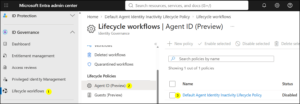
- Go to ID Governance > Lifecycle Workflows > Lifecycle Policies > Agent ID (Preview).
- Select Default Agent Identity Inactivity Lifecycle Policy.
4. Open the Policy Configuration tab.
5. Turn on Enable policy and configure the settings.
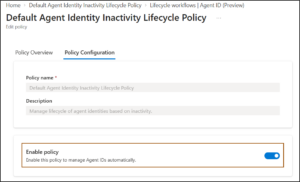
Before saving, define which agents the policy covers and who should be notified when an agent has no owner or sponsor.
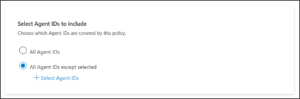
Configure the Policy Scope: There are two scope options.
- All Agent IDs: Applies the policy to all agent identities.
- All Agent IDs except selected: Excludes specific agent identities from the policy, and those can stay inactive indefinitely. This suits seasonal or rarely used agents that should not be disabled.
Add Fallback Notification Recipients: Notices go to owners and sponsors. If an agent has neither, nobody would hear about it, which is a real risk. So, add fallback recipients on the same configuration page. Enter one or more email addresses, separated by spaces, commas, or semicolons. Group mailboxes work too, so a shared security mailbox is a sensible choice.
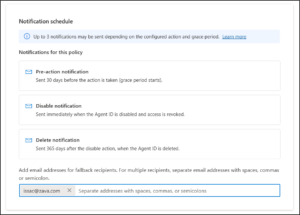
Finally, review the configuration and select Save. Once saved, Entra periodically evaluates the agent identities covered by the policy.
For organizations adopting AI agents, this is a useful addition to identity governance. It addresses a familiar problem with a built-in policy, reducing the need for administrators to rely entirely on manual cleanup to keep inactive identities under control.