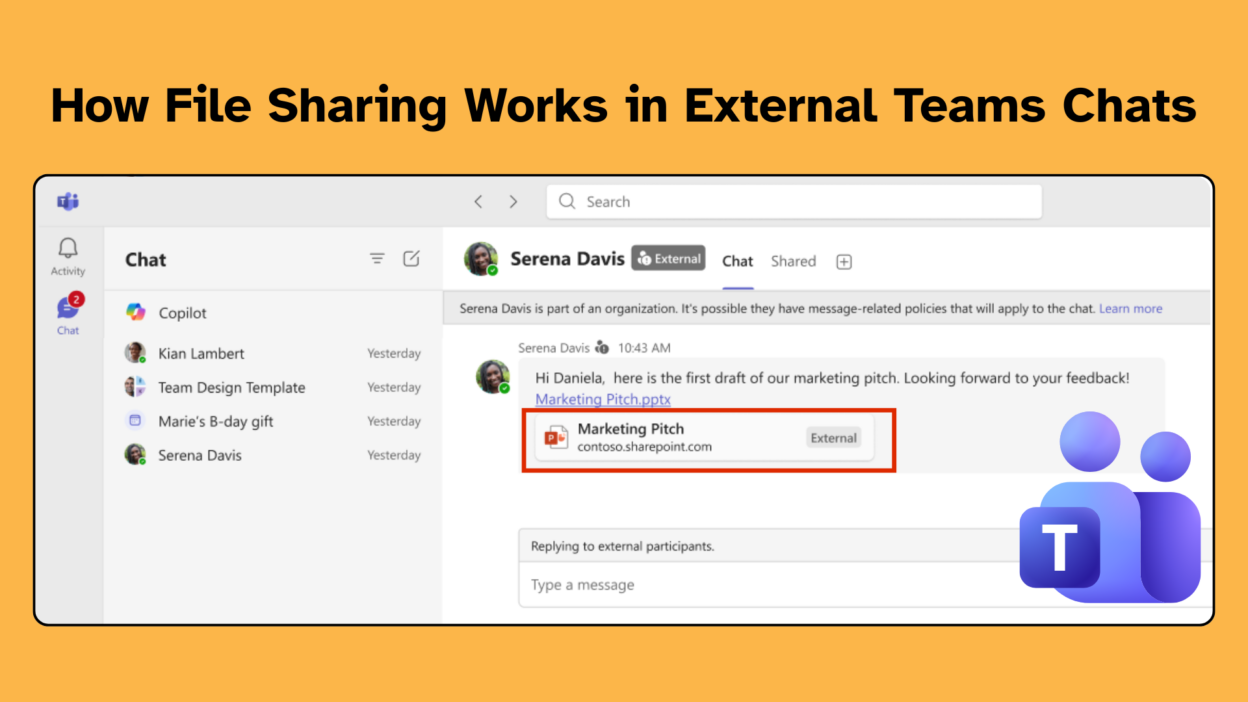
Whether it’s vendors, clients, or cross-tenant teams, most conversations in Microsoft Teams today extend beyond organizational boundaries. But while chat has evolved to support this seamlessly, file sharing has traditionally lagged behind—introducing friction at the worst possible moments.
File sharing in external (federated) chats has a more integrated experience—but it is deeply tied to OneDrive, SharePoint, and Entra policies. Understanding that architecture is key to using it effectively.
What Are External (Federated) Chats in Microsoft Teams?
External (federated) chats in Microsoft Teams allow users to communicate with people outside their organization without switching tenants or manually adding them as guests.
Unlike traditional guest access, this model is designed for faster, real-time collaboration without onboarding overhead. However, when it comes to file sharing, the experience differs from internal collaboration and depends on how sharing and access are configured across Microsoft 365.
It’s important to note that this feature is disabled by default, reinforcing its sensitivity from a data governance standpoint.
How File Sharing in Microsoft Teams External Chats Works
When this feature is properly enabled, users get a first-class file-sharing experience inside external chats. Files can be uploaded directly, dragged and dropped into the message box, or attached via the paperclip icon.
However, there’s a subtle but important distinction:
- Uploading a file → triggers sharing workflows
- Pasting a link → retains existing permissions
This distinction is intentional and critical for governance. All shared files are stored in the sender’s OneDrive and governed by Microsoft 365 policies. This ensures:
- File ownership remains with your tenant
- Existing compliance, DLP, and sharing policies still apply
- Teams act only as the interaction layer
Permissions and Automatic Sharing in External Chats
One of the most impactful aspects of this feature is how permissions are handled. Enabling file sharing in Teams does not override existing configurations such as:
- SharePoint and OneDrive sharing settings
- Sensitivity labels
- Domain restrictions
Instead, it respects and enforces them. One of the most impactful additions is automatic sharing of files in external chats.
When automatic sharing is enabled (default):
- Files uploaded in chat are automatically shared with participants
- Users don’t need to manually grant access
- Permissions align with chat participants
This significantly reduces friction. However:
Automatic sharing does not apply when links are pasted
Because pasting a link is treated as an intentional act—meaning the user is choosing to retain existing permissions. This distinction reflects Microsoft’s philosophy:
Automation should assist—not override user intent.
Identity and Access Control with Microsoft Entra B2B
Before you enable this, you need to understand the architecture, because it has direct implications for your data governance posture.
When a user shares a file in an external chat,
- The file remains in the sender’s OneDrive
- External users access it as Microsoft Entra B2B guests
- If a guest object doesn’t already exist for that recipient in your directory, one is created on demand at the time of sharing.
This is important to flag for your identity team, because it means file sharing in external chats can trigger automatic guest account provisioning in Entra ID.
External recipients will experience the file access through their browser. Depending on your tenant’s Conditional Access and MFA policies — and theirs — they may be prompted for multi-factor authentication or a consent screen before they can open the file. For most enterprise tenants this is expected behavior, but it’s worth communicating to users so they don’t interpret a consent prompt as something going wrong.
How to Enable File Sharing in External Chats
This feature is off by default — and it should be, given the data-sharing implications. You cannot enable this through the Teams Admin Center via a toggle; it requires PowerShell.
To enable file sharing in external chats across your organization:
Connect-MicrosoftTeams
Set-CsTeamsFilesPolicy -Identity Global -FileSharingInChatsWithExternalUsers Enabled
To verify the current state:
Get-CsTeamsFilesPolicy | Select Identity, FileSharingInChatsWithExternalUsers
And to roll it back if needed:
Set-CsTeamsFilesPolicy -Identity Global -FileSharingInChatsWithExternalUsers Disabled
One caveat to plan for: changes to this policy can take several hours to propagate. Don’t enable it right before a pilot session and expect immediate results. Build that lag into your testing timeline.
There’s also a secondary policy around automatic sharing behaviour. When enabled — and it is on by default — files uploaded to external chats automatically get the necessary permissions extended to all chat participants without the sender having to manually adjust anything. This is the right default for usability. If you want senders to manage permissions manually for every shared file, you can disable automatic sharing:
Set-CsTeamsMessagingPolicy -Identity Global -AutoShareFilesInExternalChats Disabled
In most organizations, I’d recommend leaving automatic sharing on and instead focusing governance energy on your upstream SharePoint and OneDrive sharing policies, which is where the real controls live anyway.
How This Feature Aligns with Microsoft 365 Governance and Compliance
One thing I genuinely appreciate about this implementation is the design decision to make file sharing in external chats subordinate to your existing OneDrive and SharePoint governance framework.
Enabling this Teams feature does not override your tenant’s external sharing policies.
- Sensitivity labels still apply.
- Domain allowlists and blocklists still apply.
- If your SharePoint policies prohibit sharing with certain external domains, those restrictions carry through here.
This means the work your organization has already done to configure Microsoft Purview sensitivity labels, SharePoint external sharing settings, and Entra external collaboration policies isn’t bypassed — it’s respected. That’s the right architecture. It means you’re not creating a new governance surface area so much as extending an existing, well-understood one.
However, it also means the feature’s success depends heavily on how those controls are configured. For example: If external sharing is restricted at the OneDrive level, file access in Teams external chats will fail—even if the feature is enabled.
My standing recommendation: enable Microsoft Entra B2B integration for SharePoint and OneDrive if you haven’t already. It makes the authentication experience for external recipients substantially smoother and is increasingly the assumed foundation for cross-organization file collaboration in the Microsoft 365 ecosystem.
External User Experience in Microsoft Teams File Sharing
A feature like this doesn’t just affect your users; it affects the people on the other side of the chat, who are likely not on your tenant and may have no prior relationship with your Microsoft 365 environment.
External recipients access shared files as Entra B2B guests. The experience for them will vary: they may see a consent prompt, they may need to complete MFA, and the shared organization may not appear in their account switcher or profile menu.
- Files opened via a Teams chat will open in the browser, not the desktop client.
- Files shared in external chats are clearly labeled as external in the Teams UI, which is a good transparency measure. It helps recipients understand the provenance of what they’re receiving and why the access experience may feel slightly different from internal file sharing.
The feature is well-governed, the architecture is sound, and the user experience improvement over the previous workaround-heavy reality is substantial.
Done right, this feature closes one of the more persistent usability gaps in Teams federation and brings the external collaboration experience meaningfully closer to what your users have long expected it to be.