When an employee leaves the company, their OneDrive still has shared links floating around. Someone, a contractor, a former colleague, or even a wrong email address, still has access.
Microsoft’s site access restriction policy is built exactly for situations like this. It puts a hard boundary around who can access a user’s OneDrive content, regardless of what’s been shared before.
Site Access Restriction Policy for OneDrive
Normally, OneDrive access is permission-based. Share a file with someone, and they can access it.
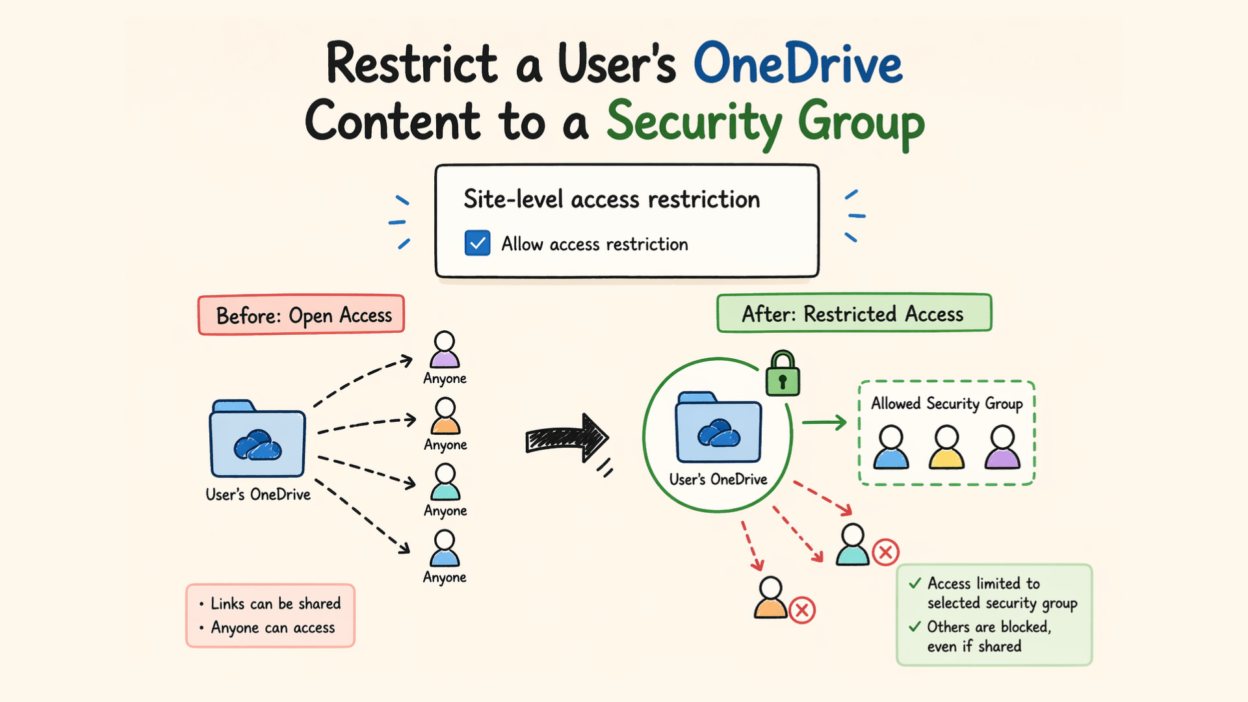
Site access restriction flips the model slightly. Instead of managing access file by file, you define a strict access boundary.
- Only users in specific security or Microsoft 365 groups are allowed
- Others are blocked—even if they have links or prior permissions
- Sharing outside this boundary can be completely restricted
Important detail: This doesn’t grant access automatically. It simply ensures that no one outside the allowed group can get in, even by mistake
Steps to Restrict a User’s OneDrive Content to a Security Group
This feature requires specific licensing. Your organization needs one of the base Microsoft 365 or Office 365 plans (E1, E3, E5, or A5), plus either a Microsoft 365 Copilot license or a SharePoint Advanced Management license. You’ll also need to be a SharePoint administrator.
There are two distinct steps here, and you can’t skip the first one.
Step 1: Enable site access restriction for your entire organization.
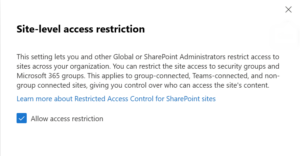
You do this once, at the tenant level. In the SharePoint admin center, go to Policies → Access control → Site access restriction, and toggle on Allow access restriction. Save your changes.
Prefer PowerShell? Run this:
Set-SPOTenant -EnableRestrictedAccessControl $true
Step 2: Apply the restriction to a specific OneDrive.
Once the tenant-level setting is on, you can lock down individual OneDrive accounts. Using PowerShell, first enable access restriction on the target site:
Set-SPOSite -Identity <OneDrivesiteurl> -RestrictedAccessControl $true
Step 3: Add allowed groups:
Then add the approved security or Microsoft 365 groups (up to 10 per OneDrive):
Set-SPOSite -Identity <siteurl> -AddRestrictedAccessControlGroups <group GUIDs>
- You can add up to 10 groups
- Use Entra security or a Microsoft 365 group.
- ⚠️ Make sure the OneDrive owner is included, or they’ll lose access
From this point, only members of those groups can access shared content on that OneDrive — everything else is blocked at the door.
(Optional) Block sharing outside allowed groups
By default, owners can still try to share content with people outside the approved groups — the policy will block access, but the share action itself goes through. If you want to prevent that entirely, run:
Set-SPOTenant -AllowSharingOutsideRestrictedAccessControlGroups $false
This stops the sharing action upfront, which is cleaner and avoids confusing the end user.
Once the policy is live, admins can pull reports on which sites are protected and who got denied access and when. Denial reports cover the last 28 days and surface the top blocked users and sites. All policy changes are also logged in Microsoft Purview for a clean audit trail.
To verify the configuration, you can do the following.
Get-SPOSite -Identity <OneDriveSiteURL> | Select RestrictedAccessControl, RestrictedAccessControlGroups
Gaps in Site Access Restriction Policy
What works well:
- Prevents accidental oversharing
- Enforces access boundaries consistently
- Aligns data access with organizational roles
Where you need to be careful:
- Misconfigured groups can block legitimate users
- It adds another layer—it doesn’t simplify permissions
- Users may get confused by “access denied” without context
Site access restriction doesn’t replace good permission hygiene; it reinforces it. When you need a guaranteed hard boundary around sensitive OneDrive content, this policy gives you exactly that: a group-based gatekeeper that overrides everything else. For organizations managing compliance requirements, sensitive departments, or high-turnover environments, that control is worth the setup time.