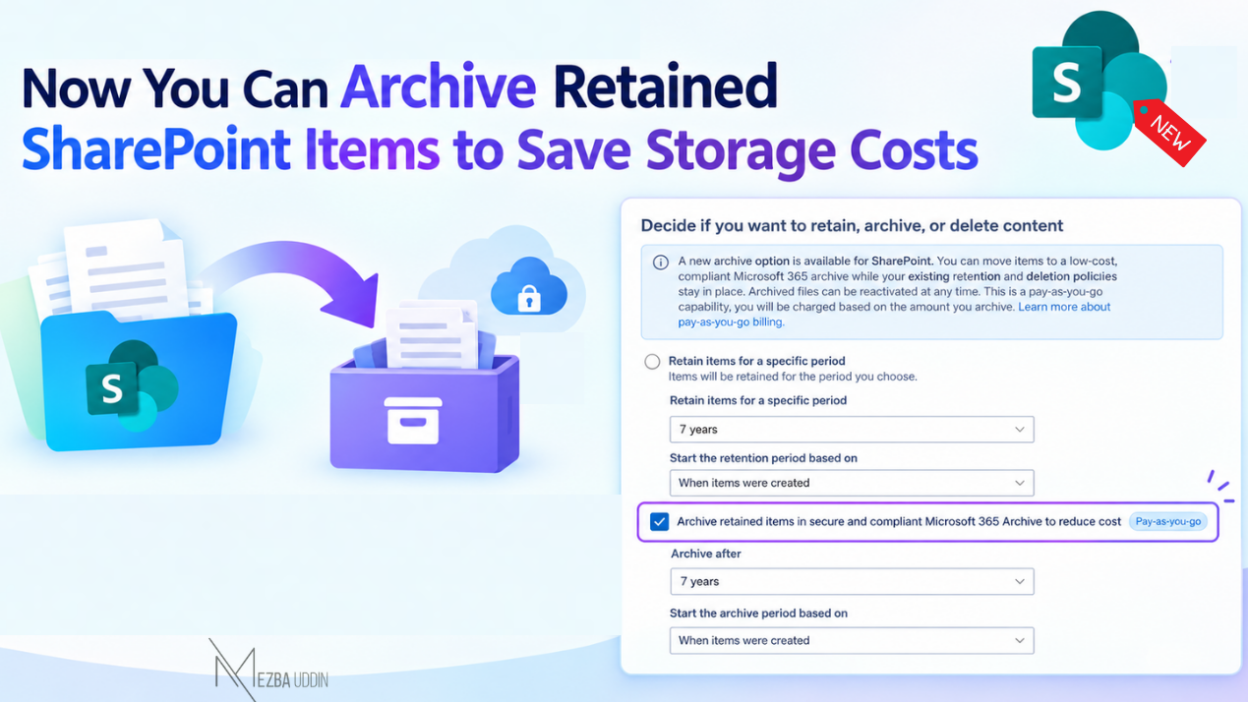
Organizations often need to retain SharePoint files for compliance even after those files are no longer actively used. Keeping all that inactive content in active storage can increase storage costs.
Microsoft Purview now lets admins add an Archive action to SharePoint retention policies and retention labels. This moves eligible inactive files to Microsoft 365 Archive while keeping them subject to retention and legal hold requirements.
What’s new?
A new archive option is now available for SharePoint retention policies and labels. You can move eligible inactive files to Microsoft 365 Archive while keeping them subject to existing retention and legal hold requirements. Archived files remain available for eDiscovery and content search and can be reactivated when needed.
This is a pay-as-you-go capability, with charges based on the amount of data archived.
The feature is rolling out to GCC, GCC High, and DoD environments from mid-September through late September 2026.
How does it work?
Admins can add the Archive action to a retention policy or retention label and specify when files should be moved to Microsoft 365 Archive.
The archive period can start based on:
- When the file was created
- When the file was last modified
Once eligible files reach the configured archive period, they are moved to Microsoft 365 Archive. Files that don’t support the archive action remain in active storage.
For example, an organization could keep project files in active SharePoint storage while they are being used and automatically move them to the archive after they become inactive.
How to enable the Archive action
You can configure the Archive action from the retention settings in Microsoft Purview.
- Open the Microsoft Purview portal.
- Go to Solutions → Data Lifecycle Management.
- Open Retention policies and create a new policy or edit an existing one.
- Configure the SharePoint location and retention settings. The new Archive option is available only when SharePoint classic and communication sites is selected under Choose where to apply.
- Select Archive retained items in secure and compliant Microsoft 365 Archive to reduce cost.
- Choose when the archive period should start:
- When the item was created, or
- When the item was last modified.
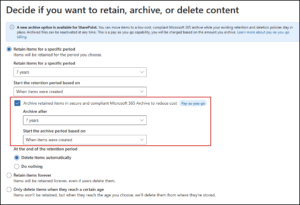
7. Specify how long files should remain active before they are archived.
8. Review the policy settings and save the changes.
The same Archive action can also be configured when creating or editing supported retention labels.
Note: The Archive action isn’t enabled by default. Existing retention policies and labels won’t start archiving files unless an administrator updates them.
What happens to archived files?
Moving a file to Microsoft 365 Archive doesn’t remove it from compliance controls.
Archived files:
- Continue to be subject to retention requirements.
- Remain subject to applicable legal holds.
- Remain available for Microsoft Purview eDiscovery and content search.
- Are excluded from Microsoft 365 Copilot indexing.
- Can be reactivated by users with read access when needed.
After a file is reactivated, the retention policy can archive it again after a 120-day cooldown period.
What about Copilot?
Archived files are excluded from Microsoft 365 Copilot indexing.
This means organizations can move older, inactive content to the archive while keeping it available for compliance and discovery. The archived content won’t be included in the data indexed by Copilot.
What admins should know before enabling it
There are a few things to check before adding the Archive action to a retention policy:
- File-level archive requires a Microsoft 365 E5 license.
- Pay-as-you-go billing for Microsoft 365 Archive is required to use its cost-saving benefits.
- The Archive action isn’t enabled automatically for existing policies.
- Event-based retention isn’t supported for file-level archive.
- Only supported inactive files are moved to the archive.
In summary
Microsoft Purview now gives SharePoint administrators another way to manage inactive content without removing it from retention and compliance workflows.
With the new Archive action, admins can retain inactive files, move them to Microsoft 365 Archive, and still discover them when needed.
This provides a way to manage inactive SharePoint content while reducing the amount of data kept in active storage.