For as long as most of us have managed Microsoft 365 storage, running out of OneDrive space has usually meant one of two things: asking users to clean up their files or purchasing additional OneDrive storage capacity in advance.
Anyone who has handled a storage-quota escalation knows the limitation of the second approach. We have to anticipate future growth and purchase additional capacity upfront, even when that capacity may remain unused for extended periods.
Now there’s a third path, and it changes the calculus. Microsoft is now introducing a third option: pay-as-you-go OneDrive storage.
The new Microsoft 365 OneDrive Storage offering allows admins to designate selected OneDrive accounts to use storage beyond their licensed quota, with charges based on the additional storage consumed.
How OneDrive Storage Limits Worked Before
Under the traditional model, each OneDrive account receives a storage quota based on its applicable license and administrator configuration. When a user reaches that quota, the account can eventually become subject to OneDrive storage enforcement, including being placed into a read-only state until the storage issue is resolved.
Administrators have typically addressed these situations by:
- Reducing the amount of data stored in the user’s OneDrive.
- Purchasing OneDrive Extra Storage add-on capacity for users who require additional space.
The extra-storage model provides predefined capacity increments rather than billing precisely according to actual consumption. This can be practical for predictable storage requirements, but it is less flexible when additional capacity is needed only by a small number of users or usage fluctuates over time.
What Changes With OneDrive Pay-as-You-Go Storage?
The new OneDrive pay-as-you-go storage model introduces consumption-based billing for storage used above a user’s licensed quota.
Instead of buying blocks of storage ahead of need, admins can enable selected OneDrive accounts to exceed their licensed quota automatically. Any storage consumed above the user’s licensed quota becomes billable according to actual usage.
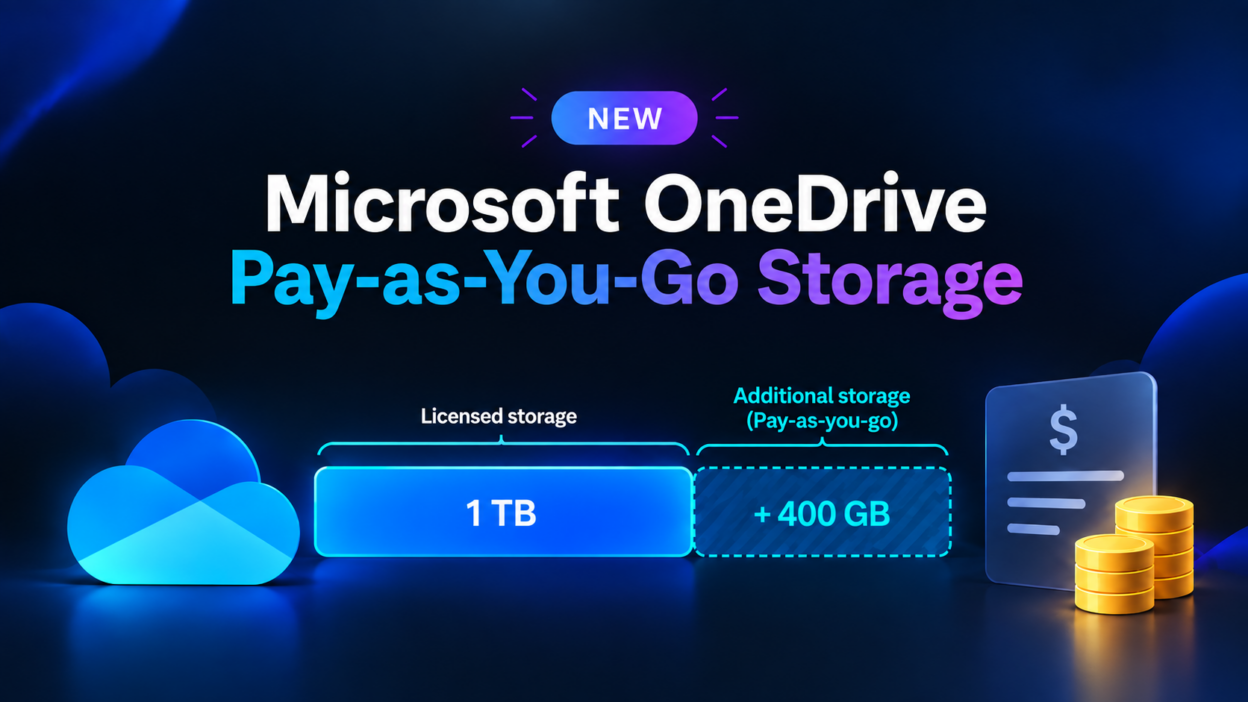
For example, assume a user has a licensed OneDrive quota of 1 TB. The administrator can configure the account to allow additional storage. If the user consumes 1.4 TB, the original 1 TB remains covered by the user’s license, while the additional 400 GB becomes billable storage.
The difference is entirely in when and how you pay: consumption, not commitment.
The user is not receiving a different license. The administrator is simply allowing that account to consume additional OneDrive storage under the pay-as-you-go model.
Administrators also retain control over which accounts are permitted to use storage beyond their licensed quotas. This makes it possible to apply the model selectively rather than exposing additional consumption-based storage across the entire tenant.
Note:
- Public Preview: Available now for commercial tenants.
- General Availability: Begins in early November 2026 and is expected to complete by early December 2026.
- Clouds: Worldwide, GCC, GCC High, and DoD.
- Currently out of scope: Education tenants and 21Vianet-operated China instances.
How to Configure OneDrive Pay-as-You-Go Storage
The configuration involves two stages: setting up the billing relationship and then enabling additional storage for the required OneDrive accounts.
Step 1: Set Up Pay-as-You-Go Billing:
Before enabling additional OneDrive storage, configure a pay-as-you-go billing policy for Microsoft 365 OneDrive Storage. You need:
- Confirm prerequisites: an Azure subscription and resource group in the same tenant as Microsoft 365 (these can be created during setup if missing), plus the SharePoint Administrator or Global Administrator role.
- Confirm billing permissions matching your agreement type — Billing Account Owner or Contributor under a Microsoft Customer Agreement, or Billing Administrator under a Microsoft Online Subscription Agreement.
- In the Microsoft 365 admin center, go to Billing > Pay-as-you-go and create a new billing policy.
- During policy setup, select Microsoft 365 OneDrive Storage as the connected service and confirm the connection.
Step 2: Allow Additional Storage for Specific Users
- After the billing configuration is in place, administrators can configure the storage limit for individual OneDrive accounts.
- Set a configured storage limit above the licensed quota, up to the 25 TB ceiling.
The important point here is that configuring a higher limit does not mean the entire amount becomes an upfront charge. Billing applies to storage consumed above the user’s licensed quota under the pay-as-you-go model.
So, monitor usage — only consumption between the licensed quota and the configured limit is billed, so oversizing the limit itself carries no cost by default.
This distinction is particularly important when planning storage policies.
- The licensed quota represents the capacity included with the user’s licensing
- The configured limit determines how much storage the account is permitted to consume
- The billable usage represents the additional capacity actually consumed beyond the licensed quota.
Pay-as-you-go storage gives administrators another way to handle exceptional or growing OneDrive storage requirements without immediately committing to a fixed block of additional capacity.
For organizations with predictable storage requirements, existing licensing and additional-capacity options may continue to be appropriate. For accounts where storage requirements fluctuate or occasionally exceed the licensed allocation, OneDrive pay-as-you-go storage provides a consumption-based alternative that can be applied selectively.