Sharing in SharePoint Online has traditionally involved choosing between different link types, such as links for specific people, people in the organization, or anyone with the link. This flexibility is useful, but it can also create a practical problem: the same file may accumulate several sharing links with different audiences and permissions.
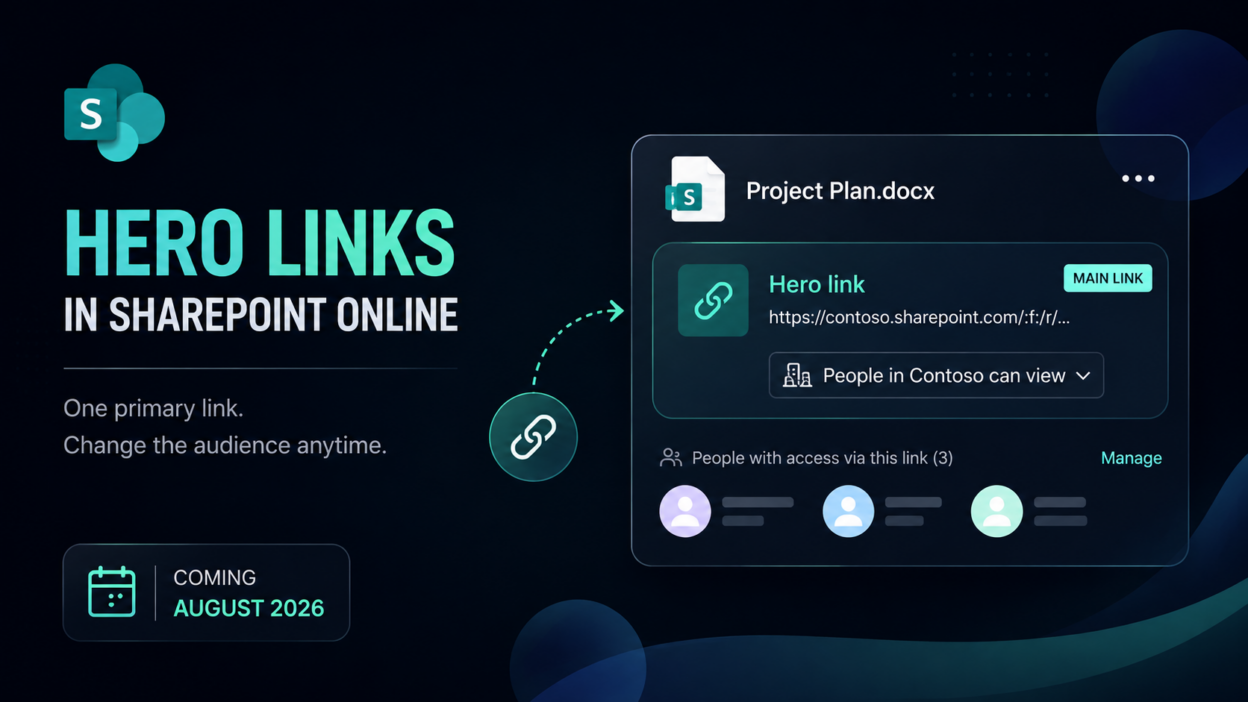
The new Microsoft 365 sharing experience introduces the hero link, a primary sharing link designed to simplify that model. Instead of treating every sharing action as a separate link, SharePoint presents one main link whose audience can be adjusted after it has been shared.
The change is part of Microsoft 365’s third-generation sharing experience and is scheduled for worldwide rollout from late August through late October 2026 under Microsoft 365 Roadmap ID 492622.
What are Hero Links in SharePoint Online?
A hero link is the main sharing link associated with a file or folder in the new Microsoft 365 sharing experience. It becomes the central link presented in the Share dialog and is used consistently when users copy a link, share through email, or copy the file URL from the browser.
Instead of creating a separate link every time the intended audience changes, the same hero link can be updated with a different access setting.
For example, suppose you share a project plan with three team members.
- The hero link initially allows only those people to access the file.
- Later, you decide that everyone in your organization should be able to view it.
- Instead of creating a ‘new organization link’and sending it, you can change the hero link’s audience to People in the organization. The URL stays the same; only the access it provides changes.
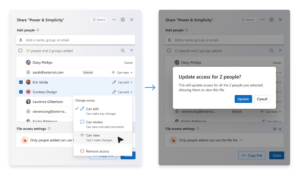
The same applies when access needs to become more restrictive. The hero link can be changed back to Only people added, without replacing the URL. This makes the hero link the single, reusable link for sharing a file or folder, while SharePoint continues to enforce the organization’s sharing and permission policies.
Overall, the purpose of hero links is:
- One reusable URL: The same hero link can remain in emails, documents, or chat even when its audience changes.
- Fewer duplicate links: Users have less reason to create multiple links for the same file.
- Restrictive by default: The default OnlyPeopleAdded scope does not broaden access through the link.
- Existing links remain available: Older links continue to work and are shown under Other links.
How does hero links sharing work?
The new model separates two concepts that are often confused: direct access and link-based access.
Adding a person directly to a file or folder still works as before. The person receives access because they were explicitly granted permission. The hero link controls the access available through the primary link.
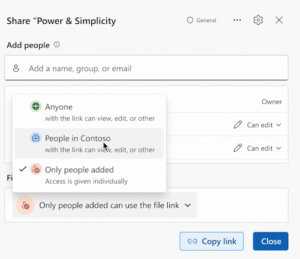
By default, Microsoft sets the hero link audience to Only people added. In practical terms, the link itself does not broaden access beyond people who already have access. Users can then expand the audience where their organization’s sharing policies permit it.
The available audience can include: OnlyPeopleAdded, Organization, and Anyone.
Microsoft’s current SharePoint Online PowerShell documentation lists all three values for DefaultMainLinkScope. Anyone is conditional: it is available only when anonymous links are permitted at the tenant level, and a site-level restriction can cause the effective default to fall back to a more restrictive audience.
Hero Links Don’t Replace SharePoint Permissions
A hero link does not replace SharePoint permissions or create a separate permission system. It controls access through the primary sharing link, while SharePoint continues to evaluate other access paths, such as direct permissions, group membership, and inherited permissions. This means changing the hero link’s audience does not automatically change a user’s existing access to the file or folder.
- Direct access overrides link scope: If a user has been directly granted access to a document, they can still open it even if the hero link itself is restricted to a narrower audience. Direct access exists independently of whatever the hero link is currently set to.
- Group and inherited access remain: Users who receive access through a group or a parent folder or site are not affected simply because the hero link audience changes.
- Changing the hero link does not remove access: Restricting the hero link does not revoke permissions that were granted through other methods.
- Existing sharing links keep working: Microsoft has built the model to be backward compatible; links created under the old system continue to function and show up under Other links in the sharing interface, rather than being invalidated.
- The hero link is a primary path, not a replacement. It becomes the default way users create and manage sharing going forward, but it sits alongside, not in place of — the historical permission and link configuration already on a file.
Configure Hero Link Defaults in SharePoint Online with PowerShell
SharePoint Online administrators can use the DefaultMainLinkScope parameter with Set-SPOSite to control the default audience for hero links on a site. The setting applies to items at the root of document libraries and determines the audience selected by default; it does not override the site’s or tenant’s existing sharing restrictions. The default effective value is OnlyPeopleAdded.
The supported values are:
- OnlyPeopleAdded – The hero link is limited to people who already have access to the file or folder.
- Organization – People in the organization can access the item through the hero link, subject to applicable sharing policies.
- Anyone – Anyone with the link can access the item, but only when anonymous sharing is permitted at both the tenant and site levels.
For example, to make Organization the default audience for hero links on a project site:
Set-SPOSite -Identity "https://contoso.sharepoint.com/sites/<sitename>" -DefaultMainLinkScope Organization
To use the more restrictive default:
Set-SPOSite -Identity "https://contoso.sharepoint.com/sites/<sitename>" -DefaultMainLinkScope OnlyPeopleAdded
You can also check the current configuration before changing it:
Get-SPOSite -Identity "https://contoso.sharepoint.com/sites/<sitename>" | Select-Object Url, DefaultMainLinkScope
The important distinction is that DefaultMainLinkScope sets the default; it does not enforce that audience as a hard access boundary.
For example, setting Organization does not automatically grant every employee access to every file. Likewise, selecting Anyone does not bypass a tenant or site policy that blocks anonymous sharing. If Anyone is configured but disabled for the site, SharePoint falls back to the next most restrictive effective value.
Administrators should also avoid confusing DefaultMainLinkScope with the existing DefaultShareLinkScope and DefaultShareLinkRole parameters. DefaultMainLinkScope specifically controls the audience of the new main/hero link, while DefaultShareLinkScope and DefaultShareLinkRole govern the site’s general default sharing-link scope and permission role.
One limitation is particularly relevant for centralized administration: DefaultMainLinkScope is exposed through Set-SPOSite, so the documented control is configured at the individual SharePoint site level rather than through a dedicated tenant-wide hero-link setting. Administrators managing many sites therefore need to account for site-level configuration when standardizing the new sharing experience.
What Doesn’t Change Underneath
Hero links change how users interact with SharePoint sharing without changing the underlying permission model. The primary link becomes reusable, allowing its audience to be adjusted without creating and redistributing a new URL, while direct permissions, group membership, inheritance, and existing sharing links continue to govern access.
The new experience is scheduled to roll out worldwide, including GCC, GCC High, and DoD environments, from late August through late October 2026.