If you are using Microsoft 365 in your organization, your data is constantly being created, shared, and stored across services like SharePoint Online, OneDrive for Business, and Exchange Online. This includes documents, team sites, emails, attachments, and collaborative content that keep business operations running every day.
With so much important data flowing through the platform, one key question always comes up:
👉 How do we ensure this data is protected and recoverable when something goes wrong?
Thats where you need Microsoft 365 Backup.
What is Microsoft 365 Backup?
Microsoft 365 Backup is a built-in data protection capability that helps organizations safeguard cloud content from accidental deletion, corruption, ransomware impact, or operational mistakes.
It allows administrators to back up and restore data across:
- SharePoint Online (sites, documents, libraries)
- OneDrive for Business (user files and personal content)
- Exchange Online (mailboxes and emails)
The main goal is simple: ensure critical business data can always be recovered when needed.
How Microsoft 365 Backup Works
Traditionally, Microsoft 365 Backup follows an object-level model, where administrators must manually select what to protect.
For example:
- Specific SharePoint sites are added individually
- OneDrive accounts are selected one by one
- Exchange mailboxes are explicitly included
While this gives granular control, it also creates ongoing maintenance effort.
The Challenge with Object-Level Backup
In real-world environments, Microsoft 365 is constantly changing:
- New users join the organization
- New SharePoint sites are created for projects
- OneDrive accounts are automatically provisioned
This leads to challenges such as:
- Continuous manual updates to backup policies
- Risk of missing newly created resources
- Coverage gaps over time (drift)
- Increased administrative complexity
As a result, maintaining consistent protection becomes difficult at scale.
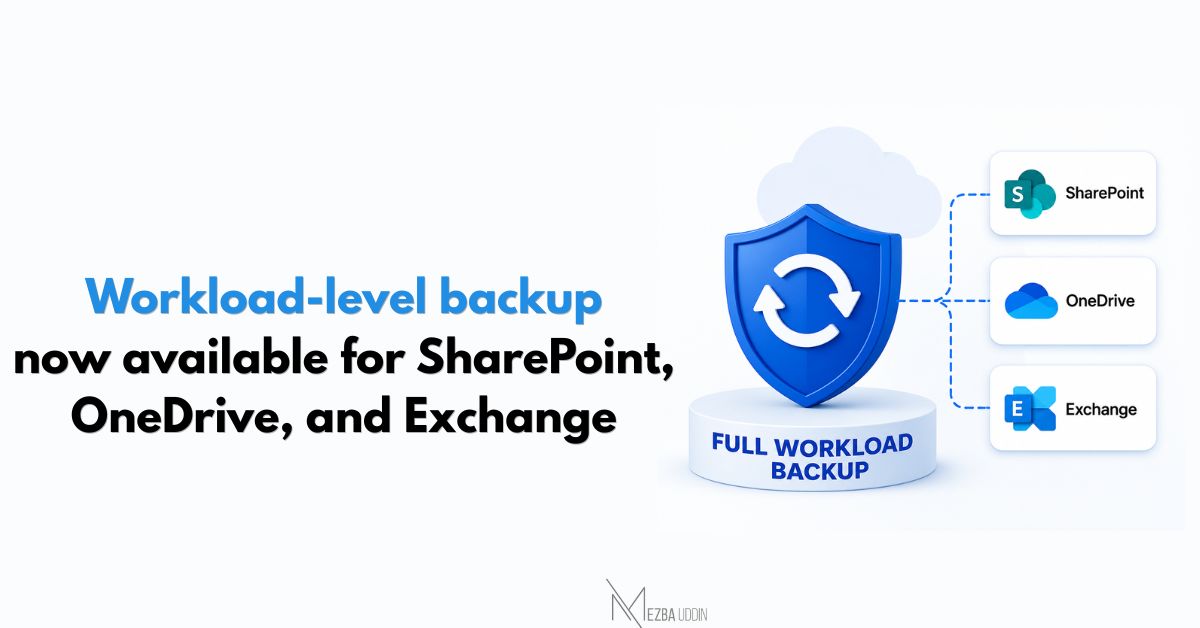
Introducing Full Workload Backup in Microsoft 365
To simplify this, Microsoft is introducing Full Workload Backup.
Instead of selecting individual items, administrators can now protect an entire workload with a single policy.
You can choose:
- SharePoint Online → protect all sites within the workload
- OneDrive for Business → protect all user drives automatically
- Exchange Online → protect all mailboxes under one scope
Once enabled, the system:
- Automatically includes all existing artifacts in the workload
- Automatically protects newly created resources in future backup cycles
- Reduces the need for manual updates as the environment changes
At the same time:
- Existing custom backup policies still take precedence
- Administrators can exclude specific items using a CSV-based exclusion file
This ensures both simplicity and control remain intact.
How to Enable Full Workload Backup
Once the feature is available in your tenant, you can enable it using the Microsoft 365 admin center:
- Go to the Microsoft 365 Backup dashboard in the Microsoft 365 admin center
- Select the workload you want to protect (SharePoint, OneDrive, or Exchange)
- Choose the option to back up all artifacts
- (Optional) Upload a CSV file in the Exclude sites step to remove specific items from the backup scope
- Review the coverage summary and confirm to create the Full Workload Backup policy
Once configured, the workload will be continuously protected based on the selected scope and policy rules.
This improvement significantly reduces operational effort while improving consistency:
- Less manual configuration work for admins
- Better coverage for dynamic environments
- Reduced risk of missing critical data
- Easier scalability across Microsoft 365 workloads
- More predictable backup behavior
It aligns Microsoft 365 Backup closer to a modern, policy-driven protection model.
Summary
Microsoft 365 Backup ensures business-critical data across SharePoint, OneDrive, and Exchange is always protected. However, object-level configuration can become complex in growing environments.
With Full Workload Backup, Microsoft simplifies this by allowing administrators to protect entire workloads with a single policy—automatically covering both existing and new data while still allowing exclusions and policy control where needed.