For years, IT teams have had a playbook for Shadow IT.
Employees adopted unauthorized SaaS applications, security teams detected usage through browser activity, logs, or network telemetry, and governance controls were applied to reduce exposure.
But AI is changing that model. Today, employees are no longer adopting only applications—they’re adopting agents.
- A developer installs a local coding agent.
- A contractor runs an AI assistant from a managed device.
- Someone connects a local MCP server to internal files to automate tasks.
None of these activities necessarily appear in traditional application discovery. Yet these agents can access data, perform actions, and influence business workflows. This growing category of unmanaged AI activity is what Microsoft now refers to as Shadow AI.
To address this emerging visibility gap, Microsoft introduced Shadow AI (Frontier) in the Microsoft 365 admin center—a new experience designed to help organizations discover, monitor, and govern unmanaged AI agents running across managed environments.
Shadow AI Is Not Just Another Version of Shadow IT
Shadow AI sounds similar to Shadow IT, but operationally, they’re very different.
Shadow AI refers to AI tools, agents, and autonomous capabilities that employees use without IT visibility, approval, or governance. The term borrows its shape from “shadow IT” — traditional Shadow IT is application-driven, but shadow AI is behavior-driven.
Modern AI agents can execute workflows, interact with cloud resources, modify content, invoke tools, access local files, connect to enterprise systems, and increasingly act with delegated autonomy.
The most common examples showing up in enterprise environments right now include unauthorized AI coding assistants (OpenClaw being the primary one Microsoft is targeting), locally installed agentic CLIs, MCP servers running on employee machines, and browser extensions with embedded AI capabilities.
These tools often improve individual productivity; that’s precisely why people install them without asking. But productivity without governance creates a visibility problem. Once these agents start interacting with enterprise data outside approved controls, organizations lose auditability, policy enforcement, and operational awareness.
Shadow AI Visibility in Microsoft 365 Admin Center
Microsoft introduced Shadow AI visibility under its broader Agent 365 direction for managing enterprise AI agents.
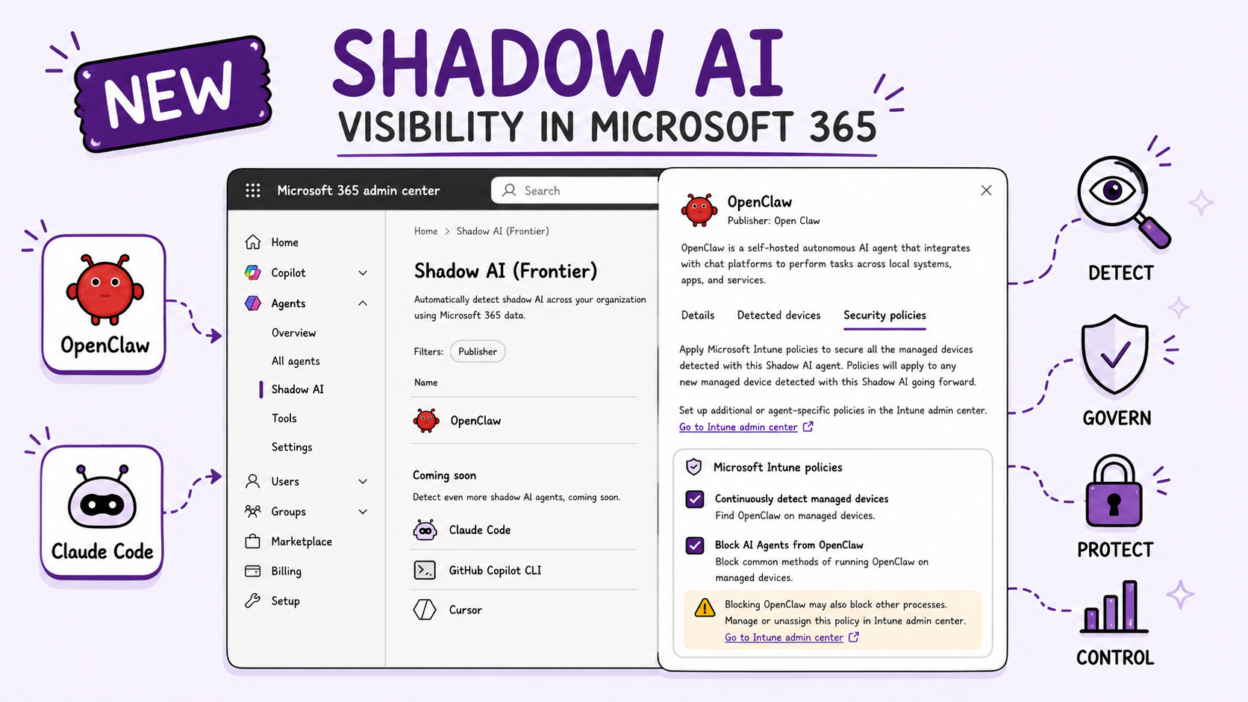
The feature appears as a dedicated Shadow AI (Frontier) page inside the Agents section of the Microsoft 365 admin center.
This experience is intentionally separated from the standard All agents view.
Navigation: Microsoft 365 admin center → Show all → Agents → Shadow AI (Frontier)
This experience is intentionally separated from the standard All agents’ inventory. The objective is to identify unmanaged AI agents and provide governance controls before they become operational risk.
At the time of writing, Microsoft positions this feature under the Frontier preview program, meaning availability is controlled and not yet broadly released.
Once inside, admins see a list of supported Shadow AI agents that Microsoft can detect in the environment. Selecting an agent opens a detailed experience with visibility into:
- Agent information and type
- Last scan timestamp
- Applied Microsoft Intune policies
- Detection configuration
- Managed devices where the agent was identified
Preview capabilities focus on OpenClaw, with GitHub Copilot CLI, Claude Code, and other widely used local agents in scope for future coverage. This effectively creates an endpoint-aware inventory layer for unmanaged AI usage.
Prerequisites to Enable Shadow AI Visibility
Before using Shadow AI visibility, several requirements must be met.
Licensing: You need at a minimum a Microsoft 365 E3 license to view Shadow AI agents. Agent 365, as a full product is available in M365 E7 or as a standalone add-on.
Role assignment: At least one of the following Entra roles is required — Security Administrator, AI Administrator, Global Reader, Security Reader, Security Operator, Reports Reader, User Experience Success Manager, or Intune Administrator.
Intune enrollment: Your Windows devices need to be enrolled in Microsoft Intune. This is the detection engine — without it, the feature has no mechanism to scan devices.
Frontier opt-in: You need to enroll your tenant in the Frontier preview program through the Microsoft 365 admin center. This unlocks the Shadow AI page and other early capabilities.
If all four of those are in place, you’re ready to configure.
How Shadow AI Detection Works Behind the Scenes
One of the more interesting design choices is that Microsoft did not build this as a standalone security product. Instead, Shadow AI extends existing Microsoft management and security infrastructure.
The detection flow looks like this:
- Admin enables detection policies from the Shadow AI page.
- Intune distributes policies to enrolled endpoints.
- Devices continuously report supported AI agent signals.
- Microsoft aggregates detection telemetry,
- Admins review findings and take action.
The first available policy is: Continuously detect managed devices. Once enabled, managed endpoints begin reporting Shadow AI activity. The detected devices view exposes useful operational information, including: device name, device category, operating system, last Intune scan time.
Block Shadow AI Agents Through Microsoft Intune
Detection is useful. Governance is where the feature becomes operational. Once an agent is discovered, admins can enable: Block AI Agents from <agent name>
Microsoft automatically creates and applies an Intune policy that blocks common execution methods used by that AI agent across managed Windows devices.
The important detail here is that blocking is not happening inside Microsoft 365 itself. Microsoft 365 acts as the management surface. Enforcement happens at the endpoint through Intune.
Typical rollout timing depends on policy synchronization and device state. Organizations should validate policies before broad deployment to avoid operational impact.
How to Configure Shadow AI Detection and Blocking
- First, navigate to: In the M365 admin center, go to Show all → Agents → Shadow AI (Frontier). Select the agent you want to govern, OpenClaw, in the current preview.
- Review agent details — The details pane shows the agent’s type, last scan time, and any existing Intune policies.
- Enable detection — Under Security policies, turn on Continuously detect managed devices and hit Apply policies. Allow at least one full Intune sync cycle before checking results.
- Check detected devices — Switch to the Detected devices tab to see which machines have the agent installed, including device type, OS, and last Intune scan time. Use this to understand the scope before acting.
- Block the agent — Back in Security policies, select Block AI agents from OpenClaw. This creates an Intune policy (A365 – Block OpenClaw) that pushes to all enrolled Windows devices within 15 minutes to 8 hours. Edit the policy in Intune if you need to carve out exceptions for approved users.
Current Limitations of Microsoft Shadow AI Detection
This feature introduces meaningful visibility—but coverage is intentionally limited.
Current boundaries include:
- Windows-only support
- Intune-managed devices only
- OpenClaw detection and blocking in preview
- Frontier enrollment requirement
Organizations using BYOD environments, contractor-managed devices, mixed operating systems, and unmanaged endpoints should not assume complete Shadow AI visibility.
Supported AI Agents and Future Coverage Roadmap
The current preview is, frankly, just the beginning. Microsoft has announced that starting June 2026, Microsoft Defender will add asset context mapping for each detected agent — showing which devices it runs on, which MCP servers it’s configured to use, which identities are associated with it, and which cloud resources those identities can reach. That’s a materially deeper picture of exposure and blast radius than what’s available today.
Also in the pipeline: policy-based runtime controls that govern what agents are allowed to do (not just whether they can run), and the ability for Defender to block an agent mid-execution if it exhibits malicious behavior patterns — exfiltrating data, accessing sensitive files outside its expected scope, and so on.
The scope of coverage is expanding, too. Claude Code and GitHub Copilot CLI are explicitly named as coming soon. And for cloud-hosted agents, Microsoft has announced registry sync with AWS Bedrock and Google Cloud, giving IT teams cross-platform visibility into agents deployed outside the Microsoft ecosystem.
Microsoft is building toward a single pane of glass for every agent in your environment, approved or not, local or cloud, Microsoft-built or third-party. Shadow AI won’t stay in the shadows for long.