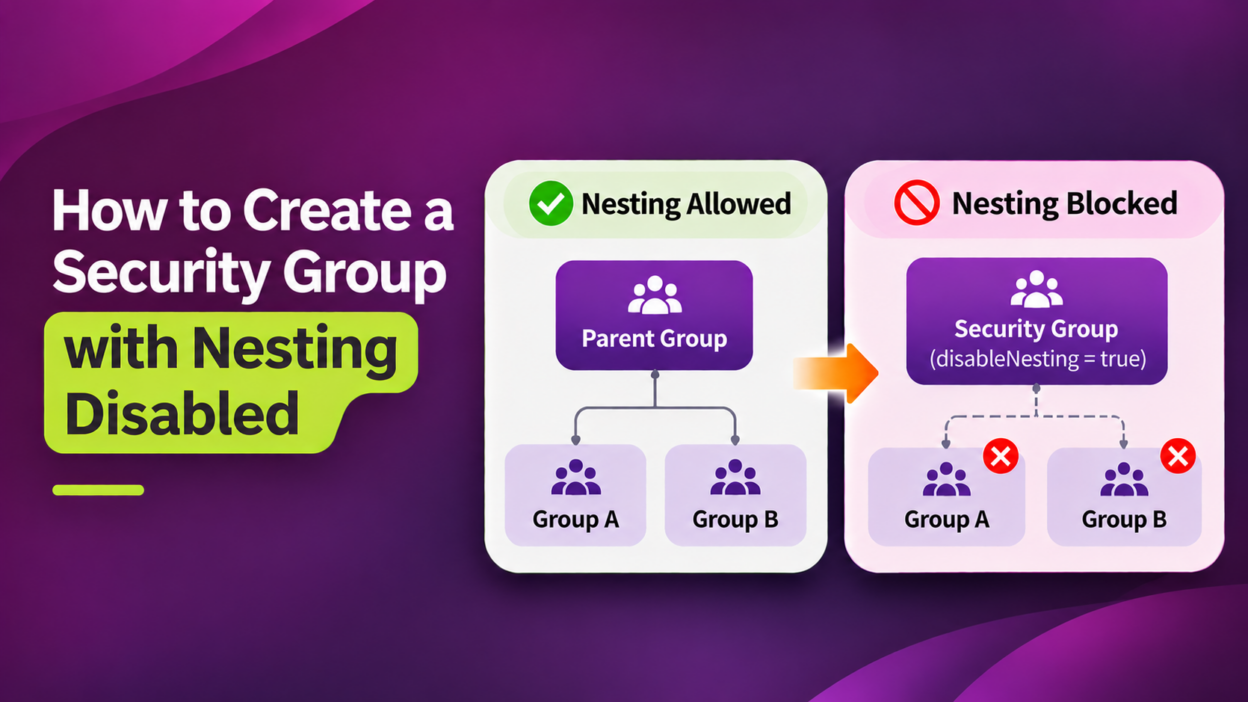
A user can have access to a sensitive resource without ever being added directly to the group that protects it. Sometimes, the access comes through a chain of nested security groups that administrators may not immediately notice.
For organizations managing confidential data, privileged access, or restricted Microsoft 365 resources, this creates a practical challenge: how do you ensure that a security group remains isolated from other group membership relationships?
Entra ID now includes a property called disableNesting that lets us block a security group from being nested at all.
What Are Nested Groups in Entra ID?
Nesting means adding one security group as a member of another. The added group is the child and the group holding it is the parent. Admins do this to reuse existing memberships, such as placing a department group under a parent group that grants shared access.
Support depends on group type. Security groups can nest inside security groups. Microsoft 365 groups cannot be nested inside other Microsoft 365 groups, and security and Microsoft 365 groups cannot be nested in each other.
But sometimes nesting gets messy as it grows. Three problems come up most often:
- It is hard to work out why a user has access to a resource when the access comes through several layers.
- A change to one group cascades to every user nested beneath it.
- Deep hierarchies make access reviews harder, especially for role-assignable and privileged access groups.
This is not necessarily a configuration error. Group nesting is a legitimate access-management approach. However, when sensitive resources are involved, the resulting membership relationships can become difficult to trace.
Administrators reviewing access may need to investigate multiple groups to understand how a particular user obtained access.
The challenge becomes more significant when group membership changes frequently or when different teams manage separate parts of the hierarchy.
What is the disableNesting Property in Entra ID?
The new disableNesting property allows administrators to create security groups that cannot participate in nested group relationships.
When a security group is created with disableNesting set to true, it cannot be added to another security group, and no other security group can be added to it. Only direct members are allowed.
For example, administrators can create a security group named Confidential Finance Access with nesting disabled. Users can still be added directly to the group, but administrators cannot place another security group inside it or add it to a parent security group.
Know these limits before you use it:
- Off by default. Groups allow nesting unless you turn it on.
- Creation only. Update-MgGroup on an existing group returns a 400 error.
- Security groups only. Microsoft 365 groups, distribution lists, and mail-enabled security groups are not supported.
- No admin center option; configurable only via Microsoft Graph PowerShell or the Graph API.
How to Create a Security Group with Nesting Disabled Using PowerShell
The property is currently configured through Microsoft Graph rather than a native option in the Entra admin center. Connect to Microsoft Graph with the least-privilege permission:
Connect-MgGraph -Scopes "Group-NestingSupport.ReadWrite.All"
Then create the group with the property set. Replace the placeholders with your values:
New-MgGroup -BodyParameter @{
    displayName     = "<GroupName>"
    mailEnabled     = $false
    mailNickname    = "<MailNickname>"
    securityEnabled = $true
    disableNesting  = $true
}
The important parameter is disableNesting. Setting it to true prevents the group from participating in nested group relationships. The property must be configured during group creation. Administrators cannot simply create a regular security group and later switch nesting off through a standard update operation.
How to Check Which Entra ID Groups Have Nesting Disabled
Once the groups are in place, you can list them with a direct Graph query, because Get-MgGroup does not reliably return disableNesting:
Invoke-MgGraphRequest -Method GET -Uri "https://graph.microsoft.com/v1.0/groups?`$filter=securityEnabled eq true and mailEnabled eq false and disableNesting eq true&`$select=id,displayName,disableNesting"
The report shows that the property is set, but a quick test shows that it works. Try adding the protected group to another security group, then try adding another group into it. Both attempts should fail, in the admin center or with New-MgGroupMember. PowerShell returns a clear message that nesting is disabled on one or both groups, while the admin center shows only a generic “Unable to connect to service” error.
Nesting itself is not the problem. It remains a practical way to manage access across departments, applications, and shared resources. The real question is whether every group should be allowed to take part in it. For a group that protects something sensitive, knowing exactly who belongs to it, and ruling out unexpected membership relationships matters as much as knowing what it can access.