AI agents are moving beyond answering prompts. They can now access emails, SharePoint files, APIs, MCP servers, and other corporate resources—sometimes without a user being involved.
That raises an important security question: How do you control what an AI agent is allowed to access?
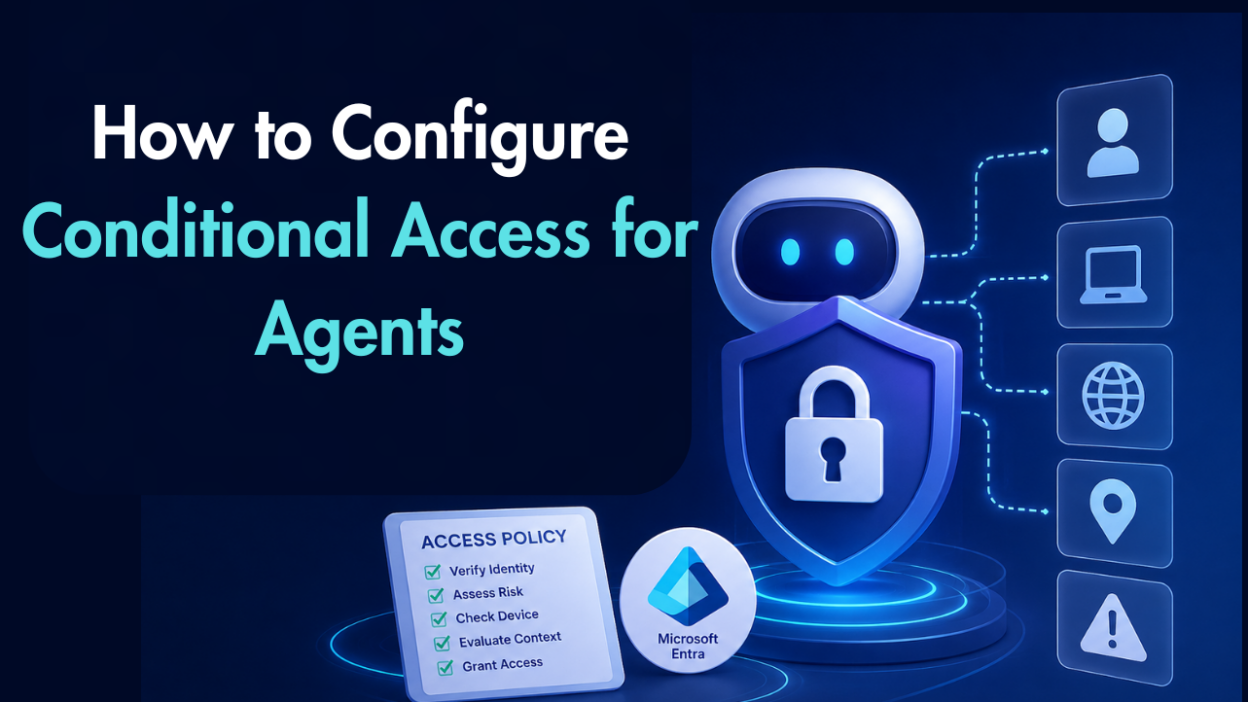
Microsoft Entra Conditional Access for agents extends Conditional Access policies to agent identities and agent user accounts, allowing admins to control access based on factors such as agent risk, execution environment, device, network, and the resource being accessed.
How Conditional Access Works for Agents
When an agent wants to access a protected resource, it first requests an access token from Microsoft Entra ID.
Agent → Access token request → Conditional Access evaluation → Token issued or access blocked → Resource
Microsoft Entra evaluates the subject requesting the token and the audience (the resource the token is intended for).
The subject can be:
- A user, when the agent acts on the user’s behalf.
- An agent identity, when the agent operates independently.
- An agent user account, when the agent has its own Microsoft 365-style account.
This distinction determines which Conditional Access policies apply.
The 3 Agent Access Patterns
1. Agent acting on behalf of a user
An agent uses the user’s identity and delegated permissions to access resources.
For example, an agent reads your emails on your behalf.
Here, the user is the token subject, so Conditional Access policies target users or groups.
2. Agent acting as an application
An autonomous agent can operate without a signed-in user—for example, generating a daily report on a schedule.
The agent identity is the token subject, so admins can directly target the agent with Conditional Access policies.
3. Agent acting as a user
An organization can give an agent its own agent user account, complete with a mailbox, calendar, licenses, and group memberships.
Here, the agent user account is the token subject, so Conditional Access evaluates that account rather than the underlying agent identity.
| Access pattern | Token subject | Policy target |
|---|---|---|
| On behalf of user | User | Users/groups |
| Agent as application | Agent identity | Agent identities |
| Agent as user | Agent user account | Agent user accounts |
How to Target Agents using Conditional Access Policies?
Licensing and prerequisites
Microsoft currently requires:
- Microsoft 365 E7, or
- Microsoft Agent 365 + Microsoft Entra P1 or Microsoft 365 E3
- Conditional Access Administrator role
- At least one registered agent identity
Microsoft says Agent 365 license enforcement is coming soon. Network controls for agents require Microsoft Entra Internet Access.
To create an agent-specific policy:
Entra admin center → Entra ID → Conditional Access → Policies → New policy
Under Assignments, select:
Users, agents (Preview) or workload identities → Agents
You can then target:
- All agent identities
- All agent users (Preview)
- Selected agent identities
- Selected agent users (Preview)
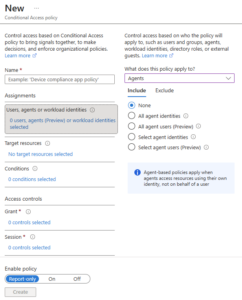
Admins can also target agent identity blueprints, automatically applying a policy to agents derived from that blueprint—including new agents created later.
For larger environments, custom security attributes can categorize agents and resources so policies can be applied based on business-specific attributes.
What conditions can you use?
The available conditions depend on the type of agent being targeted.
Agent identities
Currently, the key condition is:
Agent risk (Preview)
Admins can create policies based on whether an agent is considered low, medium, or high risk.
For example:
If agent risk is high → Block access.
Agent user accounts
Additional conditions include:
- Agent risk
- Agent execution environment
- Device platform
- Device filters
- Network location
This allows organizations to distinguish between agents running on managed endpoints and those running directly in cloud infrastructure.
For example, a policy can require an agent to run from an Intune-compliant device, such as a Windows 365 Cloud PC for Agents.
What happens when an agent fails the policy?
For agent identities, the available access control is currently:
Block access
Unlike a human user, an autonomous agent can’t stop and complete an MFA challenge or fix a device compliance issue interactively.
Agent user accounts have additional controls, including:
Require device to be marked as compliant
This can require the agent to run from an Intune-managed compliant device.
Important limitations
There are a few things admins should know before rolling this out:
- Policies targeting all users don’t automatically include agent user accounts.
- Agent user targeting is currently Preview.
- A policy targeting an agent identity doesn’t automatically apply to its agent user account.
- Device compliance policies require an endpoint capable of providing device signals.
- Network controls require the appropriate Global Secure Access configuration.
- Agent identity blueprints don’t represent autonomous workloads and aren’t themselves used to perform agent tasks.
AI agents are becoming identities with access to real business data.
Conditional Access for agents gives administrators a way to apply Zero Trust principles to those identities—not just human users.
The key is understanding who the token represents:
User → User policy
Agent identity → Agent policy
Agent user account → Agent-user policy
Once that distinction is clear, admins can control agent access based on risk, resources, devices, networks, and execution environments.
As organizations deploy more autonomous agents, knowing what an agent can access—and under what conditions—will become just as important as controlling what users can access.