
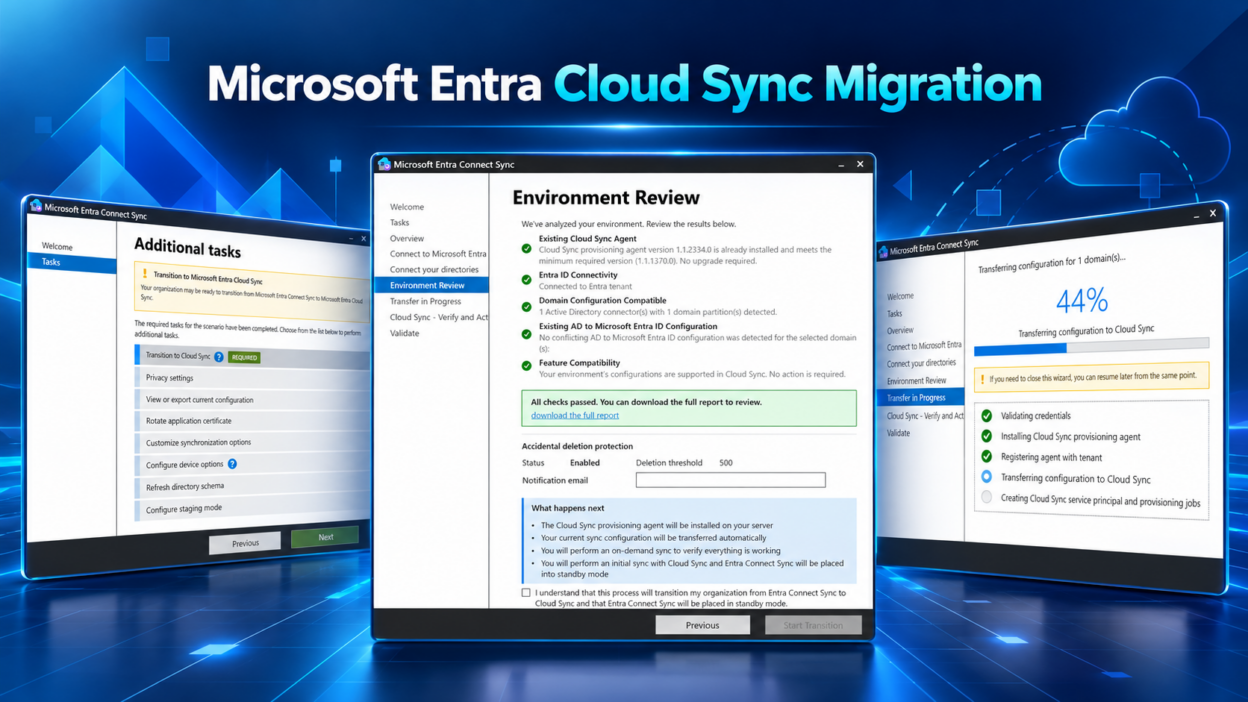
Moving from Microsoft Entra Connect Sync to Cloud Sync involves more than setting up a new synchronization service. Existing configurations, synchronization rules, and object provisioning need careful attention to avoid disruptions during the transition.
Microsoft’s Cloud Sync migration tool simplifies this process by assessing your current environment, identifying migration blockers, and transferring supported configurations to Cloud Sync. It also guides administrators through verification, activation, and post-migration validation.
How to Migrate Entra Connect Sync to Cloud Sync
The migration tool runs from your active Microsoft Entra Connect Sync server. Open the configuration wizard, navigate to Configure → Transition to Cloud Sync, and follow the guided workflow.
The process involves five main stages.
1. Assess your environment: The tool reviews your domains, scope, writeback settings, object limits, and deletion-protection threshold.
It generates a readiness report that identifies compatibility issues and highlights any changes required before migration can proceed. You can download the report for further review.
2. Transfer the configuration: Once the environment passes the required checks, the tool installs the Cloud Sync provisioning agent and creates Cloud Sync configurations for the in-scope domains.
These configurations remain disabled during the transfer, allowing Microsoft Entra Connect Sync to continue handling exports until you activate Cloud Sync.
3. Verify with Provision on Demand: Before switching services, use Provision on Demand to test representative users or groups in every migrated domain.
This step helps confirm that the transferred configuration produces the expected results before Cloud Sync takes over synchronization.
4. Activate Cloud Sync: After verification, activate the Cloud Sync configurations. Cloud Sync takes over exports, and Microsoft Entra Connect Sync moves into staging mode.
This transition changes which service is responsible for exporting directory changes to Microsoft Entra ID, making the next validation stage particularly important.
5. Validate the results: Configuration transfer and successful activation don’t automatically confirm that every synchronization scenario is working correctly.
Compare synchronized object counts, check provisioning job health, and verify users, groups, group memberships, and applicable writeback scenarios. Microsoft recommends keeping Connect Sync installed for a two-week validation period after activation before removing the existing setup.
Microsoft Entra Cloud Sync Migration: Supported Configurations and Limitations
Before starting the migration, check whether your existing Connect Sync configuration is compatible with the migration tool. The tool supports the following configurations, subject to Microsoft’s documented prerequisites and compatibility requirements:
- User and group synchronization
- Password hash synchronization
- Password writeback
- Exchange hybrid writeback
- Supported domain and organizational unit (OU) scoping
Which Configurations Can Block Migration?
The migration tool has specific limitations. Review these before planning your transition:
- Multiple Active Directory forests: The tool supports a single forest.
- Large synchronization scope: More than 2,000 in-scope objects exceeds the documented limit.
- Custom synchronization rules: Custom rules can prevent migration.
- Group filtering or custom UPN configurations: These can make the environment incompatible with the migration tool.
- Directory extensions and device synchronization: These scenarios aren’t supported by the migration tool.
Check Microsoft’s current documentation for the complete list of prerequisites, supported configurations, and migration blockers.
Best Practices Before Switching to Cloud Sync
My recommendation is to run the readiness assessment early, resolve the reported blockers, and prepare your validation checklist before beginning the transition.
Pay particular attention to object counts, group memberships, password synchronization, and writeback requirements. These checks help confirm that the new configuration behaves as expected rather than simply confirming that the migration wizard completed successfully.
Planning a move to Cloud Sync? Review Microsoft’s migration guide before making the switch.