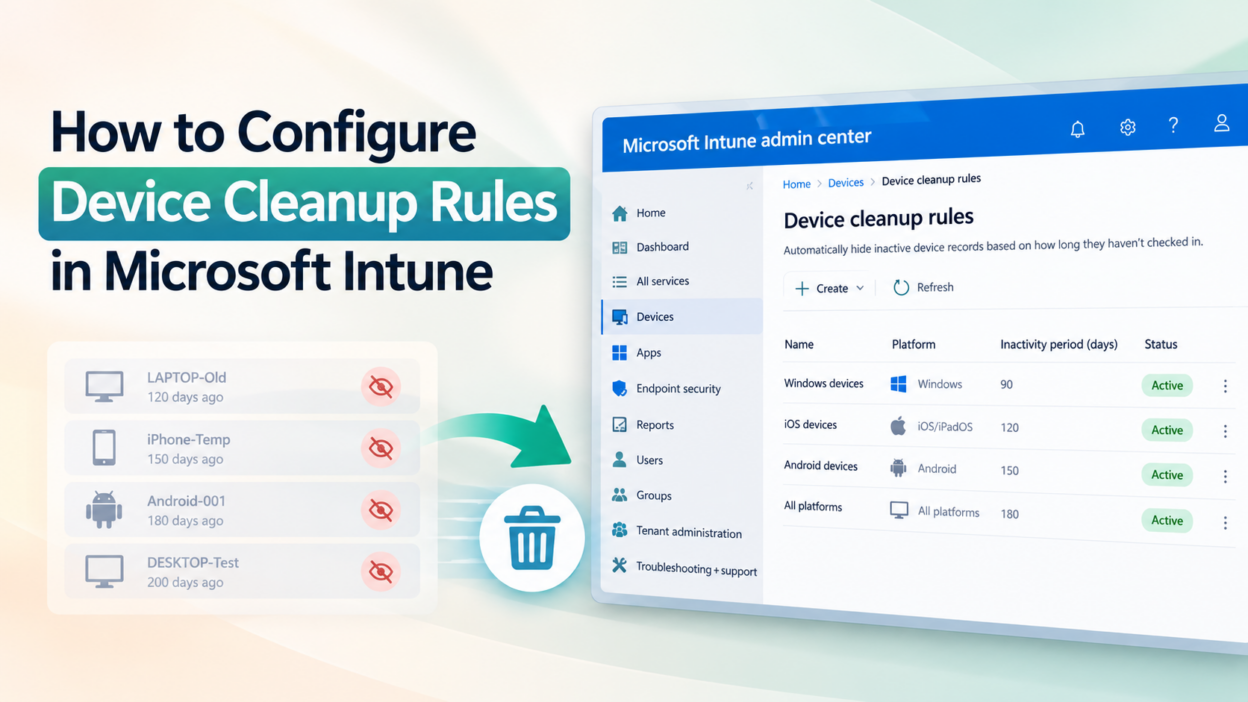
A laptop gets replaced, an employee moves to another role, or a mobile device sits unused for months, but its record can continue to appear in the device inventory. Over time, this makes it harder to distinguish devices that are still active from those that have been idle for a while.
Going through these records manually isn’t something most of us want to add to our regular workload.
Microsoft Intune has device cleanup rules that can take care of this routine task by automatically hiding devices that haven’t checked in for a specified period.
What Are Device Cleanup Rules in Intune?
Microsoft Intune device cleanup rules automatically hide inactive device records based on how many days they’ve gone without checking in with the Intune service.
For example, if you configure a cleanup rule for 90 days, devices that haven’t checked in during that period become eligible to be hidden. You can preview the affected devices before creating the rule, which is useful when you’re introducing cleanup rules.
One important thing I want to say is: device cleanup rules don’t delete, retire, or wipe devices. They simply hide eligible device records from the Intune admin center and reports. The corresponding records in Microsoft Entra ID remain untouched.
You can also configure rules for individual platforms or use an “All platforms” rule. This gives us some flexibility when deciding how long different types of devices should remain visible in your inventory.
Cleanup Rules in Everyday Device Management
Here are a few situations where these rules can make device management easier.
- When employees leave the organization
An employee leaves, their laptop is returned, and the device record stays in Intune long after it’s needed for day-to-day management. Rather than tracking down every old entry manually, a cleanup rule can hide devices that haven’t checked in for your chosen period.
- When temporary devices go out of use
Devices used during a short-term project, a seasonal hiring period, or a pilot deployment. Once the project ends, such devices might be unused for months. A cleanup rule helps prevent their inactive records from cluttering your regular device inventory.
- When different platforms need different inactivity periods
Not every device follows the same usage pattern. Windows laptops used daily might need a shorter inactivity threshold, while shared tablets or devices used occasionally may need more time before they’re considered stale.
Intune lets you configure cleanup rules for different platforms, including Windows, macOS, iOS/iPadOS, Android, and others. One important point to note is: when both an All platforms rule and a platform-specific rule apply, the rule with the shorter inactivity period takes precedence.
For example, if your All platforms rule uses 60 days and your Windows-specific rule uses 90 days, the 60-day threshold applies to Windows devices too.
How to Configure Device Cleanup Rules in Microsoft Intune
Before creating a rule, make sure you have the Intune Administrator role or a custom role with the required cleanup-rule permissions and access to managed devices.
Step 1: Open Device Cleanup Rules:
- Sign in to the Microsoft Intune admin center.
- Navigate to Devices > Organize devices > Device cleanup rules, and select Create.
Step 2: Configure the Rule:
- Under Basics, enter a rule name and description, then select the target device platform, such as Windows, macOS, iOS/iPadOS, or Android.
- Select Next and specify the inactivity period under Remove devices that haven’t checked in for this many days. Choose a value between 30 and 270 days.
For example, a 90-day threshold makes devices that haven’t checked in during that period eligible to be hidden. Select “Preview affected devices” to review the devices before proceeding.
Step 3: Review and Create the Rule:
Select Next, review the configuration under Review + create, and select Create.
Intune saves the rule and applies it according to its scheduled processing, hiding eligible device records.
Before You Put Cleanup Rules to Work
Before rolling out cleanup rules across your organization, some important points for you:
- Choose the inactivity period carefully: A short period might hide devices that are still in use but check in infrequently.
- Check what happens when a device returns: A hidden device can reappear if it checks in before its device certificate expires. After the certificate expires, the device needs to be re-enrolled to check in again.
- Review the audit logs: Intune audit logs show devices hidden by cleanup rules. Filter by the activity name associated with the relevant cleanup rule to see which devices were affected.
- Manage Entra ID records separately: Hiding a device in Intune doesn’t remove its Microsoft Entra ID record. If you need to remove stale Entra ID records, handle that through the appropriate Entra device management process.
- Device cleanup rules aren’t available for Jamf-managed devices.
With the right configuration, you can reduce clutter in the Intune admin center and make it easier to focus on the devices that are actively checking in and being managed.