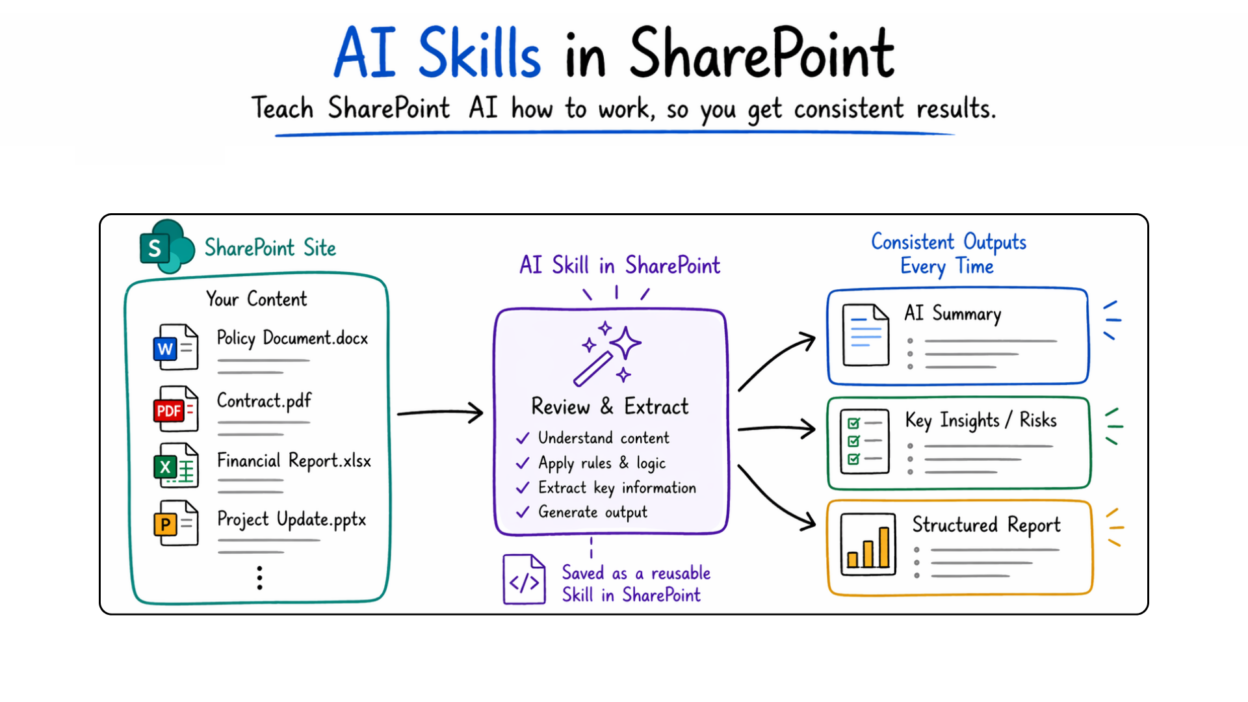
Microsoft’s AI Skills feature in SharePoint Online is introduced as part of the AI in SharePoint public preview (previously called Knowledge Agent), Skills lets you encode a repeatable, multi-step workflow into a reusable asset, built entirely through natural language chat, stored directly on the site, and executable by any user with the right permissions.
I will break down what Skills actually does, how it fits into the broader AI in SharePoint capability set.
“AI Skills” are in SharePoint
The term “skill” here is borrowed from the agentic AI space, where a skill is a packaged unit of behavior an AI agent can invoke.
In SharePoint’s context, a skill is a saved instruction set, authored in natural language, stored as a Markdown file in the site’s Agent Assets library, and callable on demand by name or by intent. The key distinction from a regular prompt is reusability and codification.
When you type a one-off prompt like “Summarize these contracts and flag any that don’t include a lawyer ID”, the AI does the task once. When you create a skill from that same instruction, the logic is captured, saved to the site, and available to every user on that site — consistently, every time, without them having to know how to phrase the prompt correctly.
Skills can chain together multiple built-in capabilities of AI in SharePoint: understanding and summarizing content, organizing files and folders, and interacting with SharePoint lists. What they cannot do is connect to external systems, run custom code, or perform actions the executing user doesn’t already have permission to do. The permission model is deliberately restrictive — a skill runs in the context of the user who invokes it, so no privilege escalation is possible.
This is not a low-code workflow builder. It’s closer to a prompt library with execution context — which is both its strength (fast, accessible, no governance overhead) and its ceiling (limited to what SharePoint’s AI layer supports).
Where AI Skills Fit Within the Broader AI in SharePoint Feature Set
Before diving into Skills specifically, it helps to understand the AI in SharePoint capability surface as a whole. The preview includes four distinct capabilities:
Autofill Columns — AI analyzes files in a document library and suggests metadata columns, then automatically populates those columns as new files are uploaded. Like: automatic classification of contracts by type, extraction of invoice amounts, or tagging documents by the project they reference. Autofill columns work across text, number, date, choice, and managed metadata column types.
Automated Workflow Rules — Through the chat panel, you can describe an automation rule in plain English (“Move approved invoices to the Verified Expenses folder” or “Email me when a contract is modified”) and the AI generates the corresponding SharePoint rule. This supports triggers like item creation, modification, and deletion — and actions like email, move, copy, and set value.
Document Library Creation — AI can scaffold an entire document library from a natural language description, including suggested columns, views, and structure.
Skills — The mechanism for packaging any of the above (or combinations of them) into a named, reusable workflow that others can invoke without knowing the underlying prompts.
Skills is, in a sense, the meta-layer on top of the other three capabilities — the way you operationalize AI-generated workflows across a team rather than keeping them as individual one-off prompts.
The simplest way to understand it. Think of three levels:
| Level | What happens |
| Prompt | “Summarize this document.” |
| Automation | “When file is uploaded → do X.” |
| Skill (new layer) | “Whenever reviewing contracts → follow this logic.” |
This middle gap, repeatable intelligence without coding is exactly what Skills fill.
How SharePoint AI Skills Are Stored and Managed
As already said, Skills are just structured instructions (not code).
- Created using natural language
- Stored as .md (Markdown) files in SharePoint
- Located in:
/Agent Assets/Skills/<skill-name>/SKILL.md
The Agent Assets library is created and maintained by the product. It cannot be deleted. However, standard SharePoint governance applies: you can set permissions, retention policies, sensitivity labels, and auditing on the skill files just as you would any other content in the site.
By default, permission logic is simple: users with Edit permissions on the site can create skills, and users with View permissions can run them. If you need tighter control — say, only site owners should be able to author skills, or skills should be read-only for external collaborators — you can break permission inheritance on the Agent Assets library and apply custom permissions independently.
The .md files are human-readable, so if you want to audit exactly what a skill does or make minor wording adjustments, you can open the file directly. Just keep the format intact — the AI parser interprets the structure to execute the skill, so malformed Markdown will break it.
How to Create and Run a Skill in SharePoint Online
AI in SharePoint is off by default for all tenants. Enabling it requires:
- An active Microsoft 365 Copilot license for each user — there’s no additional cost for AI in SharePoint during Public Preview, but the Copilot license is the gate.
- A SharePoint Administrator or Global Administrator opting the tenant in via PowerShell using the Set-SPOTenant -KnowledgeAgentScope parameter (options: AllSites, IncludeSelectedSites, ExcludeSelectedSites, or the default NoSites).
- For the full preview experience, enabling Anthropic as an AI sub-processor in the Microsoft 365 Admin Center under Copilot → Settings → Data access. If Anthropic isn’t enabled, a fallback reasoning model is used, and some advanced multi-step capabilities may be reduced.
For EU and UK tenants specifically: Anthropic is disabled by default due to EU data boundary commitments and must be explicitly enabled if you want the full experience.
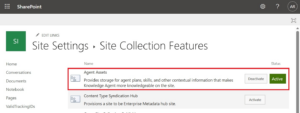
Finally, site owners need to activate the Agent Assets site collection feature before skill creation is available on that site: Settings → Site information → View all site settings → Site collection features → Agent Assets.
1. Create a Skill
- Open a site page or document library and open the AI in the SharePoint chat panel (the site should not be in edit mode).
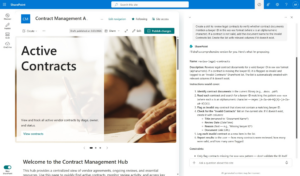
2. Ask the AI to create a skill by describing the workflow. Be specific about the logic — what to check, what action to take, and any conditions.
Example prompt: “Create a skill to review legal contracts and verify that each document includes a lawyer ID in the format xxx-xxx (alphanumeric). If a contract doesn’t include a valid ID, add the document name to an ‘Invalid Contracts’ list. Create the list with relevant columns if it doesn’t already exist.”
3. The agent returns a draft skill definition for review — this is the Markdown that will be saved. You can ask it to adjust steps, refine conditions, or change the output format before confirming.
4. Confirm to save. The skill is written to the Agent Assets library and is immediately available to all users with View permissions on the site.
2. Run a Skill
- You can: call it directly, let AI auto-load it or apply it across documents.
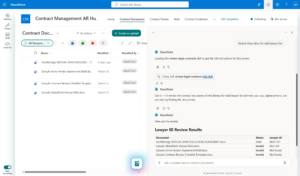
2. Optionally, select one or more files in the document library that you want the skill to operate on.
3. In the chat panel, describe what you want to do. If the intent matches a saved skill, AI in SharePoint automatically loads it — you’ll see a skill indicator card in the chat UI confirming which skill was invoked.
4. Alternatively, invoke the skill explicitly: “Run [skill name] on the selected documents.”
5. Provide any additional details the agent requests, and review the output.
Where AI Skills Deliver Real Value for SharePoint Admins and Power Users
- Consistency across reviewers. In any document-heavy operation — legal review, procurement, compliance audits — the quality of a manual review depends entirely on who’s doing it and how well they remember the checklist. A skill encodes the checklist so the AI applies it the same way every time, regardless of who invokes it.
- Lower barrier for teams without technical users. Once a skilled SharePoint user or admin creates a workflow, any user with basic View permissions can run it. The organization’s AI capability doesn’t depend on every individual knowing how to prompt effectively.
- Rapid iteration on document processing logic. Because skills are stored as editable Markdown, updating a workflow is a matter of editing a file or asking the AI to revise the skill definition — not modifying a Power Automate flow or submitting a development ticket.
- Governance without fragility. Unlike Power Automate flows that break when connectors change or licenses lapse, skills are native to the SharePoint AI layer. They run within the existing permission model and don’t require service account credentials or external connections to maintain.
Current Limitations Worth Knowing Before You Commit
AI Skills is still in public preview, and the boundaries are real:
- Skills cannot connect to external systems or call APIs — everything stays within what SharePoint’s AI layer can natively do.
- Skills run only in the first-party AI in SharePoint experience — there’s no API surface to invoke them programmatically from Power Platform or other tools (yet).
- File processing has limits: encrypted files can’t be analyzed, and files outside SharePoint sites (subsites, certain library types like SitePages or Style Library) aren’t supported.
- The Agent Assets feature must be manually activated per site during preview — this will be automated at general availability.
- EU/UK tenants face an additional configuration step around the Anthropic sub-processor setting.
These aren’t blockers for most use cases, but they’re important for architects designing governance workflows that need to touch external systems or run on a schedule rather than on-demand.
AI Skills vs AI Builder vs SharePoint Automation
This is where confusion usually happens.
| Feature | Purpose |
| AI Skills | Reusable AI workflows |
| AI Builder | Train models (classification, extraction) |
| Automation (AI workflows) | Trigger-based actions |
- AI Builder processes documents and extracts structured data
- Automation enables rule-based workflows via natural language
- Skills sit in between: They define how AI should think and act repeatedly
If your organization is already licensed for Microsoft 365 Copilot and you’re managing a content-heavy SharePoint environment, enabling AI in SharePoint for a pilot site costs nothing and takes about fifteen minutes of PowerShell. The Skills feature specifically will change how your power users interact with document review and classification workflows — not by replacing them, but by making consistent execution accessible to the whole team.
The feature is preview-stage, so production-critical workflows should still have fallbacks. But for internal knowledge management, compliance pre-checks, document classification, and metadata enforcement — the use cases where SharePoint’s AI layer is strongest — Skills is already practical and worth building on.