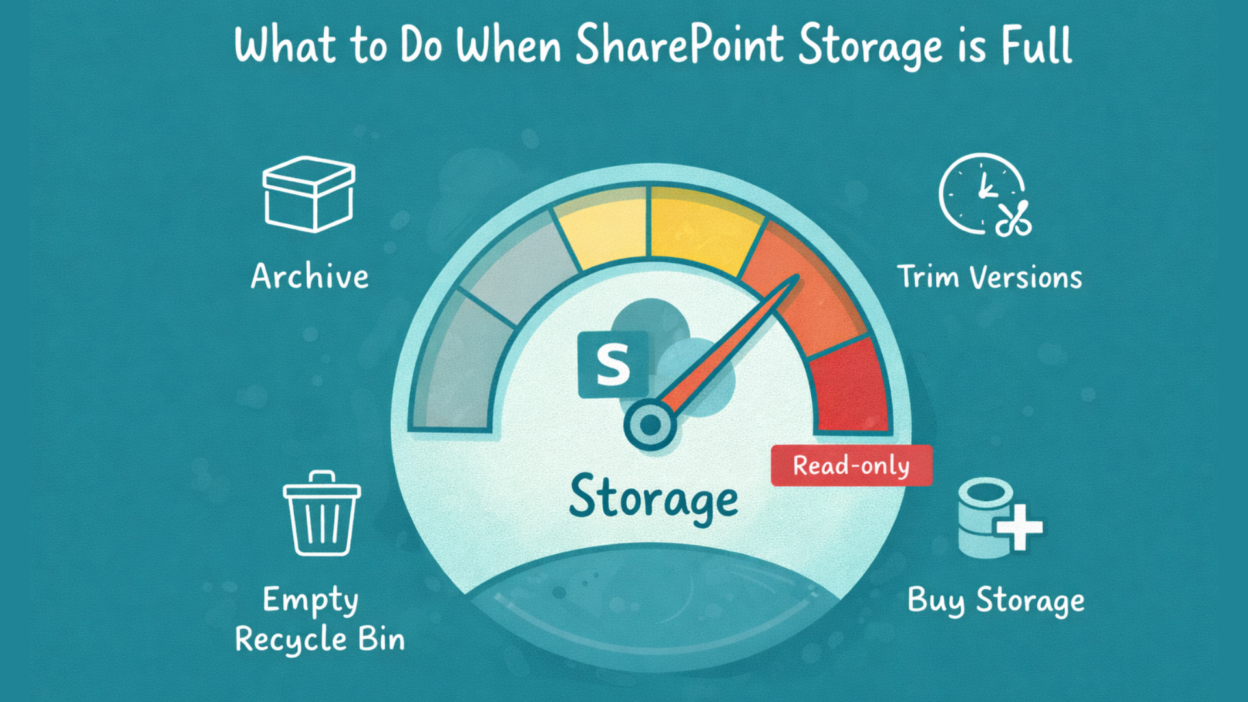
An email from Microsoft with the subject line that makes every SharePoint admin’s stomach drop:
“SharePoint Online is out of storage space. Sites are in read-only mode, and changes can’t be saved.”
This is more common than most organizations expect. Storage doesn’t explode overnight — it creeps up slowly. Versions pile up, inactive sites linger, retention policies quietly preserve everything, and one day, SharePoint just slams the brakes.
But the thing is, it’s completely fixable. Once you understand why it happens and what to do, you’ll handle it like a pro.
Why Does SharePoint Run Out of Storage?
Before we jump into solutions, let’s talk about the “why,” because understanding the root cause makes the fix so much clearer.
Microsoft calculates your organization’s SharePoint storage based on the number of licenses you have. Here’s the simple formula:
Total SharePoint Storage = 1 TB (base) + 10 GB per eligible license purchased + any add-on storage you've bought
So if your company has 100 Microsoft 365 Business Standard licenses, you get 1 TB + 1,000 GB = roughly 2 TB of total SharePoint storage. Sounds like a lot, right? And yet, organizations run out all the time. Why?
Storage creep is sneaky. Every uploaded file, every Teams channel, every document library quietly chips away at your quota — and most of it happens in the background without anyone noticing.
The real culprits are usually:
- File version history — SharePoint saves a new version every time someone edits a file. A heavily-edited PowerPoint across a team of 10 can balloon into 50+ saved versions before anyone blinks.
- Inactive sites that were never archived or deleted
- Retention policies preserving content long after it’s useful
- Recycle bins holding onto deleted data nobody knows is still there
- Teams channels that look quiet but still store years of files
When storage runs out, it’s rarely because people worked too much. It’s because nobody cleaned up strategically.
What Happens When You Hit the Limit?
Once your quota is exceeded, things stop working fast:
- Sites switch to read-only mode — users can view files but can’t save, upload, or edit anything. Work halts mid-project.
- New site creation via PowerShell is blocked, freezing any IT provisioning workflows.
- Automations and integrations start failing silently
- You get the admin email — which, by this point, is already behind the problem
Users don’t care why storage is full. They care that work stopped. That’s why recovery needs to be fast, deliberate, and safe.
How to Fix SharePoint Storage Issues in Microsoft 365
There’s no one-size-fits-all answer here; the right fix depends on your situation, your budget, and how your organization uses SharePoint. But the order matters. Work through these steps deliberately before reaching for your credit card.
Find Storage Loopholes in SharePoint Admin Center
Before you fix anything, spend time in the SharePoint Admin Center. Look at:
- Total storage used vs. available
- Top sites by consumption
- Sudden spikes in specific sites

The right question here isn’t “What can I delete?”, it’s “What data is costing us storage but delivering zero value?”
Focus your attention on sites untouched for 6–12 months, project sites that were never archived, document libraries with extreme version counts, and old Teams that store files but show no activity. Even native admin reports are enough to surface the obvious offenders.
Option 1: Archive SharePoint Sites Instead of Deleting Data
Not everything can — or should — be deleted. Compliance requirements and legal holds mean some content has to stay. But keeping it in active storage isn’t your only option.
Microsoft 365 Archive lets you move inactive content into a lower-cost archive tier.
- The data stays accessible when needed, but it no longer counts against your active SharePoint quota the same way.
- No data loss, no governance risk, and for organizations with compliance requirements, this is almost always the better first move over deletion.
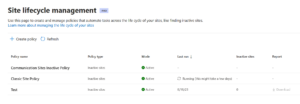
For inactive sites specifically, use SharePoint Advanced Management to set up an inactive site policy. It automatically detects dormant sites and notifies owners via email — letting them decide what’s worth keeping rather than IT making that call unilaterally.
Option 2: Trim SharePoint Version History
Version history is useful until it isn’t. On heavily edited files, saved versions can actually consume more storage than the file itself.
- Microsoft’s intelligent versioning feature lets you trim low-value historical versions and set version history limits to Automatic. So SharePoint manages versions intelligently instead of keeping every single one forever.
- You can also apply this to existing libraries via PowerShell for bulk cleanup.
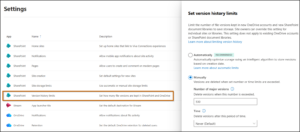
One important nuance: version trimming doesn’t touch files under retention. Preserved copies stay protected. You’re reducing storage overhead, not compliance coverage. And users won’t notice a thing, making this one of the fastest, lowest-risk ways to reclaim storage.
Option 3: Empty SharePoint Site Recycle Bins
It sounds basic, but it’s consistently overlooked. Every SharePoint site has two recycle bin stages:
- First-stage recycle bin
- Second-stage recycle bin
Deleted content keeps consuming storage until both are cleared. After bulk deletions or migrations, especially, recycle bins quietly hold onto gigabytes of data that nobody realizes is still there.
Go into the SharePoint Admin Center, navigate to your sites, and clear them out. It’s low-risk, takes minutes, and can recover significant storage fast.
Option 4: Buy More Storage in the Microsoft 365 Admin Center
If you’ve audited, archived, trimmed versions, and cleared recycle bins — and you’re still running tight — then it’s time to evaluate purchasing more storage.
Buying makes sense when growth is legitimate and ongoing, large file collaboration is a genuine business need, and cleanup alone won’t offset usage.
The Office 365 Extra File Storage add-on lets you purchase additional storage in 1 GB increments directly from the Microsoft 365 admin center.
- It’s available for most major plans, including Business Basic, Business Premium, E3, E5, and SharePoint Online Plan 1 and 2.
- Alternatively, purchasing additional licenses passively adds 10 GB per license to your pool — useful if headcount growth is already on the roadmap.
Frequently Asked Questions
Q: Does OneDrive count toward my SharePoint storage?
A: No! OneDrive has its own separate allocation (usually 1 TB per user). SharePoint is for “Shared” files, OneDrive is for “Personal” work files.
Q: What happens if I just do nothing?
A: Your sites stay in Read-Only mode. Users can’t upload, edit, or even sync files via the OneDrive app. It’s a total productivity standstill.
Q: Can I get space back by deleting old versions?
A: Absolutely. In fact, for many organizations, version history accounts for 30-50% of used space.
Plan SharePoint Storage Growth
The best time to deal with a storage problem is before it becomes one. Once sites go read-only, you’re in reactive mode — stressful for you, disruptive for everyone else.
Here’s what good storage hygiene looks like on an ongoing basis:
- Set site storage limits to Automatic. Let SharePoint distribute pooled tenant storage intelligently instead of manually babysitting individual site quotas.
- Switch version history to Automatic organization-wide. It’s one of the biggest hidden storage drains, and fixing it costs nothing but a few clicks.
- Review retention policies with storage impact in mind. Retention is necessary — but unchecked, it quietly preserves far more than you need.
- Implement inactive site policies. Automatically flag dormant sites and put the decision back in the hands of site owners.
- Monitor usage reports regularly. If you’re growing by 50 GB a month, you can calculate exactly when you’ll hit your limit — and plan, whether that means scheduling a cleanup sprint, archiving a batch of old sites, or buying additional licenses.
- Educate site owners about version sprawl. Storage problems are rarely an IT failure alone. Owners who understand version history make better decisions about their libraries.
Storage management isn’t a one-time task. It’s operational hygiene — and when it’s done well, that Monday morning storage alert never lands in your inbox.
If this helped untangle a storage headache for your team, drop your questions in the comments — happy to help you work through it.