Managing external access in the Microsoft Teams admin center has rarely been straightforward. We’ve had to juggle Federation settings, Guest Access controls, and B2B Direct Connect configurations, often with no easy way to visualize the aggregate impact of those choices.
Microsoft is addressing this fragmentation with the launch of the Unified External Collaboration Settings management experience (currently in preview).
This new preview feature is designed to consolidate these critical controls into a single, cohesive interface. In this post, I’m going to break down the new architecture, explain the mode-based configuration, and discuss how to approach this new experience in real-world tenant scenarios.
External Collaboration Configuration Was Always Hard
Previously, if you wanted to configure how your users interacted with the external domains, you had to visit three or four different places. You had a page for External Access (federation), a page for Guest Access, and separate settings for B2B direct connect. It worked, sure, but it wasn’t exactly efficient. It was easy to lose track of your overall security posture.
Before this update, external collaboration in Teams was technically configurable, but conceptually fragmented. That fragmentation caused three common problems:
- Admins made changes without seeing the downstream impact.
- Security teams struggled to understand the collaboration posture.
- Audits turned into long explanations instead of quick answers.
The new experience changes that completely.
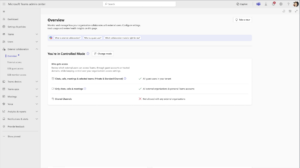
Microsoft has introduced a Unified Location right in the Teams Admin Center. When you go to the External Collaboration section in the LHS, you get a dashboard—an Overview page. It gives you a snapshot of your organization’s collaboration posture at a glance. It allows you to set policies across the entire organization and manage custom user or group settings.
One quick note before we dive deeper: if you are using this new unified policy management, you might notice that the specific “B2B Guest Access” and “B2B Member Access” pages aren’t displayed in the menu anymore. Don’t panic! They haven’t vanished into the ether; they are just rolled into this new, streamlined management view.
The New External Collaboration Section in Teams Admin Center
Microsoft has introduced a dedicated External Collaboration section in the Teams Admin Center left rail. This is now the single control plane for external collaboration decisions.
Here’s what lives under it:
- Overview
- External Access
- B2B Guest Access
- B2B Member Access
Overview –TeamsExternal Collaboration Posture at a Glance
The Overview page shows:
- What collaboration mode is your tenant currently in
- A summarized view of org-wide external collaboration behavior
- Assurance that existing custom policies (user or group-specific) remain untouched
External Access – Federation and Domain Communication
This is the familiar page most admins already know. Here, you manage:
- Federation with external domains
- Communication with unmanaged or trial tenants
- Chats, calls, and meetings with external organizations
The key difference now is context. You can finally see how these settings fit into a broader collaboration model, rather than feeling like isolated switches.
B2B Guest Access – Guests in Teams and Channels
No big functional change here. This page continues to handle:
- Guest access behavior in Teams
- What guests can do once invited
- How they interact in channels and meetings
B2B Member Access – Copilot and Member Scenarios
Things get more modern. B2B member users (not guests) behave closer to internal users. This section lets you manage:
- Copilot-related settings for B2B members
- Collaboration behavior aligned with their membership status
Note: If your tenant uses unified policies and settings management, you may not see separate guest and member access pages. That’s intentional.
Introducing the New External Collaboration Modes
Microsoft has realized that not every organization needs to manually toggle 50 distinct settings to get started. Sometimes, you just want a standard baseline. So, they have introduced Predefined Modes.
It feels a bit like choosing a difficulty setting in a video game, or perhaps choosing a preset on your camera. There are three different modes to choose from:
- Open Mode
- Controlled Mode and
- Custom Mode
Mode 1: Open Mode
Open mode is designed for organizations that are genuinely open to working with external users across all collaboration surfaces. If your organization is highly collaborative—maybe you’re a marketing agency, a consultancy, or just a company that thrives on partnerships, this is likely where you’ll look first.
The Open mode is designed for maximum fluidity. It enables broad access across chats, calls, meetings, and channels. In this mode:
- Chats, calls, and meetings work with all external domains
- Teams personal accounts are allowed
- Guest access in teams and channels is enabled
- It opens up B2B collaboration and, crucially, B2B Direct Connect (shared channels) with both Microsoft and non-Microsoft partners.
It’s the path of least resistance. It works well for consulting firms, partner-heavy ecosystems, or organizations where collaboration speed matters more than restriction.
Mode 2: Controlled Mode
Controlled mode is probably where most enterprises will land. This mode actually aligns with the current defaults for most Microsoft 365 enterprise and education tenants. If you aren’t sure where to start, start here. It allows for meaningful engagement but keeps the security up. It:
- Aligns with the current Microsoft 365 default behavior
- Allows chats, calls, and meetings with external domains
- Keeps guest access enabled
- Blocks shared channel collaboration via B2B Direct Connect
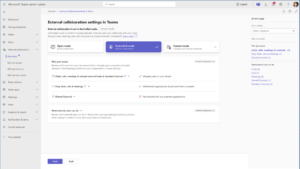
This is perfect if you are okay with your users chatting with a vendor, but you aren’t quite ready to let that vendor have persistent access to a shared channel inside your tenant. It’s a solid balance between usability and risk management, especially for organizations still building confidence around shared channels.
Mode 3: Custom Mode
Finally, for those of us who like to pop the hood and tinker with the engine, there is Custom mode. If neither Open nor Controlled quite fits your specific regulatory or security needs, Custom can be your choice. This mode gives you full granularity. You can manually configure policies across chats, meetings, and teams.
Custom mode is for admins who:
- Understand each setting deeply
- Need exceptions beyond Open or Controlled
- Want full control over collaboration surfaces
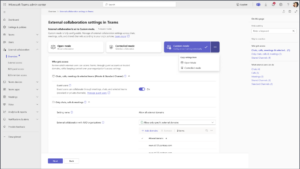
Important nuance here:
- Custom mode only applies to global org-wide settings
- Existing user or group-specific policies are not overridden
What I really appreciate about the Custom experience is that it highlights relationships between settings. This interface helps prevent that by showing you how changes to one setting might impact others.
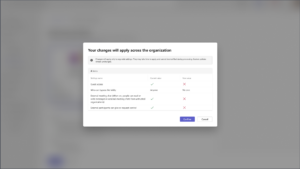
Microsoft has published a detailed, setting-level comparison of Open and Controlled external collaboration modes. Rather than reproducing it here, I’m linking the official table directly for reference:
https://learn.microsoft.com/microsoftteams/external-collaboration-settings
Role-Based Access for External Collaboration Management
Since this new experience manages B2B Direct Connect, not just any admin can touch everything. This update also tightens role clarity, which is long overdue.
| Role | What They Can Do |
| Global Admin | You can configure all external collaboration settings, select any mode (including Open), and change B2B direct connect settings. |
| Teams Admin |
|
I am genuinely impressed with this update. It feels like Microsoft is listening to the feedback from admins who are tired of menus just to let a user chat with a client.
The distinction between Open, Controlled, and Custom is logical. It caters to the small business that just wants things to work (Open), the enterprise that needs standard security (Controlled), and the complex organization that needs fine-grained control (Custom).
If you haven’t looked at your Teams Admin Center in a while, I highly recommend logging in and checking out the External Collaboration section. Even if you don’t change anything, just looking at the Overview page will give you a better understanding of your organization’s security posture than you probably have right now.
Let me know in the comments, are you an “Open” mode organization, or are you strictly “Controlled”? Or are you like me, living that “Custom” life?