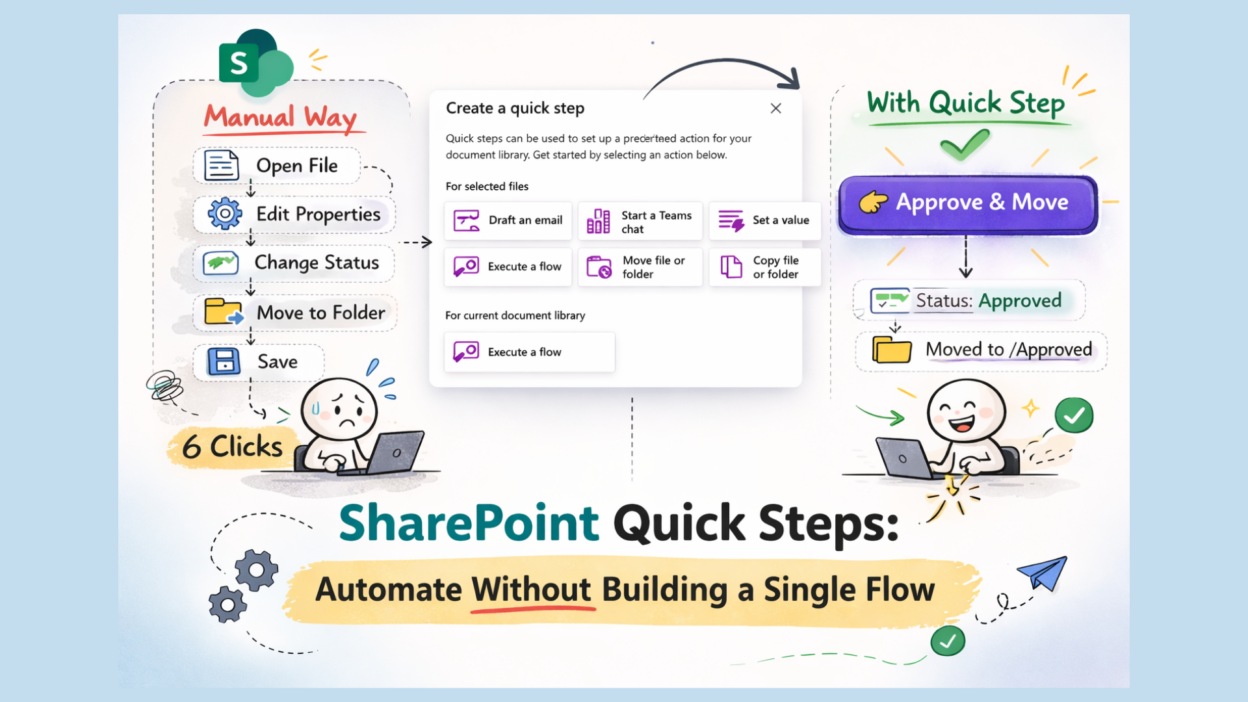
If you wanted to automate a simple status change, say, moving a policy from “Draft” to “Final,” you had two choices.
- You could either do it manually by opening the details pane and clicking through the fields, or
- You could build a Power Automate flow.
The problem is that manual entry is tedious, just annoying, especially when you’re doing it ten times a day! And building a flow just to update one choice column? That’s like using a sledgehammer to crack a nut. It’s overkill, and it clutters up your Power Automate environment.
We’ve grown used to the “SharePoint tax”, that extra bit of clicking and navigating required to do simple tasks. But every once in a while, Microsoft drops a feature that actually feels like it was designed by someone who spends eight hours a day inside a document library.
That’s the Quick Step feature in SharePoint Online.
If you haven’t seen this yet, it’s tucked away under the ‘Automate’ menu in your lists and libraries. At first glance, it looks like a simplified version of Power Automate, but after using it, I’ve realized it’s more than that.
What Exactly is Quick Step in SharePoint Online?
Think of them as macros for SharePoint, a way to take the most repetitive thing you do in a library and turn it into one click, without touching Power Automate.
They are small, pre-configured actions like updating a value, moving a file, or starting a chat that you bundle into a single button directly inside your library or list.
You set it up once, and from that point on, SharePoint can trigger it in seconds, instead of taking thousand clicks!
Think of it like this: you manage a Contracts library. Every time legal reviews and approves a contract, someone has to manually go into that file’s properties and flip the Status field from “Under Review” to “Approved.” That’s a few clicks every single time.
With Quick Steps, you create a button called “Mark as Approved”, and now it’s one click. Done.
It’s not Power Automate. You’re not building flows, writing conditions, or dealing with connectors. It lives right inside the library, and the setup takes about two minutes.
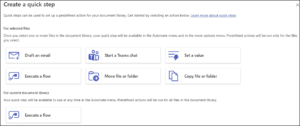
The 6 Quick Steps Actions Available in SharePoint Online
When you create a Quick Step on a selected file or list item, you get six options:
1. Draft an Email — Opens a pre-filled email with a link to the selected file already inserted. Great when you’re constantly sharing documents with stakeholders and tired of searching the URL every time.
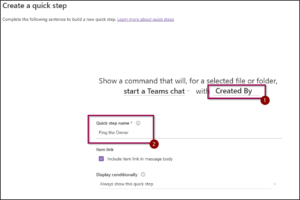
2. Start a Teams Chat — How many times have you found an error in a list item and had to manually copy the link, open Teams, find your colleague, and paste it?
For those, there’s a Quick Step template for Start a Teams chat. It automatically starts a Teams chat and includes a link to the item, and it sounds small, but when you do it 20 times a week, it’s a huge win.
This removes the manual step of copying a link, switching apps, pasting it, and hoping you grabbed the right URL.
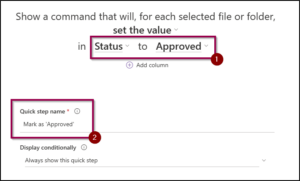
3. Set a Value — This is the workhorse! Change any metadata field on a file with a single click. Status, approval stage, owner, department, anything you’ve set up as a column in your library!
4. Execute a Flow — If you have a Power Automate flow already built, you can hook it as a Quick Step.
It’s like a clean, named button fora multi-stage approval bin in the SharePoint UI to trigger it.
5. Move File or Folder — This is exclusive to Document Libraries. Relocates a file to another folder or library.
If you’re like me and you have an “Archive” folder or a “Finalized” library elsewhere, you can create a Quick Step to move a file to a specific destination in one click.
6. Copy File or Folder — Creates a copy somewhere else. Useful when you’re publishing documents from a working site to a broader audience.
One thing worth knowing: Move and Copy are only available in Document Libraries, not Lists. And if you’re running Quick Steps at the library level (not on a selected item), only Execute a Flow is available.
How-To Create First Quick Step in SharePoint Online
Keep this simple:
- Go to your Document Library
- Click on the ‘Automate’ button at the top. Select Quick Steps, then.
- Click ‘Create a Quick Step’

4. Define the action of your choice and fill in the required values.
5. That’s it, save and test it out.
Don’t overbuild. Start with 2–3 meaningful Quick Steps. If you create 12 buttons, you’ve recreated the original complexity.
Now let’s move beyond theory. Here are practical scenarios I’ve implemented multiple times.
- One-Click “Mark as Approved”: Instead of opening properties, changing status, saving, and manually moving the file, a single “Approve & Move” action completes everything instantly. For teams where approval is simply a status confirmation (not a full workflow), this removes friction without overengineering the process.
- Send Document for Review: When users forget to mark files as “In Review,” drafts quietly sit in the library with no visibility. A “Send for Review” Quick Step standardizes the process by updating the status, assigning the reviewer, and placing the file where it belongs.
- Department-Based Routing: In shared intake libraries, users frequently misplace documents because navigating deep folder hierarchies is confusing. Dedicated routing buttons like “Send to HR” or “Send to Finance” simplify placement while keeping metadata aligned, dramatically reducing filing errors.
- Apply Sensitivity or Classification Labels: Manual classification is inconsistent when users must update multiple fields themselves. Clear actions like “Mark Confidential” or “Mark Internal” enforce standardized labeling in one step, strengthening compliance without adding complexity.
How to Simplify a Policy Approval Process Using Quick Steps?
I’m a firm believer that the best way to learn SharePoint is to solve a real-world problem. Let’s take a classic scenario: The Policy Approval Process.
Imagine you have a library full of SOPs (Standard Operating Procedures). They have a column called “Status” with options like Draft, Pending Review, and Active. Usually, you’d have to select the file, open the info pane, find the dropdown, select “Active,” and hit save.
With Quick Steps, here’s the better way:
- Head to your library, click the three dots (…) in the command bar, or select a file and go to Automate > Quick Steps > Create a quick step.
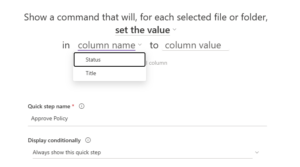
- You’ll see a few templates. For our scenario, choose Set a value.
- Give it a name like “Approve Policy.” Then, tell SharePoint: When I click this, set the ‘Status’ column to Approved.
4. Now, whenever you select a file (or ten files at once!), you just go to Automate > Approve Policy.
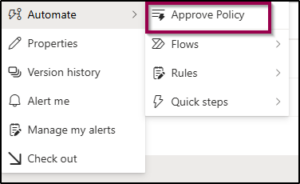

The “Working” spinner appears for a second, and your metadata is updated.
A Few Things Worth Knowing Before You Go All In
Because this is SharePoint, there’s always a bit of fine print. After playing with this for a while, here are the things I think you need to know before you start rolling this out to your entire team:
- Scope Matters: Quick Steps are tied to the specific list or library where you created them. You can’t (currently) “globalize” a Quick Step across your entire tenant. If you want the same “Archive” step in five different libraries, you’ll have to set it up five times.
- Permissions are Key: Quick Steps respect SharePoint permissions. If a user only has “Read” access, they can’t run a Quick Step that updates a value or moves a file. They can, however, use “Send an Email” or “Start a Teams Chat” steps.
- The 15-Step Limit: Microsoft caps you at 15 Quick Steps per list. If you have more than five or six, your “Automate” menu is going to look like a mess anyway. Keep it lean. Focus on the high-frequency tasks.
- Visibility: Any Quick Step created by someone with Edit permissions is visible to everyone else who has access to that list. This is great for standardization, but it means you should name them clearly (e.g., “Move to Legal Review” instead of “My Move Step”).
When to Use Quick Steps Instead of Power Automate
Here’s a practical decision rule I use:
- If the user must consciously decide to perform the action → Quick Steps.
- If the action must happen automatically without user intervention → Power Automate.
Example:
User finishes editing → Click “Send for Review.”
→Perfect for Quick Steps.
File uploaded → Must auto-assign approval and send email
→That’s Power Automate.
Over-automating simple actions creates unnecessary maintenance. And under-automating complex processes creates chaos. Balance matters! Quick Steps won’t revolutionize SharePoint. But they will:
- Reduce repetitive clicks
- Improve metadata accuracy
- Encourage process compliance
- Reduce training overhead
- Minimize user mistakes
And sometimes that’s more valuable than a massive workflow. Because sustainable systems are built on small, consistent improvements.
Is Quick Steps going to replace Power Automate? Absolutely not! If you need conditional logic, loops, or integrations with third-party apps, you’re still going to be spending time in the Flow designer.
But for those “micro-tasks”, the little updates and communications that eat up our minutes throughout the day, Quick Steps is the best thing to happen to SharePoint lists in a long time.
It feels human.
It feels fast.
And for those of us who have lived through the era of “Classic” SharePoint lists, it feels like a very welcome breath of fresh air!
Go try it out on your busiest list today. Your mouse-clicking finger will thank you.