Nobody wants constant sign-in interruptions. You’re moving between Outlook, SharePoint, Teams, OneDrive, Planner, and suddenly another authentication challenge stops your workflow.
Multiple prompts every time you launch a new app or reopen a browser session is more than inconvenient, it creates risk! When users become conditioned to blindly approving sign-ins, they’re far more likely to fall for a well-crafted phishing attempt.
The core issue remains:
How do you maintain a smooth user experience without weakening identity controls?
In this post, I’ll outline practical guidance on reauthentication behavior, session duration strategy, and recommended configuration patterns aligned to different licensing models. Baseline:
The Default Rolling 90-Day Window
For Office clients and other non-browser sign-ins, Microsoft Entra ID uses a 90-day rolling window.
Active users typically won’t need to reauthenticate with both factors during this period.
However, key events like a password reset, account disable, or a device going out of compliance immediately revoke sessions, regardless of the remaining window.
Overlapping Session Controls in Microsoft 365
Microsoft Entra has multiple features that affect session lifetime:
- “Stay signed in?” persistent browser cookie
- “Remember MFA for X days” persistent cookie
- Conditional Access sign-in frequency
- Conditional Access persistent browser session
- Legacy configurable token lifetimes
These controls can stack or conflict. Many administrators enable more than one and inadvertently enforce the most restrictive behavior!
The complexity arises when multiple features target the same outcome. In practice, Entra applies the strictest policy for session lifetime.
Example:
If “Stay signed in” is enabled and “Remember MFA for 14 days” is also configured, users are prompted every 14 days, even if “Stay signed in” would allow a longer session.
The principle is straightforward:
👉🏻When multiple session lifetime configurations exist, the most restrictive rule takes precedence.
To avoid inconsistent outcomes, define a primary session control approach and ensure other features are disabled or aligned to support it.
🔑 Licensing Requirements for Session Management
Your strategy depends entirely on Microsoft Entra ID licensing. The license determines whether you rely on basic global settings or Conditional Access session controls.
If You Have Microsoft Entra ID P1 or P2:
If you’re paying for P1 or P2, Conditional Access should be your primary mechanism. This provides precise controls for token lifetime, reauthentication frequency, and browser persistence.
Sign-in Frequency in Conditional Access:
Sign-in Frequency defines how long a user can remain authenticated before a full, interactive sign-in is required. Administrators can enforce reauthentication in hours, days, or every session, and apply this at the app level:
- Every 14 days
- Every day for finance applications
- Every hour for admin portals
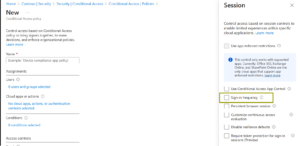
This policy is highly flexible, allowing administrators to specify the sign-in frequency in hours, days, or even require reauthentication “Every time.” This applies to browser sessions and modern clients (Office desktop) using OAuth 2.0 and OIDC flows. The timer generally starts at the last successful authentication; the PRT can refresh in the background until a CA policy forces an interactive prompt.
This is the best way to reduce MFA spam while enforcing security for critical apps.
Persistent Browser Session in Conditional Access:
The second critical CA setting for session management is the Persistent Browser Session. This policy allows administrators to enforce a persistent cookie without user interaction. This eliminates the legacy “Stay signed in?” prompt and ensures consistent browser behavior across all Microsoft 365 services.
- User Experience: The user is no longer asked to select “Yes” or “No,” leading to a cleaner, more standardized sign-in flow.
- Administrative Control: The policy is administrator-driven, ensuring persistence is applied consistently when required, overriding the user-driven legacy prompt if both are configured.
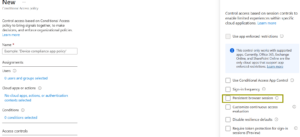
Configure this for All Cloud Apps to maintain consistent session state and prevent users from experiencing inconsistent or conflicting session states when navigating between different M365 services.
If you have P1/P2, always choose this over “Stay signed in?”
Legacy Configurable Token Lifetime:
- This is legacy.
- It is deprecated.
Don’t waste time here. Organizations still using configurable refresh or session token policies must plan to migrate to Conditional Access authentication session controls.
For organizations with Microsoft Entra ID P1 or P2 licenses, the recommendation is clear: standardize on Conditional Access.
- Use Persistent Browser Session to provide a seamless, standardized user experience in the browser, and use Sign-in Frequency policies to set intelligent reauthentication boundaries for all client types (browser and modern applications).
If You Have a Microsoft 365 Apps or Microsoft Entra ID Free License:
You still have good options, but you’ll rely on the more basic, global settings. You’re limited to basic session management features.
- Enable device join for SSO (Entra Join or Hybrid Join).
- Enable the global “Show option to remain signed in” prompt for browser persistence.
Stay signed in? Browser Prompt:
This is the little dialog: Stay signed in?
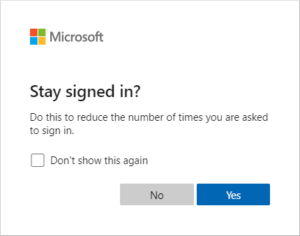
When users choose “Yes,” a persistent cookie is created, and credentials are remembered across browser sessions. This applies only to browser access, not Office desktop clients.
Good for:
Free tenants / small orgs / unmanaged devices
Limitation: Persistence depends on user action at sign-in.
Remember MFA for X days:
The “Remember multifactor authentication” setting allows administrators to define a persistent cookie duration between 1 and 365 days, activated when the user selects “Don’t ask again for X days”.
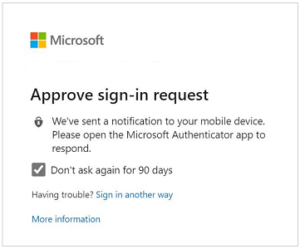
While it may sound helpful, this setting is a productivity killer in a modern Entra ID environment.
This creates a persistent MFA cookie only, not a full first-factor session. If configured shorter than 90 days, it overrides the optimized 90-day refresh token behavior in modern clients and increases reauthentication frequency unnecessarily.
Where it becomes problematic:
- Office apps refresh tokens normally operate on 90 days.
- If you set Remember MFA = 14 days, MFA prompts appear every 14 days on all modern apps.
Microsoft recommendation: Migrate away from this where possible.
Essential guidance: Focus on enabling SSO through Entra Join or Seamless SSO and rely on browser persistence. Disable legacy “Remember MFA” settings to prevent unnecessary prompts and reduce user fatigue.
Recommended Session Lifetime Strategy (Microsoft-Aligned Approach)
Step 1 — Determine License Capabilities:
- If Conditional Access is available (Entra ID P1/P2): Use CA authentication session controls as the primary method for managing session lifetimes.
- If Conditional Access is not available: Rely on “Stay signed in?” browser persistence and Seamless SSO to minimize repeated prompts.
Step 2 — Avoid Conflicting Settings:
Do not enable multiple session persistence mechanisms without a clear purpose. Avoid stacking:
- Stay signed in
- Remember MFA
- Sign-in Frequency
- Persistent Browser Session
Select a single session management approach and ensure other settings do not override it.
Step 3 — Prioritize Device Identity:
This is a big thing nobody talks about! When a device is:
- Microsoft Entra Joined
- Hybrid Joined
It gets a PRT (Primary Refresh Token), which results in silent SSO across apps with almost zero prompts. In practice, device identity often provides more value than adjusting MFA prompt frequency.
Scenarios and Practical Session Configuration Examples:
| Scenario 1 — Excessive MFA prompts in desktop apps:
⚠️Likely cause: Remember MFA <= 30 days enabled ✅Fix:
|
| Scenario 2 — Unmanaged device complaints:
✅ Best config:
|
| Scenario 3 — High-sensitivity workloads (Finance, HR, Admin portals)
✅ Best config: Use Conditional Access with:
|
| Scenario 4: Frontline / shared devices:
✅ Do:
|
Reauthentication should be treated as a control for risk, not a productivity burden! The objective is to keep authentication invisible until user behavior, device state, or session context changes. Aligning session lifetime configuration with this principle reduces MFA fatigue, improves user experience, and strengthens identity protection across cloud services.