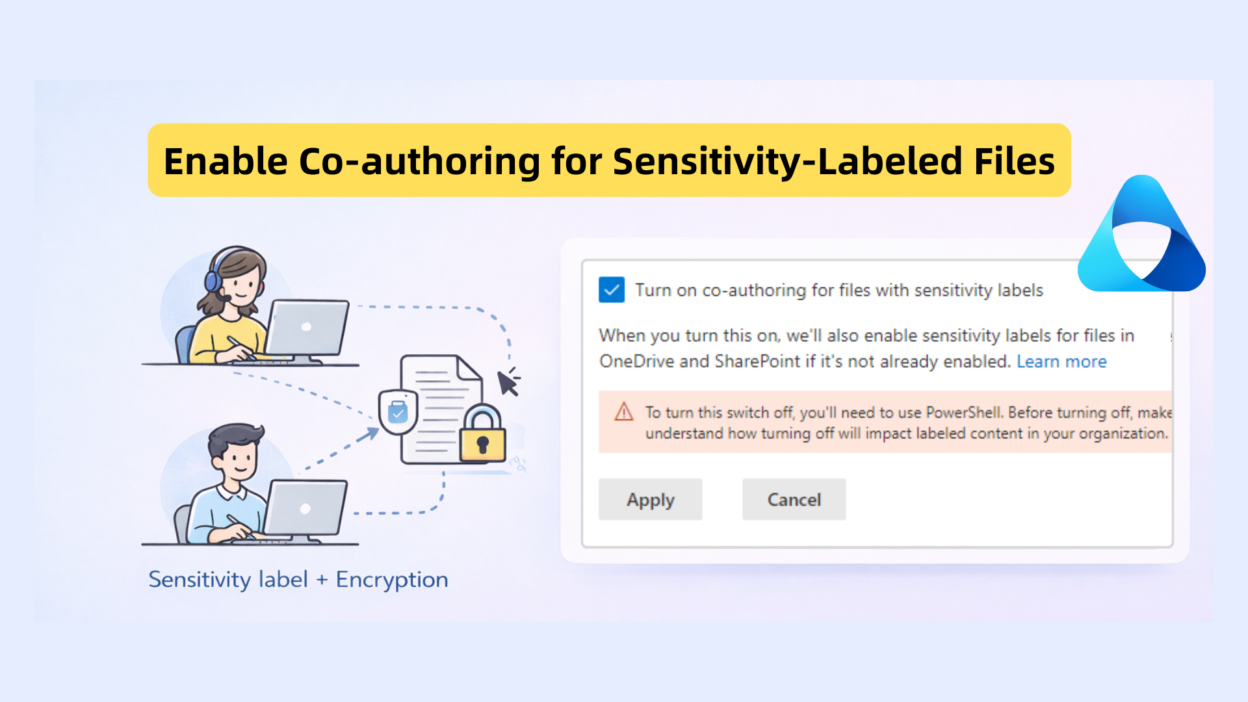
You label and encrypt a document to protect sensitive data, but when a colleague needs to edit that same file in Office desktop apps, things get frustrating fast.
- Someone has to check out the file.
- Real-time collaboration disappears.
- AutoSave stops working.
A document built for teamwork suddenly becomes a one-person-at-a-time experience.
Microsoft tackled this head-on with a tenant-level setting that enables co-authoring on sensitivity-labeled, encrypted files.
In simple terms, it lets multiple users edit protected documents together—without breaking the security controls applied by the label.
Let me break down what this actually means, why it matters, and what you need to know before you enable it.
Why Co-Authoring on Encrypted Files is a Problem
Sensitivity labels exist to protect information, confidential reports, financial data, internal documents, and any regulated or restricted data. When you apply a label with encryption to a Word, Excel, or PowerPoint file, the protection takes effect immediately.
Traditionally, encryption and real-time collaboration simply didn’t go well together in Office desktop apps. The moment a file was labeled and encrypted, multiple users couldn’t edit it simultaneously. Instead, the workflow looked like this:
- Check out the file
- Edit individually
- Save and check it back in — then pass it along
That process doesn’t just slow teams down. It quietly pushes people to work around security controls to get things done, which defeats the entire purpose of labeling in the first place.
The workaround was switching to Office on the web, which isn’t always practical or preferred, especially for teams that rely on desktop apps for more advanced features.
Allow Co-Authoring Option for Encrypted Files in Purview
Microsoft Purview includes a tenant-level setting that directly addresses the collaboration gap in encrypted file workflows. When you enable co-authoring for files with sensitivity labels, the experience changes significantly for end users and the underlying file-handling infrastructure alike.
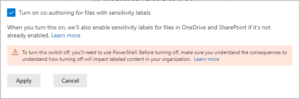
Here’s what becomes possible once the setting is active:
Simultaneous editing — Multiple users can open and edit the same encrypted, labeled document concurrently in Office desktop apps. The co-authoring engine, already familiar from unlabeled documents, now extends to files protected by sensitivity labels and encrypted.
AutoSave support — AutoSave, which relies on real-time sync with SharePoint or OneDrive, is restored for labeled and encrypted files. Without this setting, the encryption layer interrupts the AutoSave pipeline. With it enabled, changes are continuously saved to the cloud as users work — the same behavior users expect from unprotected documents.
Full desktop app compatibility — Collaboration no longer requires falling back to Office on the web. Users stay within Word, Excel, and PowerPoint desktop apps, retaining access to the full feature set those apps provide.
No compromise on protection — Critically, none of this relaxes the security controls enforced by the sensitivity label. The encryption remains intact. User permissions defined by the label — who can view, edit, print, or copy — are enforced throughout the co-authoring session. The feature doesn’t bypass the label; it works within it.
What makes this technically possible is a change in how sensitivity label metadata is stored and processed within Office files, which is also where admins need to pay close attention before enabling the setting.
What Co-Authoring Actually Does to Your Office Files
This is the part most people overlook — and it matters. Enabling this setting changes where and how sensitivity label metadata is stored inside Office files.
Previously, labeling information for unencrypted files lived in custom document properties. After enabling co-authoring support, Office apps write that metadata to a new format and location entirely.
Here’s how the transition plays out:
- Newly labeled files use only the new metadata format going forward
- Already labeled files automatically migrate metadata the next time they’re opened and saved
- Encrypted files remain backward compatible and continue working without issues
It fundamentally changes how labeling information is stored and processed across your environment — which is exactly why understanding it before enabling it is so important.
Prerequisites to Enable Co-Authoring
A few things need to be in place first. Sensitivity labels must already be enabled for Office files in SharePoint and OneDrive. Client apps also need to support the updated metadata format, with these minimum versions:
- Windows: Microsoft 365 Apps version 2107 (Current Channel) or later
- macOS: Version 16.51 or later
- iOS: Version 2.58 or later
- Android: Version 16.0.14931 or later
Beyond Office apps, supporting components like the Microsoft Information Protection client, OneDrive sync app, Endpoint DLP, and any apps using the MIP SDK also need updated versions.
Most Microsoft 365 services, including auto-labeling policies, DLP policies, and Microsoft Defender for Cloud Apps, already support the new metadata automatically.
Limitations:
Co-authoring and AutoSave won’t function if the sensitivity label uses content expiration settings or Double Key Encryption. Labels still apply, but real-time collaboration features are restricted under those configurations.
There’s also an Excel-specific caveat: older versions of Excel can strip metadata from non-encrypted labeled files. Keeping client apps updated isn’t optional here — it’s essential.
Legacy Tools and Metadata Risks You Need to Know Before Enabling
Before touching this setting, Microsoft strongly recommends auditing your environment. The metadata change introduces risk—specifically for any tools that still read label information from the old location.
If your organization uses tools that rely on the old metadata location, things can break.
Watch out for:
- Custom scripts that read or write label metadata
- Third-party compliance or DLP tools
- Apps that apply or modify sensitivity labels
- Exchange mail flow rules that detect label properties in attachments
If these haven’t been updated to support the new metadata format, you may see unlabeled documents, stale labels appearing incorrectly, or mail flow rules failing to encrypt attachments as expected.
The feature itself isn’t the risk. Legacy tooling hasn’t caught up with the new metadata structure.
How to Enable Co-Authoring for Sensitivity-Labeled Files in Microsoft Purview
Once you’ve completed your compatibility review and confirmed that your apps, tools, and integrations support the updated metadata format, enabling the feature itself is straightforward. Here’s how to do it.
- Navigate to purview.microsoft.com and sign in with an account that holds at least the DLP Compliance Management or Information Protection Admin role. Without one of these roles — or an equivalent like Security Administrator or Compliance Administrator — the setting won’t be accessible.
- From the portal, go to Settings → Information Protection
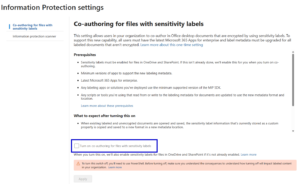
- From there, select Co-authoring for files with sensitivity labels. Before the toggle appears, Microsoft surfaces a summary of prerequisites, expected changes, and known limitations directly on this page, worth reading through even if you’ve already done your homework.

- Select Turn on co-authoring for files with sensitivity labels and click Apply to confirm. The action completes without a secondary confirmation prompt, so make sure you’re ready before clicking.
Microsoft recommends allowing up to 24 hours for the setting to replicate across your tenant environment fully. Enabling it and immediately expecting co-authoring to work may produce inconsistent results during that window.
Once propagation is complete, users can open labeled and encrypted documents in Office desktop apps and collaborate in real time, with AutoSave active and security controls fully intact.
Disable Co-Authoring for Encrypted Files in Purview via PowerShell
This setting cannot be disabled in the Purview portal once enabled. If you ever need to roll it back, you’ll need PowerShell:
Set-PolicyConfig -EnableLabelCoauth:$false
Even then, label metadata for unencrypted Office files written in the new format won’t revert, meaning that data is effectively lost.
That’s why Microsoft emphasizes reviewing the impact before enabling it. So this isn’t a “try it and see” kind of setting. It’s more of a “plan carefully, then commit” situation.
My Honest Recommendation
Personally, I wouldn’t recommend enabling this setting unless your organization has a genuine, pressing need for real-time collaboration on encrypted, sensitivity-labeled files — and your environment has been thoroughly validated for compatibility.
Here’s why I say that. This isn’t a setting you can casually walk back. Once enabled, it can’t be reversed through the portal. It permanently changes how labeling metadata is stored across your Office files. If even one critical tool, script, or integration in your environment hasn’t been updated to support the new metadata format, you’re looking at documents appearing unlabeled, broken mail flow rules, and potentially lost labeling information on unencrypted files if you ever attempt to disable it.
The feature is genuinely useful — but the risk it carries is real and lasting. Treat it as a one-way door, not a toggle. Enable it only when the business need clearly outweighs the operational risk, and only after every compatibility box has been checked without exception.