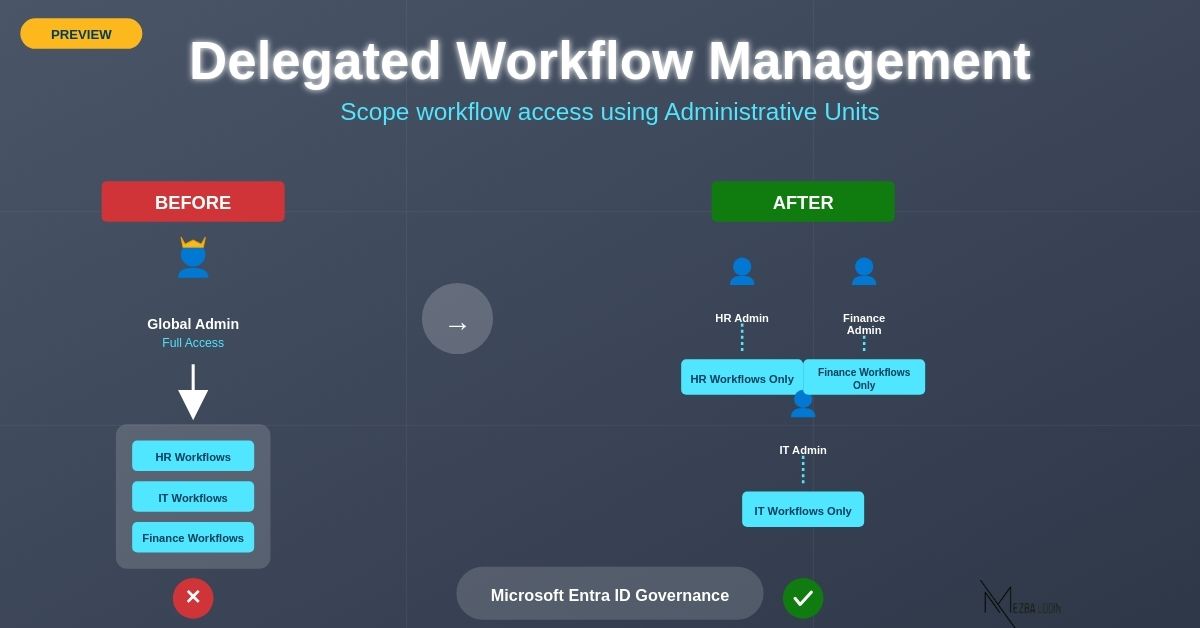
Managing lifecycle workflows across multiple teams can be challenging. HR, IT, and Finance all need to handle their own processes—but giving everyone full admin access is risky. Delegated Workflow Management (Preview) in Entra ID solves this by allowing admins to manage only the workflows relevant to their teams, following the principle of least privilege.
This guide provides a complete, step-by-step walkthrough to understand, configure, and manage delegated workflows without requiring you to consult multiple resources.
Workflows in Entra ID
Workflows are automated processes that handle identity lifecycle tasks, such as:
- Onboarding and offboarding employees
- Assigning or revoking licenses
- Approving role changes
- Managing contractor access
They are created in the Microsoft Entra admin center -> ID Governance -> Lifecycle Workflows.
You can choose a template or create custom workflows, and later assign them to the right admins.
Why Delegated Workflow Management in Entra ID (Preview) Matters
Previously, workflow access in Microsoft Entra ID required Global Administrator or Lifecycle Workflows Administrator rights, which often led to oversharing between departments, accidental workflow modifications, and potential compliance or audit risks. With the introduction of Delegated Workflow Management (currently in Preview), you can now scope workflow access to specific Administrative Units.
- This ensures that HR admins see only HR-related workflows
- IT admins access only IT workflows
- Finance admins manage only their own workflows
This significantly improves security, governance, and operational clarity.
Permission Model
| Role | Capabilities |
|---|---|
| Lifecycle Workflows Administrator | Full access across all workflows: create, edit, delete, restore, scope workflows, and configure custom task extensions. |
| Workflow Administrator (Scoped) | Access limited to assigned workflows: edit, delete, restore, view history, and run workflows on-demand. Cannot create workflows, change scopes, or configure extensions. |
This model ensures central control while enabling teams to manage their own workflows efficiently.
Prerequisites to Delegate Workflow Management
Before you can delegate workflow management, ensure your organization meets the following requirements:
- Licensing Requirement: You must have either a Microsoft Entra ID Governance license or the Microsoft Entra Suite license enabled in your tenant.
- Administrative Unit Requirement: Your tenant must have at least one Administrative Unit created, as delegated workflow management relies on AU-based scoping.
How to Delegate Workflow Management in Microsoft Entra ID?
Delegated workflow management in Entra ID requires the following steps:
1. Administrative Unit Planning for Delegated Workflow Management
2. Assign Delegated Workflow Roles in Entra ID
To enable scoped workflow management, begin by assigning the appropriate delegated role.
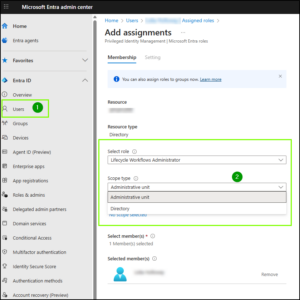
- Navigate to Entra ID admin center atleast as a privileged administrator.
- Select the user -> Assigned roles -> Add assignments -> Select role.
- Search & select Lifecycle Workflows Administrator.
- Change Scope type to Administrative Unit.
- Under Select scope, pick your admin unit. Click Next.
- Set assignment type to Active.
- Click Assign.
📝 Tip: Assign roles to a security group for easier management.
3. Scope Lifecycle Workflows to Administrative Units
Once roles are assigned, the next step is to define which workflows each Administrative Unit (AU) can manage. Scoping ensures that delegated admins only access workflows relevant to their department or business unit.
For new workflows:
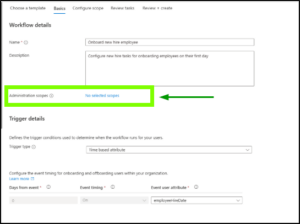
When creating a new lifecycle workflow, make sure to set the Administrative Scope during the creation process. This determines which AU will have management rights. If multiple teams need to manage the same workflow—such as HR and IT for onboarding—you can assign 1–5 Administrative Units. This flexibility allows collaboration without granting global access.
For existing workflows:
If you need to update workflows that already exist,
- Navigate to Lifecycle Workflows -> Workflow -> Administration Scope -> Assign Administration Scope.
- From there, select one or more Administrative Units that should have control over the workflow.
- Save your changes to enforce scoped access immediately.
This is especially useful when restructuring teams, onboarding new admins, or reducing unnecessary access.
4. Verify Delegated Workflow Access
Once you assign workflows to an Administrative Unit, you must confirm that delegated admins only have access to the workflows inside their scope. To verify this:
- Go to Microsoft Entra admin center -> ID Governance -> Lifecycle workflows -> Workflows.
- In the workflow list, look at the Administration Scope Assigned column.
- This column shows whether a workflow is assigned to an AU and which AU it belongs to.
To ensure the delegated permissions behave correctly:
- Sign in using an account that has Workflow Administrator permissions only within a specific Administrative Unit.
- Go to Lifecycle workflows.
- Confirm that:
- The delegated admin only sees workflows that belong to their AU.
- They cannot view or modify workflows outside their assigned AU.
-
This validates that scoping is applied correctly and that no cross-tenant access is allowed.
Best Practices for Scoping Lifecycle Workflows to Administrative Units
- Scope workflows by region so admins only manage users within their geography and processes stay aligned with regional policies..
- Assign up to 5 administrative units when multiple teams share responsibility, but keep the scope limited to only those who truly need access.
- Give workflow access only to the required admins and review these permissions regularly to avoid unnecessary or outdated privileges.
- Use clear, structured names like NA-HR-Onboarding so anyone can instantly understand the region, team, and purpose of the workflow.
Automate Delegated Workflow Management with Microsoft Graph
For large environments, you can use Microsoft Graph API to assign roles and manage scopes programmatically:
This helps automate assignments and reduces manual errors.
Conclusion
Delegated Workflow Management in Entra ID gives organizations a structured way to enforce least privilege, reduce accidental changes, and maintain a clean, auditable workflow environment. It ensures teams can manage their own processes with the right level of autonomy—without expanding access beyond what’s necessary or creating governance gaps.
By applying the steps and best practices outlined in this guide, M365 admins can confidently set up, scope, and maintain delegated workflows end-to-end, without needing to jump across multiple sources for clarity. This approach not only strengthens operational control but also keeps workflow management streamlined as your environment grows.