We often focus so much on the code and the consent flow that we overlook a critical security vulnerability inherent in the trust model itself: the Service Principal.
When your application is successfully consented to by a customer, a local copy of your application—the Service Principal—is created in their tenant. Traditionally, the administrators of that customer’s tenant gain high-level permissions over that Service Principal. This presents a serious risk: what if a malicious, negligent, or simply confused administrator in a downstream tenant modifies the sensitive cryptographic properties of your application instance?
This unauthorized change, whether accidental or intentional, could lead to unauthorized access, massive service disruption, or privilege escalations.
This is why the App Instance Property Lock isn’t just a nice-to-have; it’s a foundational security mandate for any robust Software as a Service (SaaS) provider operating in a shared identity environment.
Why App Instance Property Lock Exists
Configuration drift is real. A developer configures something correctly in one tenant, then someone opens the same application in another tenant and tweaks a sensitive property. The unexpected behavior, authentication failures, or worse, tokens getting issued using the wrong credentials.
Microsoft’s solution to this situation is to use the App instance property lock.
The App Instance Lock is designed specifically to address this trust boundary problem. It allows sensitive properties of your multitenant application object to be locked against modification after the application has been provisioned in another tenant.
That’s it. Very simple concept. But extremely powerful in preventing misconfigurations.
- This feature provides application developers with the necessary governance to ensure that once their application’s core trust settings are correctly configured, they cannot be manipulated externally.
- This move is a critical remediation action to maintain the health and secure state of your application throughout its entire lifecycle.
It’s enabled by default for all new applications created in the Entra admin center. So, if you’re working with recently created apps, you’re already ahead.
The Sensitive Assets in Applications
The properties we are concerned with are those that fundamentally underpin the identity and cryptographic integrity of your application. Manipulating these fields means compromising the application’s ability to prove its identity or guarantee data confidentiality.
The locks target three critical usage scenarios tied to credentials and encryption identifiers:
- Credentials used for SigningTokens: If your app supports SAML flows, you’re signing tokens. Those signing credentials cannot be casually replaced once the application is provisioned. Changing a signing credential in the wrong tenant basically breaks authentication everywhere.
- Credentials used for Verification: If your app uses OIDC client credential flows, you’re verifying token authenticity. Again, you do not want a random administrator adding or replacing keys used for verification. This configuration protects the OAuth service principal identity. Locking it prevents unauthorized parties from adding or updating secrets or keys used for verification, thereby safeguarding the ability of the app to securely authenticate its own services.
- Token EncryptionKeyId: This is a specific property (tokenEncryptionKeyId) that points to a public key within your application’s key credentials collection. If someone updates this value incorrectly, your application won’t be able to decrypt anything — and users suddenly can’t sign in.
So yes, these are all very sensitive. One small tweak can break an app across multiple tenants.
| Without a property lock | With the property lock |
|
|
How to Configure App Instance Property Lock
You don’t need PowerShell, Graph Explorer, or API skills for this part. Note that to perform this action, you must have a highly privileged role, such as at least a Cloud Application Administrator.
- Sign in to the Microsoft Entra admin center.
- 2. Browse to Entra ID and select App registrations. Search for and select the application you intend to secure.
- Select the Authentication blade from the application’s navigation menu.
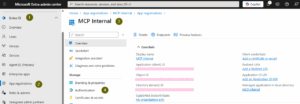
- Scroll down to the App instance property lock section.

- ClickConfigure
You will see a pane with checkbox options.
| Setting | What it means |
| Enable property lock | Turns the lock feature on or off |
| All properties | One-click freeze of all sensitive properties |
| Credentials used for verification | Protect OIDC verification keys |
| Credentials used for signing tokens | Protect SAML signing keys |
| Token Encryption KeyId | Protect the token encryption configuration |
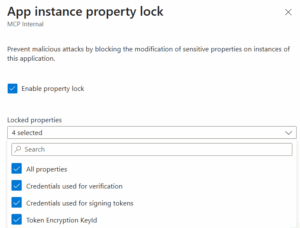
For best practice, select All properties. This conveniently handles all sensitive properties in one go, locking the ability to modify credentials used for signing tokens, verification credentials, and the token encryption key identifier.
- Select Save to apply the configuration.
Situation to Use App Instance Property Lock
Here’s where most admins go wrong: they turn everything on all the time. That’s not smart.
Use property lock when:
- ✔ Your app is already configured and deployed
- ✔ Keys are working and tested
- ✔ You want to prevent tenant admins from touching sensitive values
- ✔ You manage multiple tenants or SaaS deployments
Avoid locking properties when:
- ✘ You’re still setting up new key credentials
- ✘ You expect changes or new federation scenarios
- ✘ Your developers are experimenting with signing or encryption
Microsoft built this feature for a reason: tenants break each other’s settings way too easily. Enabling App Instance Property Lock is a non-negotiable step toward achieving a truly robust, Zero Trust security posture for your SaaS solution.