Security teams frequently encounter situations where they need to immediately stop an application’s access to organizational resources. Whether it’s suspicious API activity, a compromised integration, or a compliance requirement, administrators need a solution that blocks access instantly without destroying configuration data that took weeks to set up.
Application deactivation in Microsoft Entra ID provides this capability, allowing you to halt an app’s access while preserving all settings for future investigation or reactivation.
What Does Deactivating an Enterprise Application in Microsoft Entra Mean?
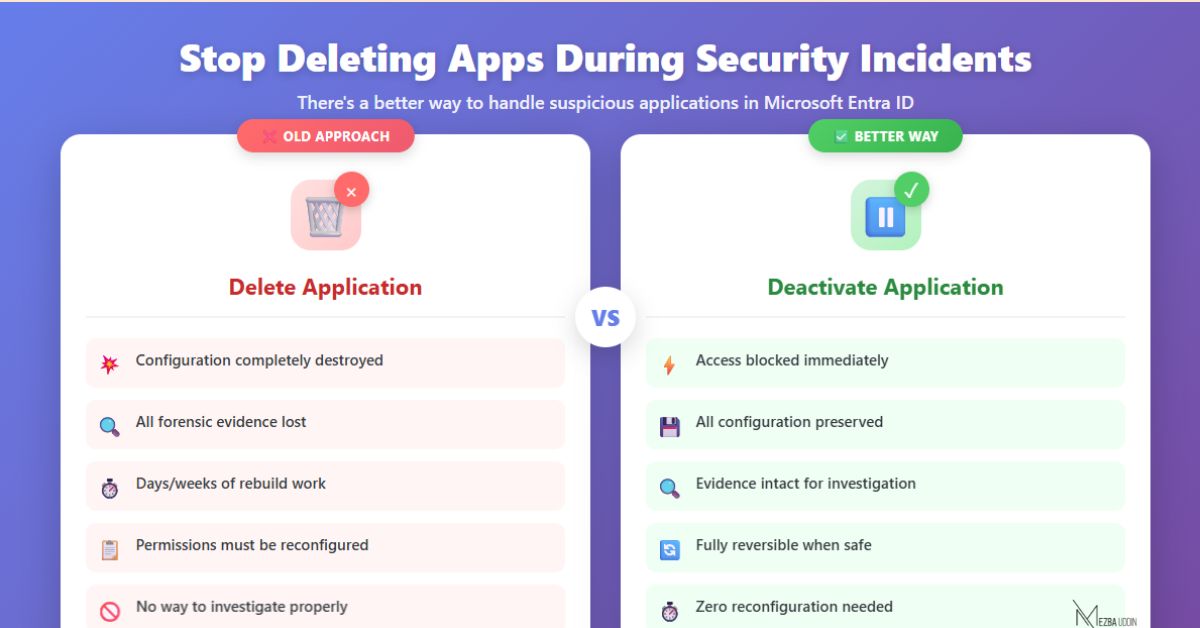
Deactivating an enterprise application stops it from accessing your organization’s resources without deleting its configuration. When you deactivate an app in Microsoft Entra, you immediately prevent it from getting new access while preserving all its settings and configuration data.
When you deactivate an application:
- Access tokens: The app can no longer request new access tokens
- User sign-in: Users cannot sign in and receive an error message
- Existing tokens: Current access tokens remain valid until they expire (typically 1 hour)
- Configuration preservation: All permissions, settings, user assignments, and certificates remain intact
When to Deactivate an Enterprise Application
- Conducting Security Investigations Without Losing Data: When you suspect a security issue but need time to investigate, deactivation stops the app’s access immediately while preserving all configuration data for forensic analysis.
- Temporary Application Suspension for Compliance: When a vendor’s security certificate expires or you’re waiting for them to patch a vulnerability, deactivation lets you pause the integration without rebuilding everything from scratch.
- Preserving Complex Application Configurations in Microsoft Entra: Enterprise applications often require weeks to configure properly. Custom API permissions, user role mappings, and federated authentication settings are preserved during deactivation, allowing you to reactivate without reconfiguration.
- Application Deactivation During Compliance Audits: During compliance reviews, you can temporarily disable applications that don’t meet current security standards while working with vendors to update them.
📝 Note:
Before deactivating the application, remove all assigned owners.
This ensures that only users with the tenant-wide microsoft.directory/applications/enable permission can reactivate the application.
How to Deactivate Enterprise Applications Using Microsoft Graph API
Prerequisites for Deactivating Applications in Microsoft Entra ID
You need:
-> Role: Cloud Application Administrator or Application Administrator
-> API permissions: Application.ReadWrite.All (delegated or application) / Application.ReadWrite.OwnedBy (application, for owned apps only)
1. Find Your Application ID in Microsoft Entra
If you don’t have the application ID, search by name:
GET https://graph.microsoft.com/v1.0/applications?$filter=displayName eq 'YourAppName'2. Deactivate the Enterprise Application Using Graph API
Use the PATCH endpoint to set the isDisabled flag:
PATCH https://graph.microsoft.com/beta/applications/{application-id}
Content-Type: application/json

{
    "isDisabled": true
}
3. Verify Application Deactivation Status Confirm the deactivation
GET https://graph.microsoft.com/beta/applications/{application-id}Look for "isDisabled": true in the response.
How to View All Deactivated Applications in Microsoft Entra ID
GET https://graph.microsoft.com/beta/applications?$filter=isDisabled eq trueCheck Specific Application Deactivation Status
GET https://graph.microsoft.com/beta/applications/{application-id}?$select=displayName,isDisabled,appIdHow to Reactivate Enterprise Applications in Microsoft Entra ID
PATCH https://graph.microsoft.com/v1.0/applications/{application-id}
Content-Type: application/json

{
    "isDisabled": false
}
Verify Successful Application Reactivation Confirm reactivation status:
GET https://graph.microsoft.com/v1.0/applications/{application-id}?$select=displayName,isDisabledYou should see "isDisabled": false in the response.
Application deactivation in Microsoft Entra ID is an essential security control that gives administrators the ability to respond quickly to threats without sacrificing operational efficiency.
By understanding when to use deactivation versus other blocking methods, following the proper API procedures, and implementing best practices during investigations, you can protect your organization’s resources while maintaining the flexibility to restore access when appropriate.