SharePoint content governance usually becomes a priority only after something goes wrong.
- A site gets overshared.
- An owner leaves the organization.
- A sensitive file becomes discoverable.
- Or Copilot comes into the conversation, and suddenly everyone wants to know what content is visible.
That’s why Microsoft’s Content Management Assessment in SharePoint Advanced Management (SAM) is such a relief. I will explain more about it further in the blog.
Most Tenants Don’t Have Governance!
Here’s what I’ve observed across Microsoft 365 environments: the larger your tenant grows, the harder it becomes to answer simple questions like:
- Where is content overshared?
- How many sites are basically abandoned?
- Do important sites even have the right owners?
- Are we allowing internal users too much access unintentionally?
- If we enable Copilot broadly… what will it surface?
The scary part is that most of these are not technical issues. There are visibility issues. Your environment may be full of small, silent risks that don’t trigger alerts, don’t show errors, and don’t generate tickets, until something becomes a governance incident.
This is why an assessment tool matters. You need a way to quickly say:
Show me what’s risky. Show me what’s broken. Show me what’s drifting.
And show it without having to write scripts, export reports manually, or stitch together governance insights from ten different admin portals. This is what Content Management Assessment does!
What is the Content Management Assessment Tool?
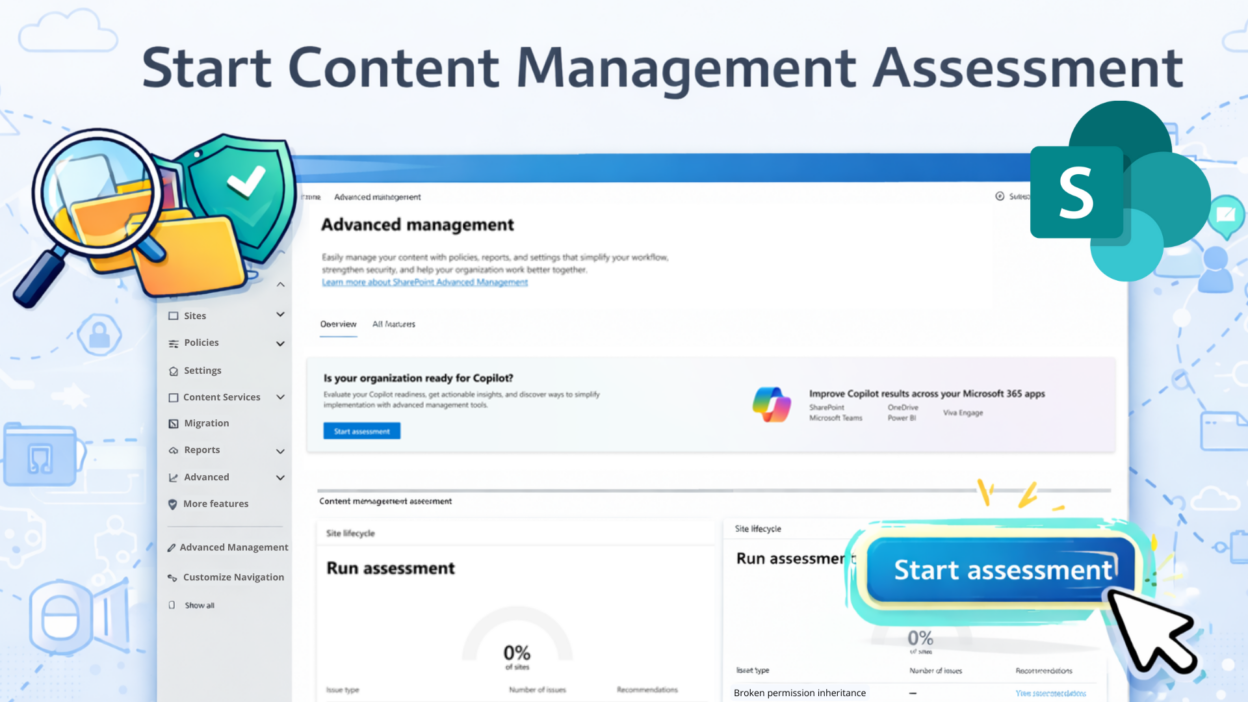
Content Management Assessment is a built-in capability in SharePoint Advanced Management (SAM) that helps admins quickly evaluate how well content is managed across their SharePoint environment.
With a single assessment run, it highlights common governance risks like oversharing, inactive sites, missing site owners, and broken permission structures, and provides clear recommendations to fix them.
It is a one-click evaluation of your SharePoint content governance posture. It’s designed to be simple and guided. And you don’t need to be a deep technical expert to use it effectively.
Once started, it runs a set of SharePoint Advanced Management reports across your tenant and presents the results in a clean dashboard with:
- which sites are impacted
- what issues were found
- why it matters
- what to do next
- What Reports Are Included
When you hit the “Start Assessment” button, the tool runs a suite of essential reports that includes these core reports:
SharePoint Inactive Sites Report
The SharePoint Inactive Sites Report identifies sites that haven’t shown activity in the last 180 days. This is one of the most important reports in SharePoint governance, because inactive sites are rarely “empty”; they often still contain business-critical files, sensitive documents, and old permissions.
From a content management and compliance perspective, inactive sites create a few common risks:
- Outdated permissions still granting access to users who don’t need it anymore
- Ownerless or unmanaged sites that stay untouched for years
- Overshared content sitting quietly, without any regular review
- Increased data sprawl and storage consumption across Microsoft 365
This report is useful for admins who want to improve SharePoint lifecycle management. Once these inactive sites are identified, the next steps usually include:
- validating if the site is still required
- confirming site owners
- applying retention, archiving, or cleanup decisions
In short, the inactive site activity report in SharePoint Advanced Management is the best starting point for reducing SharePoint clutter and improving long-term governance.
SharePoint Site Ownership Policy Report
The SharePoint Site Ownership Policy Report focuses on detecting sites with no owners or only one owner.
This report flags sites that are either:
- Ownerless SharePoint sites (no valid site owner)
- Sites with only one owner (single point of failure)
Because when a site has no proper owner:
- access requests pile up
- content stays unmanaged
- External sharing can remain open
- Audit and compliance actions become difficult
And when a site has only one owner:
- If that person leaves the organization, the site becomes effectively “orphaned.”
- Admin intervention becomes necessary
This is why site ownership governance is considered a core part of content security and tenant hygiene. The remediation for this report is usually straightforward and high-impact:
- Enforce at least two site owners per site
- Assign owners for business-critical sites
- Use policy-driven governance to prevent future ownerless site creation
If you’re trying to strengthen SharePoint content governance, this is one report you should treat as a priority.
SharePoint Broken Permission Inheritance Report
The SharePoint Broken Permission Inheritance Report identifies sites where inheritance has been broken, which means the site (or its content) is using unique permissions instead of inheriting permissions from the parent.
Broken inheritance is not always bad; sometimes it’s necessary. But at scale, it often means:
- inconsistent access models across sites
- complex permission trees that are hard to audit
- users getting access “somewhere” but no one knows why
- difficult Copilot readiness planning because access hygiene becomes unclear
From a security viewpoint, this report supports:
- SharePoint permissions audit
- least privilege access model
- cleanup of unnecessary unique permissions
If you’re doing a SharePoint access review or preparing for Copilot, this report becomes extremely valuable because Copilot depends heavily on clean permission boundaries.
Unrestricted Company Links Sharing Report
This report highlights sites or content shared with: Everyone Except External Users (EEEU), which means company links.
But in practice, it often means:
- ✅ all employees
- ✅ interns
- ✅ contractors
- ✅ temporary staff
- ✅ new joiners
- ✅ basically the entire internal directory
So when content is shared with all users in the company, the risk isn’t external leakage; the risk is internal oversharing.
This report helps admins detect:
- broad internal access granted unintentionally
- sites where content visibility is wider than business intent
- governance gaps in internal sharing controls
This becomes especially important in:
- SharePoint security reviews
- Microsoft 365 internal access governance
- Copilot readiness assessments (because Copilot will surface content to users who already have access)
A common remediation approach includes:
- Replacing EEEU with appropriate security groups
- Tightening site access policies
- Implementing access controls aligned with business units
If your goal is to reduce SharePoint oversharing risks, this report is one of the fastest ways to spot high-impact issues.
Shared Links in SharePoint Online
Sharing links is convenient, but they often result in:
- content being accessible beyond the intended audience
- “edit links” being forwarded and reused
- access continuing longer than expected
- lack of traceability of who accessed what and when
This SAM report helps you discover sites where sharing links may allow:
- broad access inside the organization
- link-based access that bypasses structured group permissions
- high-risk sharing configurations
Once flagged, admins can take actions like:
- restricting default link types
- enforcing expiration for sharing links
- preventing “anyone with the link” access based on policy
- guiding site owners toward group-based access instead of link-based access
This report is especially important for organizations trying to improve: compliance posture and tenant data governance.
If your tenant relies heavily on links rather than structured access, this report becomes extremely valuable.
⏳ All reports can take time to run. Depending on your tenant size, reports may take 2 hours to 72 hours.
How to Run Content Management Assessment Test
I promised this was easy, and I meant it. But before you go clicking around, let’s make sure you have the right licenses.
To use Content Management Assessment, your organization needs a base license:
Office 365 E3/E5 or Microsoft 365 E1/E3/E5.
On top of that, you need one of two things:
- A Microsoft 365 Copilot license: If even one person in your org has a Copilot license, you (the admin) get access to these SAM features.
- SharePoint Advanced Management (SAM) license: If you don’t have Copilot yet, you can just buy the SAM license standalone
You need to be a SharePoint Administrator or have equivalent permissions.
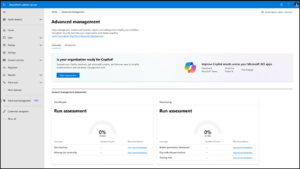
- Sign in to the SharePoint admin center
- On the LHS, select Advanced Management
- In the ‘Overview’ tab, you’ll see a button ‘Start assessment.’
Once you start the assessment, SAM runs the required reports, analyzes them, and presents the findings.
A Governance Tool That Finally Admin-Friendly
By running a structured set of reports, the assessment provides a clear and actionable view of content management health across the tenant. More importantly, the results are presented in an admin-friendly experience with remediation guidance, making governance improvements far more practical and measurable.
In short, Content Management Assessment transforms SharePoint governance from a reactive task into a continuous process. When used consistently, especially through monthly reassessments, it helps organizations maintain control, improve compliance posture, and ensure SharePoint remains secure and well-managed.