An employee leaves, but their recurring meetings live on: daily stand-ups, weekly syncs, and monthly reviews. All are still sitting on everyone’s calendar, blocking rooms, confusing attendees, and quietly wasting time.
This usually shows up weeks later, when someone asks, “Is this meeting still a thing?” At that point, you’re not just cleaning calendars — you’re cleaning operational noise.
In this blog, I’ll walk you through how to remove recurring meetings created by former employees using PowerShell only, across all real-world scenarios. I’m deliberately skipping UI-based steps here, and there’s a solid reason for that.
The Three Scenarios You’ll Face
Deleting recurring meetings from former employees isn’t about cleanup — it’s about reducing confusion, preventing scheduling conflicts, and keeping collaboration sane. When a user leaves the organization, their recurring meetings can cause:
- Confusion among attendees
- Meeting rooms are staying blocked indefinitely
- Duplicate meetings are getting scheduled
- Teams are continuing meetings that no longer have an owner
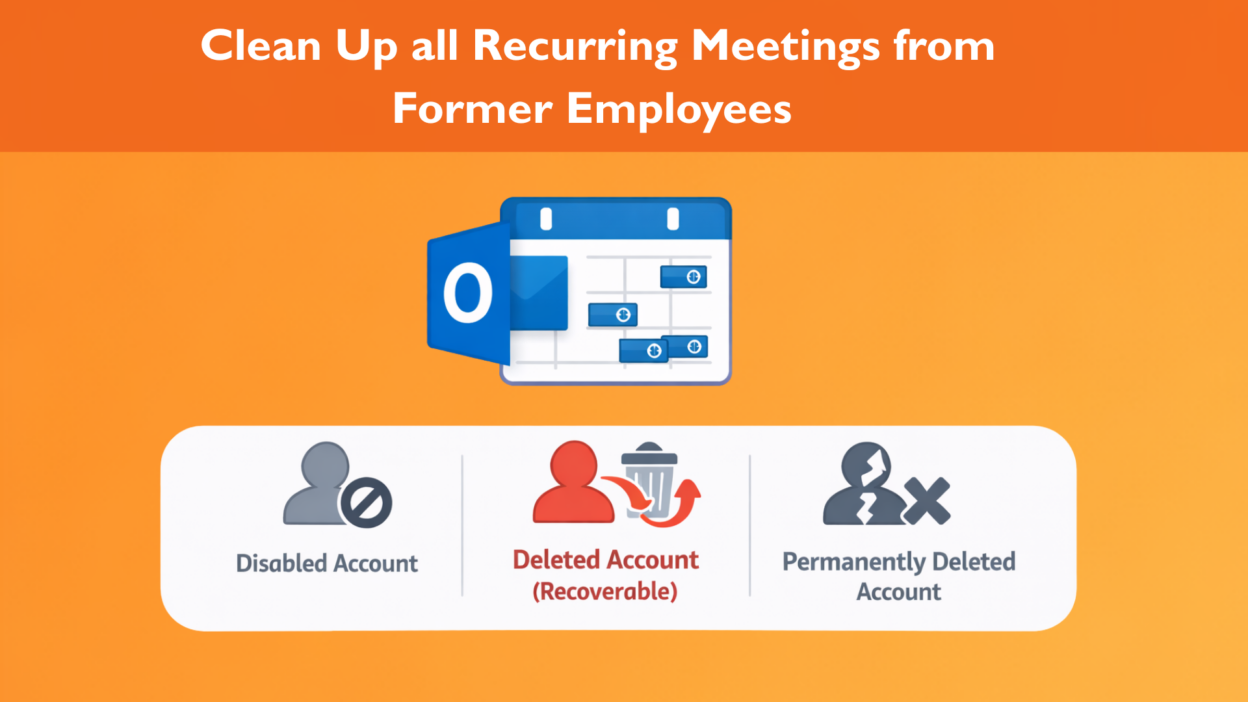
When a user leaves the organization, you’ll typically run into one of three situations and PowerShell gives you control across every account state:
- Scenario 1: Former Employee Account Is Disabled (Mailbox Still Exists)
- Scenario 2: Account Was Deleted but Is Still Within 30 Days (Soft Deleted)
- Scenario 3: Account Is Permanently Deleted (Beyond 30 Days)
Let’s break this down by account state, because that’s what actually determines your approach.
Scenario 1: The Account Is Disabled But Still Exists
This is actually the easiest scenario. If the user account is disabled but the mailbox still exists, Exchange Online gives you a purpose-built cmdlet to cancel meetings organized by that user.
First, connect to Exchange Online PowerShell. Then run this command to see what meetings you’re about to cancel. Never run a destructive command without checking the receipts first. Run this to see what’s on the chopping block:
Connect-ExchangeOnline
Remove-CalendarEvents -Identity "former.employee@yourdomain.com" -CancelOrganizedMeetings -QueryWindowInDays 365 -PreviewOnly
This step is critical. It shows you exactly what will be affected before anything is removed. Key behavior to understand:
- If any instance of a recurring meeting falls within the query window, the entire series is cancelled.
- Meetings without attendees are ignored.
- You cannot target individual meetings — this is intentional and prevents partial cleanups.
- The -PreviewOnly parameter is your safety net—it shows you what will be affected without actually deleting anything.
Take a good look at the output. Once you’re confident everything looks right, remove that parameter and run it again:
Remove-CalendarEvents -Identity "formeremployee@company.com" -CancelOrganizedMeetings -QueryWindowInDays 365
All recurring meetings within the specified timeframe get cancelled, and everyone gets a notification email. The meetings show up as cancelled in their calendars, so there’s no confusion.
One heads up, though: this cmdlet cancels ALL meetings in that timeframe. You can’t cherry-pick specific ones.
Scenario 2: The Account Was Deleted (But It’s Been Less Than 30 Days)
Here’s where people often get stuck. If the account is soft-deleted, you cannot remove meetings directly. Your move here is simple but unintuitive:
- First, restore the user account. (I know, it feels like a step backward, but it’s the only way to send those “Meeting Cancelled” emails to the attendees.)
- Then assign them a license, just temporarily. If you don’t want to waste a license, you can convert the mailbox to a shared mailbox instead, which doesn’t require licensing.
Once restored (even temporarily), the mailbox becomes accessible again and behaves like Scenario 1.
Then, run the same Remove-CalendarEvents cmdlet I showed you above to clean everything up. This might feel like a workaround, but it’s the only way to cancel meetings properly so attendees are notified.
Scenario 3: Account Is Permanently Deleted (Beyond 30 Days)
This is the hardest scenario and the most dangerous if mishandled.
The account is gone, the mailbox is purged, but the recurring invites are still sitting on 20 other people’s calendars. Since the “organizer” no longer exists, there’s no mailbox to send a cancellation from.
But there’s still a solution using Compliance Search!
1. Find the Meetings:
First, we create a search to locate every meeting where the former colleague was the author.
Connect-IPPSSession
New-ComplianceSearch -Name "Cleanup_Ghost_Meetings" -ExchangeLocation All -ContentMatchQuery 'kind:meetings AND author:"Former Employee Name"'
Start-ComplianceSearch -Identity "Cleanup_Ghost_Meetings"
New-ComplianceSearch -Name "CleanupFormerEmployeeMeetings" -Description "Removing old meetings" -ContentMatchQuery '(kind=meetings)(senderauthor="formeremployee@company.com")' -ExchangeLocation All -Force
2. Verify the Count:
Get-ComplianceSearch -Identity "Cleanup_Ghost_Meetings" | Select-Object Status, Items
3. The Purge:
Once you’re sure you’ve found the right invites, it’s time to delete them. Warning: This doesn’t send a “cancellation” email; it just yanks the item out of everyone’s mailbox silently!
New-ComplianceSearchAction -SearchName "Cleanup_Ghost_Meetings" -Purge -PurgeType HardDelete
Practical Offboarding Advice
The absolute best way to handle this? Don’t wait until after someone leaves! Either have departing employees cancel their own recurring meetings before they go or transfer ownership of important recurring meetings to someone who’s staying.
If you want to stop doing this manually, build it into your offboarding script! Before you flip the switch on a user’s license, run Remove-CalendarEvents.
Hopefully, this helps you keep your tenant’s calendar a little cleaner.