From emails and Teams chats to SharePoint documents and Copilot interactions, enterprise data must be retained properly and protected from accidental or intentional deletion.
While Microsoft 365 offers robust retention policies to manage the data lifecycle, there exists a persistent risk: the human element. Whether it is an accidental configuration error by an admin or a more sinister action from a compromised account, the ability to weaken or remove retention settings can lead to catastrophic compliance failures.
What if someone modifies or disables a retention policy later, even unintentionally?
This is exactly why I recommend Preservation Lock. I often describe Preservation Lock not just as a feature, but as a “final guardrail.” It is the architectural equivalent of a one-way ratchet, you can tighten it, but you can never loosen it.
Quick Recap: Retention Policy vs Retention Label Policy
Before jumping into Preservation Lock, it’s important to understand the two policy types it applies to. The following table breaks down these differences from an administrative and technical perspective:
| Retention Policy | Retention Label Policy | |
| Granularity | Container Level: Applies to the entire location (e.g., all mailboxes, all sites). | Item Level: Applies to specific emails, documents, or folders. |
| Applicability | Applies to all content within selected locations | Applies only to labeled items |
| Typical use case | Broad compliance retention across workloads | Granular retention for specific content types |
| Target locations | Exchange mailboxes, SharePoint sites, OneDrive, Teams messages, M365 Groups, Viva Engage, public folders | SharePoint documents, folders, Exchange emails, Teams messages (where supported) |
| Retention consistency | Same retention rules for everything in scope | Different retention rules per label |
| User involvement | Fully admin-controlled | Can be user-applied or auto-applied |
| Automation support | Based on selected locations only | Can auto-apply based on content conditions or events |
| Retention start point | Based on policy configuration (created/modified time, etc.) | Can start from label application, event, or content creation |
| Records management | Cannot mark items as records | Can mark items as records or regulatory records |
| Flexibility | Low (one rule for many items) | High (custom rules per content type) |
| Preservation Hold Library impact | Modified SharePoint/OneDrive content stored in Preservation Hold Library | Same behavior when retention applies |
| Preservation Lock support | Supported for all retention policies | Supported only if policy contains regulatory record labels |
| Best suited for | Organization-wide compliance requirements | Department-specific or content-specific governance |
| Complexity | Simple to configure | More complex but more precise |
| Example | Retain all mailboxes for 7 years | Retain contracts for 10 years, HR docs for 5 years |
In a mature governance strategy, you rarely choose one over the other; you use them in tandem.
- Use Retention Policies for “baseline” compliance, for example, a policy stating that all employee emails must be kept for 3 years. This ensures a minimum standard of safety without requiring user action.
- Use Retention Labels for “high-value” or “high-risk” data, such as a specific tax document or a project contract that must be kept for 10 years and requires a manual review before it is purged.
This means a single mistake or a malicious action can compromise years of protected data. Even with role-based access controls, human error remains a risk. That’s why Microsoft introduced Preservation Lock — to make retention configurations tamper-resistant.
What is Preservation Lock in Microsoft 365?
With the inner mechanisms out of the way, I want to pivot to the outer layer, the comprehensive Preservation lock.
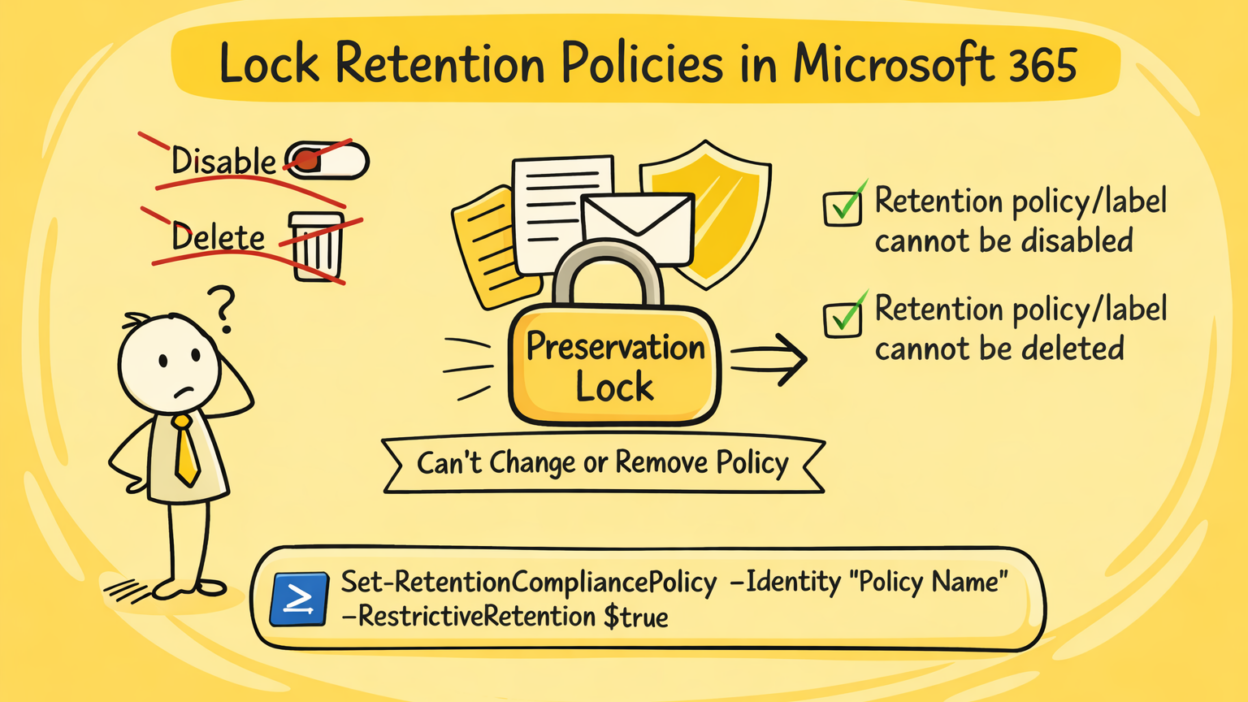
Preservation Lock is a compliance feature that permanently restricts certain changes to retention policies and retention label policies.
It’s designed to meet stringent regulatory requirements that demand data immutability. Once you apply this lock to a retention policy or a retention label policy, it becomes protected from everyone, including Global Administrators and Microsoft Support.
It’s specifically designed for:
- Regulatory compliance
- Audit protection
- Preventing rogue or accidental admin actions
What Happens When a Retention Policy or Label Policy Is Locked?
Once Preservation Lock is applied to a retention policy:
- ✅ The policy cannot be disabled
- ✅ The policy cannot be deleted
- ✅ New locations can be added
- ❌ Existing locations cannot be removed
- You can add new locations (SharePoint sites, mailboxes, etc.) to the policy, but you can never remove an existing location.
- ✅ Retention duration can be extended
- ❌ Retention duration cannot be shortened
- You can increase a retention period (e.g., from 5 years to 7 years), but you can never decrease it.
- ✅ New labels can be added
- ❌ Existing labels cannot be removed
️ Important requirement: To apply Preservation Lock to a label policy, it must contain only labels that mark items as regulatory records. If your policy includes non-regulatory labels, you must remove them first.
In short: You can only make the policy stricter, never weaker.
Considerations Before You Implement the Control
Because Preservation Lock is irreversible, it is the “nuclear option” of data governance. Before implementation, a technical lead must evaluate the following:
- Storage Costs: For SharePoint and OneDrive, retained data lives in the Preservation Hold Library (PHL). This library consumes your tenant’s storage quota. If you lock a “Retain Forever” policy, you are committing to paying for that storage indefinitely.
- Regulatory Records: If you are locking a retention label policy, it must only contain labels that mark items as regulatory records. You cannot lock a policy containing standard retention labels.
- Adaptive Scopes: It is a common point of confusion, but as of early 2026, adaptive policy scopes do not support Preservation Lock. You must use static scopes if the lock is required.
- Preservation Lock requires: Microsoft 365 E5 license. Without E5, the RestrictiveRetention parameter won’t work.
How to Configure Preservation Lock Using PowerShell
You’ll notice something interesting: There’s no UI option in the Microsoft Purview portal to enable Preservation Lock. This is a deliberate “friction point” to ensure that an admin doesn’t accidentally lock a policy with a misaligned click. To enable it, you must use the Security & Compliance PowerShell module.
Step 1: Use the appropriate module and connect or use modern authentication based on your setup.
Connect-IPPSSession
Step 2: Verify the identity of the policy you intend to lock. Run:
Get-RetentionCompliancePolicy | Select Name, RestrictiveRetention
This will list all retention policies in your tenant. Note down the Name of the policy you want to lock.
Step 3: It’s time to put the lock. To engage the lock, use the Set-RetentionCompliancePolicy cmdlet with the RestrictiveRetention parameter.
Set-RetentionCompliancePolicy -Identity "<Policy Name>" -RestrictiveRetention $true
Expert Note: Upon executing this command, PowerShell will trigger a high-visibility confirmation prompt. You must enter ‘Y’ to proceed. Once you hit Enter, the change is permanent.
Step 4: Verify the status by checking the RestrictiveRetention property. If the value returns True, the policy is now immutable.
Get-RetentionCompliancePolicy -Identity "SEC-Compliance-Policy" | Select Name, RestrictiveRetention
Use Cases When Preservation Lock is Non-Negotiable
While Preservation Lock is a powerful tool, it is most effective when mapped to specific risk profiles. In my research, I’ve categorized its most critical applications into three primary pillars of organizational stability:
1. Hardening Regulatory Compliance:
In sectors like Finance (SEC/FINRA) or Healthcare (HIPAA), compliance isn’t just a guideline; it’s a legal mandate.
- The Problem: Standard policies are “soft.” A well-intentioned admin might reduce a 10-year transaction document retention period to 5 years to save storage costs, inadvertently triggering millions in regulatory fines.
- The Solution: Preservation Lock transforms your policy into a “Set-and-Forget” anchor. It provides auditors with technical proof that the retention period is immutable, effectively removing the risk of human error or policy fatigue from the compliance equation.
2. Safeguarding Evidence Integrity:
During prolonged legal investigations or multi-year litigation, the integrity of your data is your strongest asset.
- The Problem: During high-stakes internal investigations, there is a theoretical risk of a “rogue administrator” or a compromised high-level account attempting to purge incriminating evidence by disabling a retention policy.
- The Solution: By locking the policy, you create a cryptographic guarantee of preservation. Even if an account is compromised, the attacker cannot delete the “lock” This ensures that the chain of custody remains unbroken and that evidence is available when the court demands it.
3. Mitigating “Admin Drift” in Complex Environments:
Large enterprises often suffer from “too many cooks in the kitchen.” With distributed teams and global administrative permissions, configuration drift is inevitable.
- The Problem: In an environment with 50+ Global Admins or Compliance Admins, a junior admin might see an “old” policy and delete it, thinking they are performing “tenant cleanup.”
- The Solution: Preservation Lock acts as a governance stabilizer. It forces a “Measure Twice, Cut Once” culture. Because the policy cannot be deleted or weakened, it remains a permanent fixture of the tenant architecture, ensuring that governance stays consistent regardless of staff turnover or role changes.
Best Practices Before Enabling Preservation Lock
- Review retention durations carefully
- Confirm targeted locations are correct
- Ensure compliance requirements are finalized
- Test policies in non-production environments if possible
- Get legal/compliance team approval
A rushed Preservation Lock can cause long-term operational pain!
The Principle of Maximum Caution
In my years of observing tenant configurations, the most common mistake is applying Preservation Lock to a “catch-all” policy. Do not lock your global default policy. Instead, create highly targeted policies for specific departments (Legal, Finance, Executive) or specific projects.
Preservation Lock is your strongest defense against rogue actors and compliance gaps, but it requires a disciplined hand. It ensures that when you tell a regulator that data is being kept for seven years, there is no technical mechanism—malicious or accidental—that can prove you wrong.