We often focus so much on user sign-ins and MFA that we forget about the “ applications and service principals.” But an incorrectly configured application, or a service principal running with a secret that hasn’t been rotated in years, can be just as risky as a weak user account. Actually, it’s often worse because apps usually have higher privileges!
They’re configuration gaps and and they persist largely because there hasn’t been a clean, enforceable way to prevent them.
Microsoft finally gave us a proper way to close them using Application Management Policies in Entra ID.
In this article, I’ll walk through how these policies work and how you can use them to systematically lock down application risk in your Entra environment.
Why Applications Deserve More Suspicion Than Users
Applications in Microsoft Entra ID operate very differently from users, and that difference is often underestimated.
- Users rotate passwords (or are forced to).
- Users leave the company.
- Users trigger alerts.
An application with a long-lived secret, a certificate issued by an untrusted authority, or an improperly defined identifier URI doesn’t look suspicious on its own. There’s no failed sign-in, no MFA prompt to bypass, no obvious anomaly to investigate. Yet over time, these small configuration choices accumulate into meaningful risk, especially since applications frequently hold broader permissions than individual users.
Most security incidents don’t stem from a single reckless decision. They emerge from minor misconfigurations that were never challenged, simply because nothing enforced a boundary.
App management policies exist to introduce those boundaries, placing deliberate limits on how applications can be configured, before convenience quietly turns into exposure.
What Are App Management Policies in Entra?
App Management Policies are a specific type of policy object within Microsoft Entra ID used to enforce a set of governance rules on the lifecycle and configuration of applications and service principals.
At a practical level, these policies act as enforcement points during application creation and updates. When an app registration or service principal is modified, the policy evaluates whether key security properties, such as credential type, secret lifetime, or identifier URI format, comply with the organization’s defined standards. If they don’t, the operation is blocked.
This is fundamentally different from Conditional Access. Conditional Access governs who can sign in and under what conditions. App management policies govern what an application is allowed to look like in the first place.
The policies are defined at the tenant level, but they can be scoped to specific applications or service principals, or applied broadly across the directory. There is no alternate path around the rule, which is precisely why these policies are more impactful than they initially appear.
Prerequisites For App Management Policies
Before configuring app management policies, there are a couple of access and role requirements to be aware of.
To configure or modify app management policies, you need:
- Security Administrator and either Cloud Application Administrator or Application Administrator, or Global Administrator (which implicitly includes all required permissions).
Without the appropriate role combination, the policy settings may appear read-only or fail to load in the Entra admin center, a common point of confusion for first-time viewers.
You can handle all of this through the Microsoft Entra admin center if you prefer a clean UI, or you can use the Microsoft Graph API if you’re looking to automate the process across your entire environment.
How to Configure Application Management Policies in Entra
All the application policies we’re about to discuss live under a single roof within the portal. To get there, just follow these two simple steps:
- Sign in to the Microsoft Entra admin center.
- On the left-hand sidebar, browse to Entra ID > Enterprise apps > Application policies.
Once you’re on the Application policies page, you’ll see the full list of restrictions ready for you to configure. Here are the six essential restrictions you can configure to lock down your tenant.
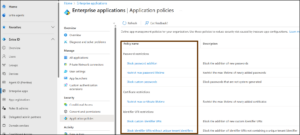
- Block password addition
- Restrict maximum password lifetime
- Block custom passwords for applications
- Restrict maximum certificate lifetime
- Block custom identifier URIs for applications
- Block identifier URIs without unique tenant identifiers
Block Password Addition in App Management Policies
This is the strongest stance you can take against secret sprawl. Application secrets remain the most frequently abused credential type because they’re easy to create, easy to reuse, and often left unrotated for years. This control doesn’t invalidate existing secrets.
It prevents new password-based credentials from being added going forward. In environments that support certificates or managed identities, this is usually the cleanest and most sustainable long-term approach.
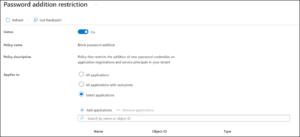
Two related controls matter here:
- blocking password (secret) addition
- blocking symmetric key addition
From a security perspective, both represent the same risk, static, password-based credentials.
It’s common for admins to hesitate here out of concern for legacy dependencies. That concern is valid, which is why the policy supports scoped deployment and exclusions. What tends to cause problems isn’t enabling the control, but delaying it indefinitely because something might depend on secrets.
Restrict Max Password lifetime for Entra App Secrets
Long-lived application secrets are one of the most common and most avoidable security risks in Entra ID. They often persist not because they’re needed, but because no one wants to touch something that “still works.”
This setting enforces a maximum lifetime for newly created password secrets, which ensures rotation is no longer optional.
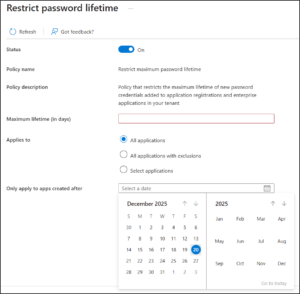
If blocking secrets entirely isn’t feasible yet, this should be considered the baseline control. Secrets that never expire quietly expand the blast radius of any compromise, while rotation limits how long a leaked credential remains useful.
- By limiting the lifetime, you reduce the window of opportunity for an attacker if a secret is ever leaked.
- If you set this to 180 days, any attempt to create a secret with a 2-year expiration will be rejected by Entra ID.
Important nuance: In the Entra admin center, this restriction also applies to symmetric keys. All related lifetime settings must remain aligned across applications and service principals, or the portal will prevent further edits.
Block custom passwords for applications in Microsoft Entra ID
By default, Entra ID allows application secrets to be created using user-defined values. While convenient, this introduces unnecessary risk; humans are poor at generating high-entropy secrets, and those values often get reused or stored insecurely.
The Fix: Enable this setting to block user-defined secrets and allow only system-generated passwords.
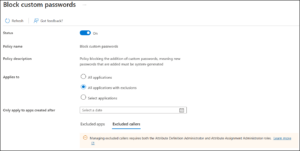
System-generated secrets are longer, randomly generated, and less likely to be reused elsewhere. This control doesn’t eliminate secrets; it simply removes human discretion from how they’re created, which is usually where the risk begins.
Restrict max certificate lifetime for Entra ID application credentials
Just like passwords, certificates shouldn’t last forever. While certificates are generally more secure, a certificate that doesn’t expire for a decade is still a long-term liability.
So, utilize this policy to enforce a maximum lifetime range specifically for newly added certificate credentials.
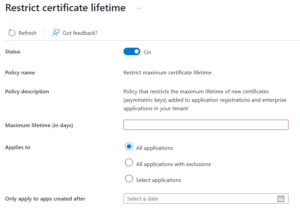
Shorter-lived certificates reduce the impact of:
- leaked private keys
- compromised build pipelines
- service principals that are no longer actively managed
More importantly, it establishes a predictable rotation model, which is essential for maintaining long-term trust in certificate-based authentication.
Block custom identifier URIs to Prevent Spoofing
Identifier URIs define how an application is identified and validated within Entra ID. Allowing arbitrary values increases the risk of audience confusion, naming collisions, and unintended token acceptance.
So, use this setting to block the addition of custom identifier URIs, unless they follow the default, secure formats like api://{appId} or api://{tenantId}/{appId}.
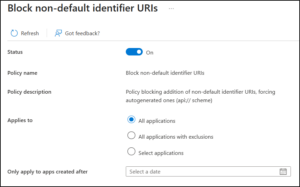
By standardizing identifier formats, you reduce the risk of improper audience validation and make it significantly harder for an attacker to impersonate or spoof a trusted application through URI manipulation.
Block identifier URIs without unique tenant identifiers in Entra ID
This setting adds an additional safeguard to how application identifier URIs are defined by requiring the inclusion of a tenant-unique component.
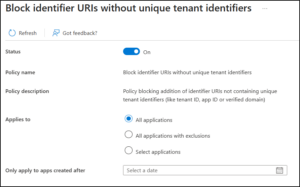
In environments with many internal APIs, identifier reuse can quickly lead to collisions and audience overlap. When URIs aren’t tenant-specific, tokens intended for one application or tenant can be misinterpreted by another, creating subtle and difficult-to-trace security issues.
By enforcing tenant uniqueness in identifier URIs, this policy ensures consistent scoping and predictable token validation. As application footprints grow, that predictability becomes essential, ambiguity is harder to spot and easier to exploit at scale.
The Real Value of App Management Policies
At first glance, app management policies can feel like a lot of control to introduce at once. They don’t need to be. These settings are designed to be adopted incrementally, starting with the areas that present the highest risk and expanding as teams and applications mature.
What makes Entra ID effective isn’t rigidity, but precision. You can enforce strict enforcement where they matter most, allow flexibility where it’s justified, and apply exceptions deliberately instead of relying on trust or habit.
By understanding and applying these six controls, you move beyond reactive administration and into intentional design. They’re foundational controls for any tenant that takes application identity seriously.